Candidates
The Candidates page in Risenoow lists everyone who applied to your roles, with their stage, CV fit and match score, and opens each person's full record: the scores, the interview reading, the written report and your decision. Start here whenever you want to know who applied and who to read first.
Where: Candidates in the left menu
Who can use it: Admins see every role; recruiters see the roles they created
Time needed: A minute to find someone, five to read a record
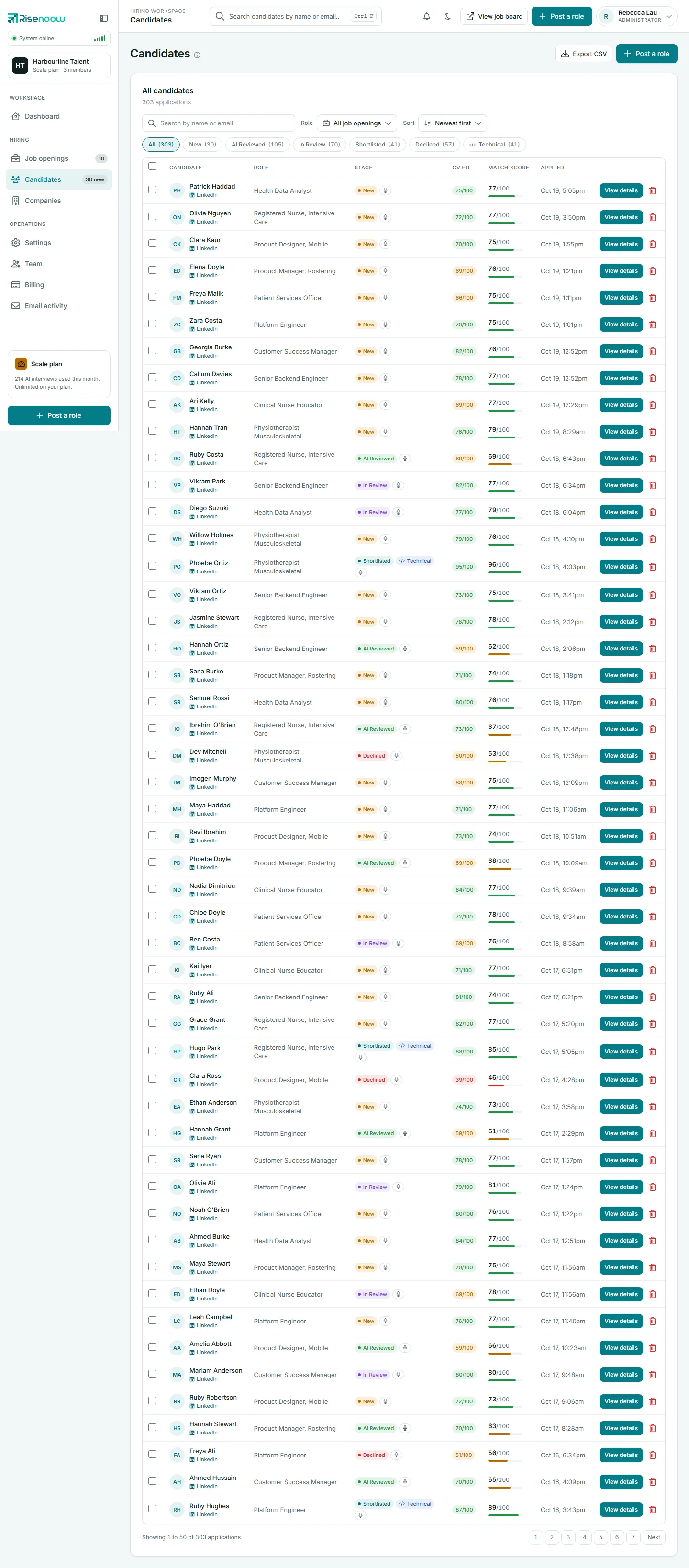
How this section is organised
The first pages cover the list and the record itself. Then come the cards on the Overview tab, one page each, followed by the other tabs, the actions in the right column and a plain English page on how scoring works.
The list and the record
-
Filters, search and sorting
Search by name or email, pick a role, filter by stage or technical interview, sort, page through and export.
-
The candidate record
The header, its buttons, the tabs and the right column, piece by piece.
-
Score tiles
Overall match, CV fit, interview average, technical interview and requirements at a glance.
-
Overview tab
The first tab you see, and the order its cards appear in.
The Overview cards
-
Interview profile radar
Five interview dimensions for this candidate against the others interviewed.
-
Against the scored applicants
Where this match score sits in the field, with the average and your shortlist bar.
-
Summary and next conversation
A short reading of the interview and the questions worth asking next.
-
Dimension by dimension
Each score with its verdict, the candidate's own words and what to ask next.
-
Claims and CV checks
What the interview supported, what it covered and how the CV reads against the role.
The other tabs
-
Written report tab
The full written assessment, section by section.
-
Interview tab
The voice interview recording and transcript.
-
Technical interview tab
The second stage interview, its reading and its recording.
-
Requirements tab
Which of the role's requirements the candidate met.
-
Career profile tab
The candidate's own record as it stood when they applied.
-
Cover letter tab
The letter they wrote for this role.
-
Responses tab
Every written answer, in question order.
-
Follow ups tab
The personalised follow up questions and their answers.
Acting on a candidate
-
Stage and notes
Move a candidate between stages and leave notes for your team.
-
Progress timeline
Where the application has got to, step by step.
-
Invite to a technical interview
Send a second stage interview with camera on.
-
PDF and export
Download a candidate as a PDF, or the list as a spreadsheet.
-
Decline or delete
Turn down an application, or remove it for good.
-
How scoring works
What feeds each score, and what is never judged.
Frequently asked questions
Why can I not see every candidate in the workspace?
Recruiters see candidates only for the roles they created. Admins see every role. Ask an admin to change your role on the Team page if you need wider access.
Where do I start with a new batch of applicants?
Pick the role in the Role menu. The list then sorts by Best CV fit, so the CVs that read closest to the job description are at the top. Open each record and start with the score tiles.
Does a score decide anything on its own?
No. Every score is a reading for you to weigh. The stage only changes when someone on your team changes it.