Voice interview questions
The Voice interview tab of a Risenoow role holds the script the AI interviewer follows: a brief that tells it who it is and what to assess, an optional opening greeting, and the questions it asks, in order. Candidates take this short spoken interview before the rest of the written questions.
Where: Job openings, Edit on a role, then the Voice interview tab
Who can use it: Admins and recruiters (recruiters on their own roles)
Time needed: Five minutes
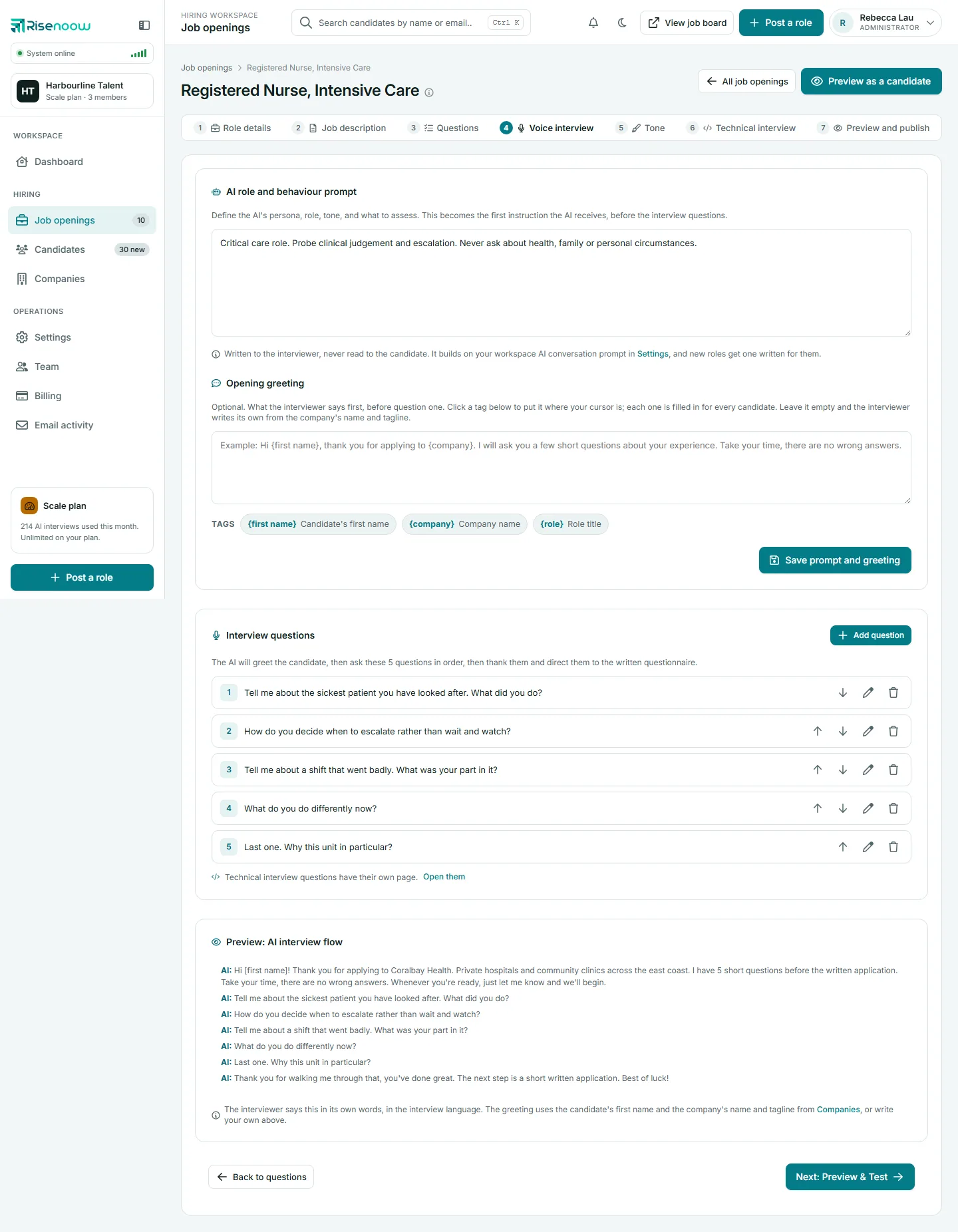
AI role and behaviour prompt
This box defines the interviewer's persona, role, tone and what to assess. It is the first instruction the AI receives, before the questions. It is written to the interviewer and never read to the candidate.
The prompt builds on your workspace's AI conversation prompt in Settings, and new roles get one written for them. Start it with "You are", for example "You are a senior interviewer for this role. Keep a warm, direct tone and ask one question at a time."
Not a greeting
If the prompt opens like a greeting ("Hello", "Hi", "Welcome"), the page warns you. The interviewer greets the candidate by itself; this box tells it who it is and what to assess.
Opening greeting
Opening greeting is optional: what the interviewer says first, before question one, up to 500 characters. Select a tag to insert it where your cursor is. Each tag is filled in for every candidate:
| Tag | Filled in with |
|---|---|
{first name} |
The candidate's first name |
{company} |
The company name |
{role} |
The role title |
Leave it empty and the interviewer writes its own greeting from the company's name and tagline. Select Save prompt and greeting to keep both boxes.
Interview questions
The list shows each question with its number. The interviewer greets the candidate, asks these questions in order, then thanks them and directs them to the written questions.
- Select Add question. The Add voice question window opens.
- Type the Question text. The AI asks it word for word.
- Optionally choose an Image to show while this question is asked. See Images on questions.
- Select Add question.
On each question, the up and down arrows move it earlier or later, the pencil opens Edit voice question, and the bin deletes it after you confirm. With no questions yet, the page offers Add first question.
Preview: AI interview flow
Once the role has questions, Preview: AI interview flow shows the conversation in order: the greeting, each question, and the closing line. The interviewer says this in its own words, in the interview language. The greeting uses the candidate's first name and the company's name and tagline from Companies, or the greeting you wrote.
Language
The interview is spoken in the role's Voice language, set on the Job description tab. Write your questions in that language.
Turning the voice interview off
Turn the Voice interview switch off on the Job description tab and select Save changes. Candidates then go straight from their details to the written questions, and this tab is hidden from the role until you turn voice back on. Your questions are kept.
The voice interview also needs voice screening switched on for the workspace. If it is off, Preview and publish says so and links to Settings.
Moving on
Back to questions returns to the written questions. Next: Preview and publish opens Preview and publish. A link under the list, Open them, goes to the technical interview questions, which belong to a separate, later stage.
Frequently asked questions
How many voice questions should a role have?
When the AI writes the set, you choose between one and five. A short, focused interview is easier for candidates and quicker for you to read.
Does the interviewer read my questions exactly?
The question text is asked word for word. The greeting and closing are said in the interviewer's own words.
Can I write the voice questions in a different language from the job ad?
Yes. Choose the Voice language on the Job description tab and write the questions in that language.
Where do I change the interviewer's tone for every role?
In Settings, under Voice interviewer, in the AI conversation prompt. Each role's own prompt builds on it.