Needs your attention card
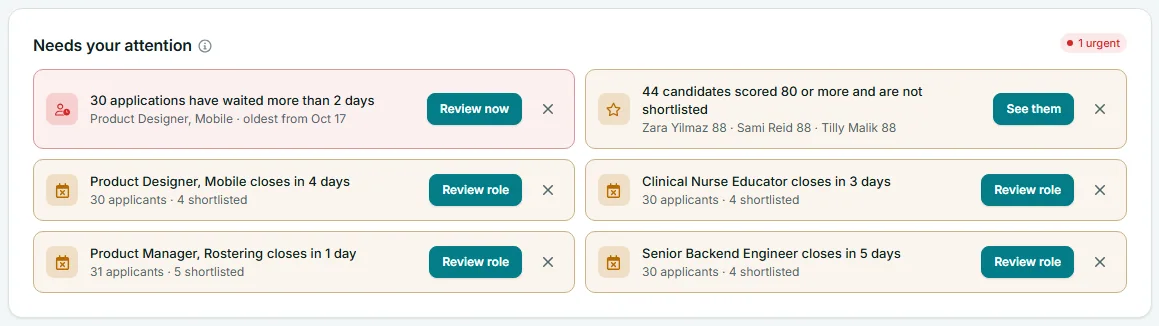
Needs your attention is the first card on the Risenoow dashboard. It lists up to six things that are waiting on you, most urgent first, each with a button that takes you straight to where you act on it. If you read only one card each morning, read this one.
Where: Dashboard, top of the page
Who can use it: Workspace admins and recruiters
Time needed: Under a minute
The pill in the corner
The pill at the top right of the card sums up the list:
| Pill | Meaning |
|---|---|
| 1 urgent (red) | At least one red item is in the list. The number counts the red items. |
| 3 waiting (amber) | There are items, but none of them is red. |
| All clear (green) | Nothing is waiting. The card says Nothing needs you right now. |
What each item means
The card checks for these, in this order, and shows the first six it finds.
| Item | When it appears | Button | |
|---|---|---|---|
| N applications have waited more than 2 days (red) | Applications still at the New stage more than two days after they arrived. The second line names the role with the oldest one and its date. | Review now opens Candidates filtered to New. | |
| N candidates scored 80 or more and are not shortlisted (amber) | Candidates with a match score of 80 or more who are not shortlisted or declined. Up to three names and scores are listed. | See them jumps to Top candidates to decide on. | |
| Technical interview today at 2:00 pm (teal) | A technical interview is booked for today. The second line names the candidate and role, and says when a camera is required. | Open jumps to the Technical interviews card. | |
| N emails could not be delivered (red) | An email from your workspace failed in the last 30 days. The second line shows the reason given. | Email activity opens that page. | |
| Team seats are full: 3 of 3 (amber) | Every seat on your plan is used. Invitations not yet accepted hold a seat too. | Upgrade opens Billing. | |
| AI interviews are running out this period (amber) | At the current pace you will use more AI interviews than your plan allows before the period ends. Shown only to people who manage billing. | See usage opens Billing. | |
| Role closes in N days (amber) | An open role closes within the next 7 days. The second line shows its applicants and how many are shortlisted. | Review role opens Job openings. |
Why two days matters
Strong applicants are usually talking to other employers too. Acting on an application within two days keeps them interested and keeps your response times fair to everyone.
How to hide an item for today
Sometimes you already know about something and want it out of the way.
- Select the cross at the right of the item. Its label reads "Hide this for today".
- A message confirms Hidden until tomorrow and the item disappears.
- A Show hidden link appears in the card heading. Select it to bring every hidden item back.
Hidden items come back on their own the next day. Hiding is remembered in this browser only, so a teammate still sees the item, and so do you on another computer.
An item can come back sooner
An item is hidden by its exact wording. If the wording changes, for example "30 applications have waited" becomes "31 applications have waited", the item shows again, because it now says something new.
Role scope and this card
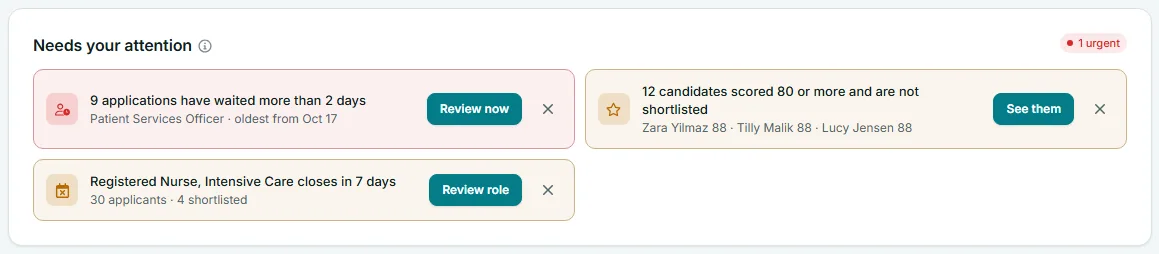
The card always covers every role you can see. Picking a role in Role scope does not change it. A recruiter's card covers only the roles they created, apart from the email and team seat items, which are about the whole workspace.
Frequently asked questions
Why does the card show only six items?
Six is the limit, so the card stays readable. The order puts applications waiting too long first. Clear those and the next items move up.
Why is a candidate with a score of 85 not in the strong candidates item?
They may already be shortlisted or declined, which takes them out. A candidate without a score yet is not counted either.
Does hiding an item hide it for my whole team?
No. Hiding is for you, in the browser you are using, until the next day.
Why do I not see the AI interviews running out item?
It shows only to people who can manage billing, usually the workspace admin. Recruiters do not see it.
What counts as urgent?
Two kinds of item are red: applications waiting more than two days, and emails that could not be delivered.