Companies
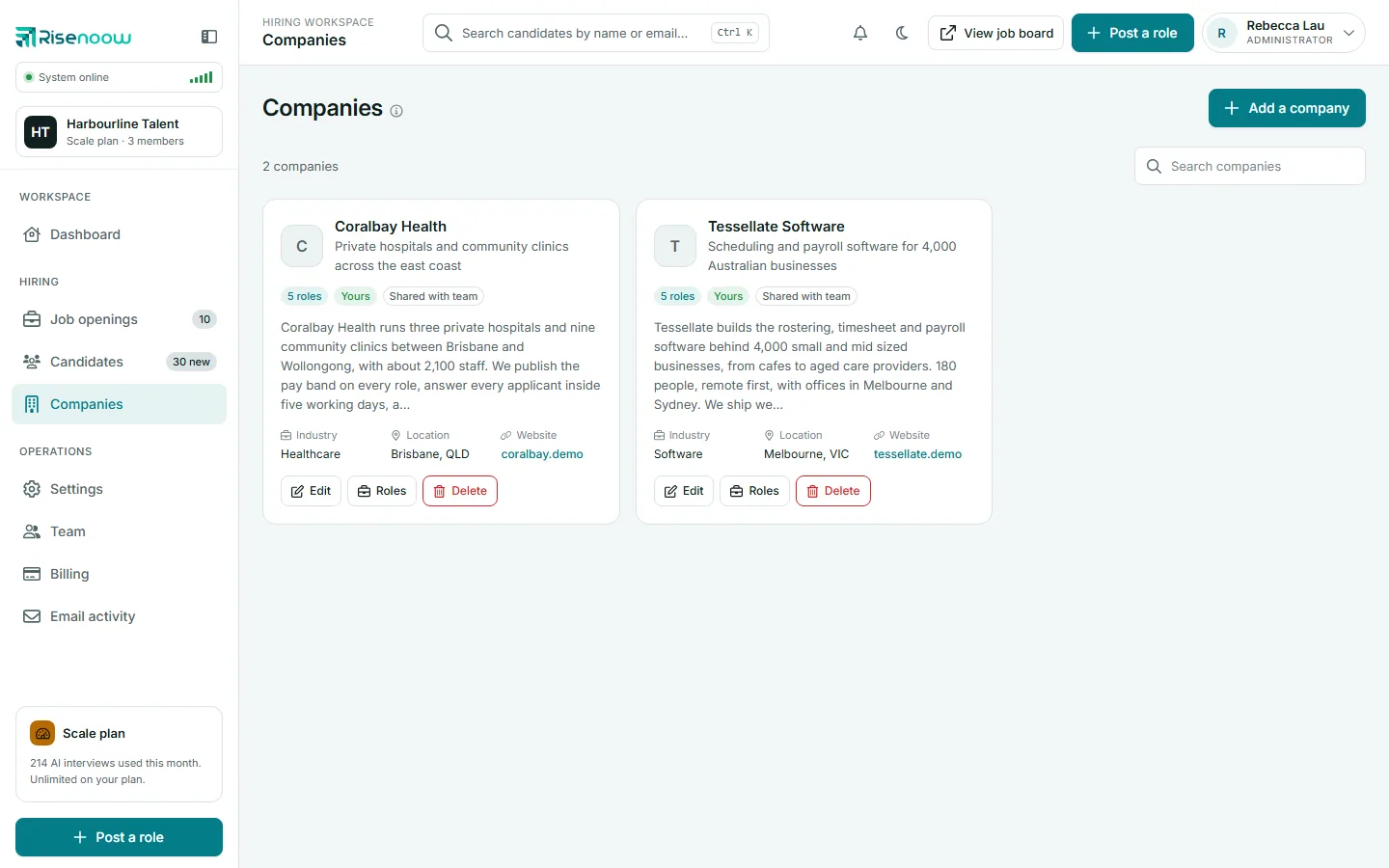
The Companies page in Risenoow lists the organisations you hire for. Each job opening is linked to a company, and that company's introduction appears above its job descriptions and in the AI interviewer's greeting, so candidates know who they are talking to from the first sentence.
Where: Companies in the left menu, under Hiring
Who can use it: Workspace admins and recruiters (recruiters see a narrower list)
Time needed: Under a minute to find a company
Why companies matter
One workspace can hire for several employers. A recruitment agency might hire for a hospital group and a software firm at the same time, as the example workspace does. Keeping each employer as its own company means:
- every job description opens with the right company introduction,
- the AI interviewer greets candidates on behalf of the right employer,
- each role card and job board listing carries the right logo.
If you only hire for your own organisation, add it once and pick it for every role.
What each company card shows
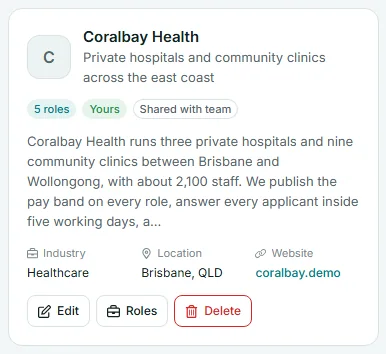
| Part of the card | What it tells you | |
|---|---|---|
| Logo | The uploaded logo, or the first letter of the name when there is none. | |
| Name and tagline | The company name, with its one line tagline underneath. | |
| N roles | How many job openings are linked to this company. | |
| Yours | You added this company. | |
| Created by | Shown to admins when someone else added it, for example Created by admin or a recruiter's name. | |
| Shared with recruiters, Creator and admins or Only admins | Shown to admins. Says whether every recruiter can pick this company for their roles, or only the recruiter who added it and the admins can see it. | |
| Shared by admin, read only | Shown to a recruiter on a company they can use but not change. | |
| Introduction | The first part of the company introduction. | |
| Industry, Location, Website | The facts entered for the company. The website opens in a new tab. |
Find a company
The count above the cards shows how many companies you can see, for example "2 companies". Type in Search companies to filter the cards. The search matches the company name, industry and location.
The buttons on a card
- Edit opens the company form so you can change any detail. See Add or edit a company.
- Roles opens Job openings, where you can see the roles you hire for.
- Delete removes the company, after you confirm.
You only see these buttons on companies you are allowed to change.
Who can see and change a company
Admins see every company in the workspace, whoever added it. They can edit or delete any of them. When an admin adds or edits a company, the Share with recruiters box decides whether every recruiter can pick it for their roles. That includes a company a recruiter added, which an admin can share with the rest of the team.
Recruiters see the companies they added themselves and the companies an admin shared with recruiters. A note at the top of the page says so: "Companies you create are visible to you and your admins only." A recruiter can edit or delete only the companies they added. A shared company carries Shared by admin, read only, and its card reads "You can pick this company for a role. Only its creator can change or delete it." Other recruiters do not see a recruiter's company unless an admin shares it.
For the full picture of what each role can do, see Permissions.
Delete a company
- Open Companies in the left menu.
- Find the company and select Delete on its card.
- Read the confirmation. It names how many roles use the company.
- Select Delete to confirm.
Before you delete
Deleting a company does not delete its roles. They stay, without a company, as the confirmation says. Those roles lose the company introduction and logo until you link them to another company.
When the page is empty
A new workspace shows "No companies yet. Add the organisation you hire for so you can attach it to job openings." Select Add your first company to begin. The first run setup also asks for your company, so many workspaces already have one.
Frequently asked questions
Can I hire for more than one company in one workspace?
Yes. Add each employer as its own company and pick the right one when you post a role. Each role shows its own company introduction and logo.
Why can a recruiter not edit a company?
Recruiters can change only the companies they added. A company an admin shared with the team is read only for recruiters, so its details stay consistent across every role.
What happens to roles when I delete a company?
The roles stay open and keep their candidates. They have no company linked until you choose one again.
Does the company introduction appear anywhere candidates see?
Yes. It appears above the job description and the AI interviewer uses it in its greeting at the start of the voice interview.