Field types
Each Risenoow screening question has an answer type that decides how a candidate answers it: a line of text, a paragraph, one choice, several choices, yes or no, or a rating for each item in a list. Pick the type that gets you the clearest evidence with the least effort for the candidate.
Where: Add Question or Edit on a role's Questions tab, under How should they answer?
Who can use it: Admins and recruiters (recruiters on their own roles)
Time needed: A few seconds to choose
The six choices in the editor
The editor offers six choices, built on five kinds of field. Yes / No is a multiple choice question with the two options already filled in.
| Choice | Field kind | Best for |
|---|---|---|
| Short answer (one line) | Text | A notice period, a licence number, a short fact |
| Paragraph (essay / long) | Text area | An example, a story, a reason |
| Multiple choice (pick one) | Single choice | Bands such as years of experience, availability |
| Checkboxes (pick several) | Multiple choice | Tools used, tasks done, certificates held |
| Yes / No (true / false) | Single choice | A simple eligibility check |
| Rating (rate a list) | Rating grid | Self rated skill in several areas |
Short answer
The candidate sees a single line box under the question. Use it when the answer is a few words.
Paragraph
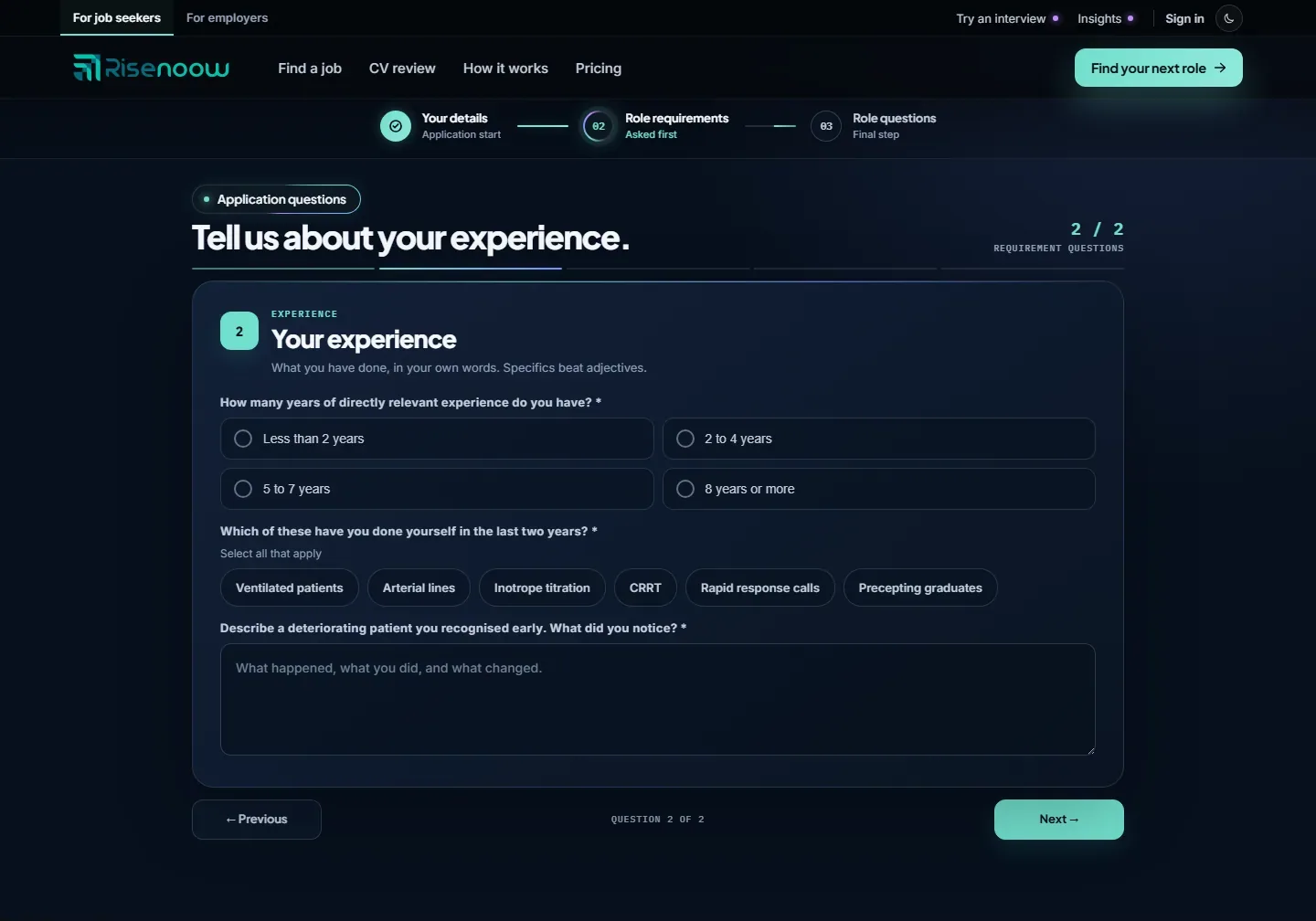
The candidate sees a larger box they can type several sentences into, and can drag to make bigger. A light hint inside the box can suggest what to cover, for example "What happened, what you did, and what changed."
Multiple choice
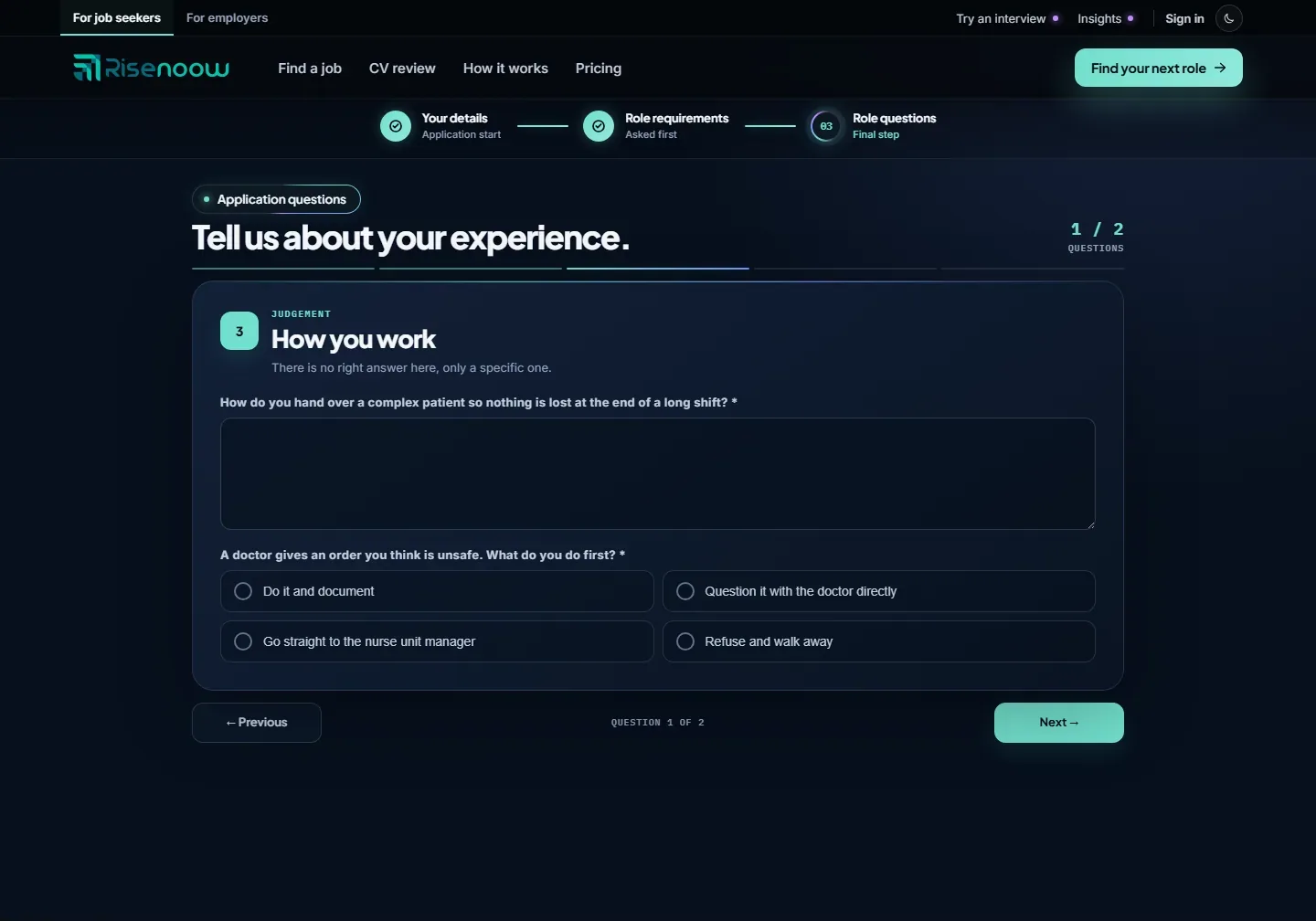
The candidate sees each option as a button with a round marker and picks one. Selecting another option changes the answer. Enter at least two options, one per line.
Checkboxes
The candidate sees the options as pill buttons under the words Select all that apply, and can pick as many as fit. A tick appears on each chosen pill. Enter at least two options, one per line.
Yes / No
The candidate sees two buttons, Yes and No, and picks one. You do not need to type the options.
Rating
The candidate sees a grid. Each row is one item you listed under Things to rate, and the columns are four levels: Beginner, Intermediate, Advanced and Expert. They choose one level per row. Selecting a column heading sets every row to that level, and they can then adjust single rows.
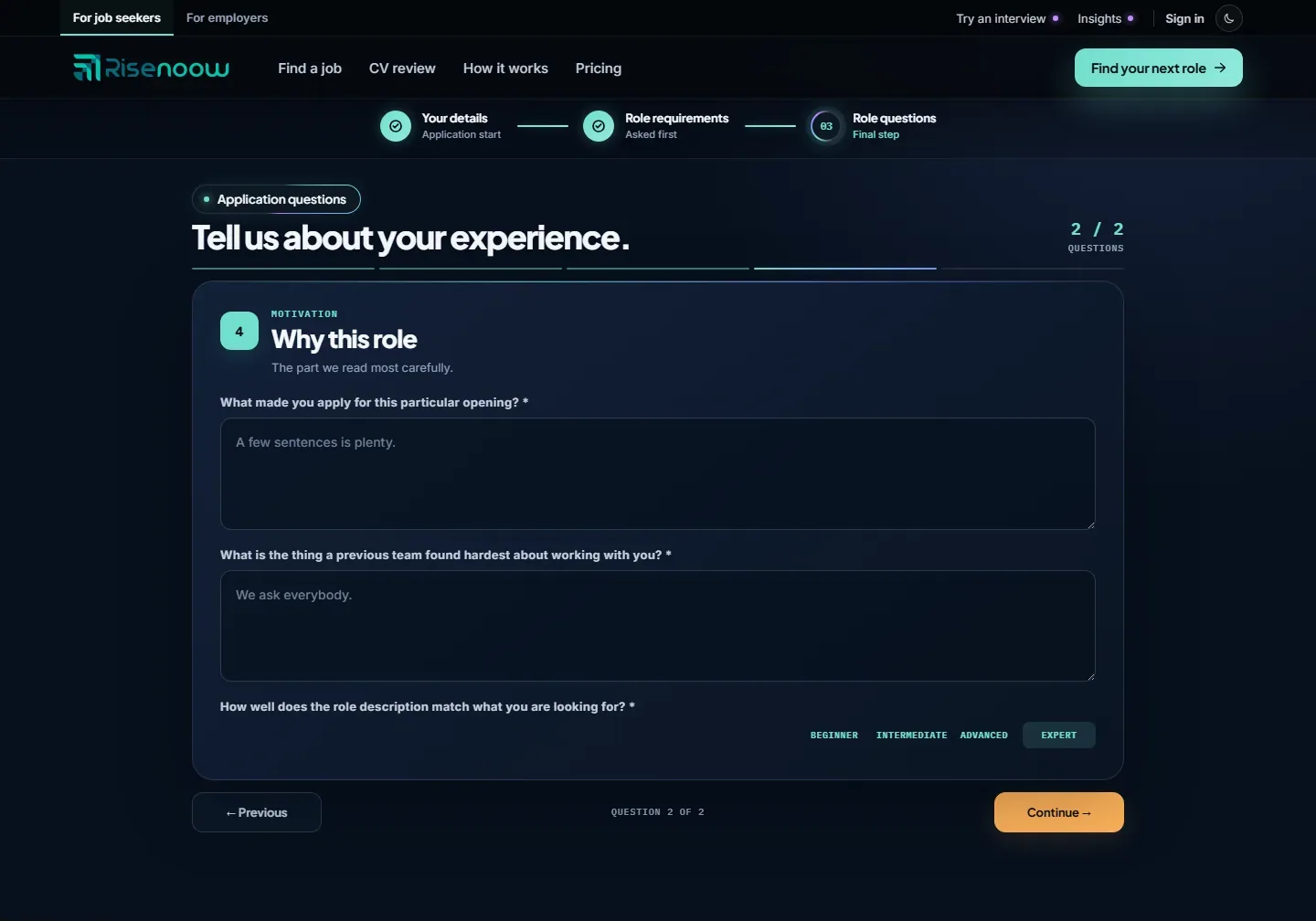
Enter at least two things to rate, one per line, such as the skills the role needs.
Required questions
Tick Make this question required to make candidates answer before they move on. A required question shows a star after its text. If a candidate selects Next without answering, they see Please answer this question before continuing. For a rating question, answering means rating at least one row.
Which types can carry a requirement
Multiple choice, Checkboxes and Yes / No questions can carry a requirement: tick the answers you accept. Text, paragraph and rating questions cannot, because there is no fixed answer to match. On a rating question the items are shown on the card but cannot be ticked. See Requirement questions.
Good to know
Prefer bands to open numbers. "3 to 5 years" is an honest answer a candidate can give, and it is one you can tick as accepted. A free text "How many years?" cannot carry a requirement.
Frequently asked questions
Can I change a question's type after it is created?
Yes. Select Edit on the question, choose a different type under How should they answer? and select Save changes.
Can I add hint text inside a box?
Hint text, called a placeholder, can be set for short answer and paragraph questions through a CSV import. See Import and export.
How many options can a choice question have?
At least two. A CSV import accepts up to 40 options per question.
Why are some questions grouped under one heading?
Some questions hold several inputs under a heading and a short introduction, such as Working in Australia. Each input is edited on its own, and Edit heading on the card changes the heading and the line under it. Candidates see them together on one card.