The candidate record
The candidate record is the Risenoow page for one application: who the person is, every score they received, the evidence behind each one and the decision your team makes. It is laid out so you can decide from one screen, with the detail one tab away.
Where: Candidates in the left menu, then select a candidate
Who can use it: Admins, and recruiters for the roles they created
Time needed: Five minutes for a careful read
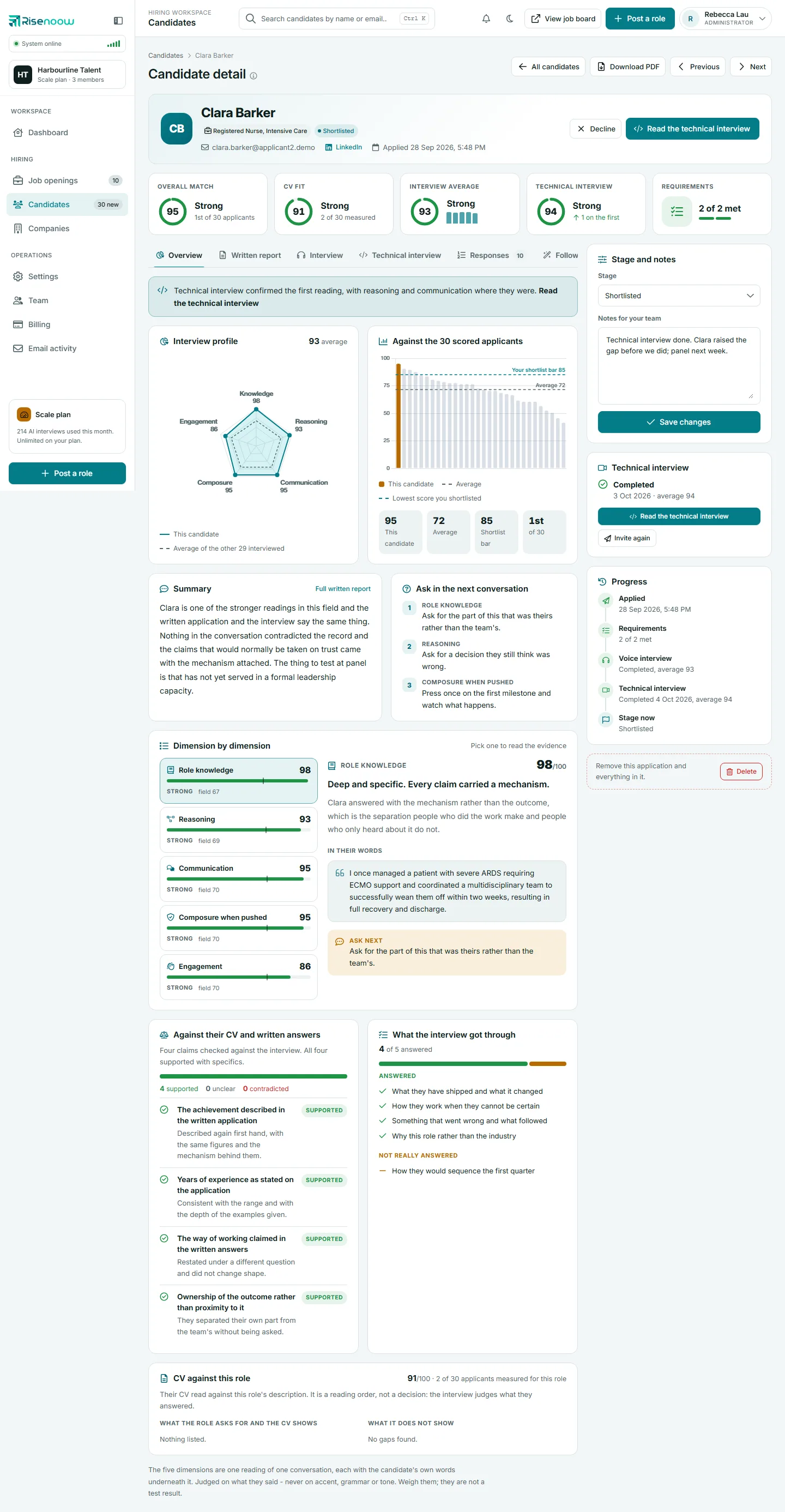
The page header
Above the record you see the breadcrumb (Candidates, then the person's name), the title Candidate detail and a line naming the role. When at least two applicants for the role have a match score, the line adds where this person ranks among every scored applicant for the role, for example "1st of 30 scored applicants for this role".
Four buttons sit at the top right:
| Button | What it does |
|---|---|
| All candidates | Back to the Candidates list |
| Download PDF | A file of the record for people without a login, such as a hiring manager or a client. See PDF and export |
| Previous | The applicant for this role ranked just above this one |
| Next | The applicant for this role ranked just below this one |
Previous and Next follow the ranking
They step through the applicants for this record's role, in the same order as the rank in the subtitle: highest match score first, the earlier application first on a tie, and applicants without a score after everyone who has one. Previous is hidden on the top of the ranking and Next on the bottom.
The candidate header

The header shows:
- the candidate's initials and name,
- the role they applied for and their current stage,
- a warning pill when they did not meet one or more of the role's requirements, such as "1 requirement not met", with "declined automatically" added when the application was stopped for it,
- their email, a LinkedIn link when they gave one, and the date and time they applied.
On the right are the actions you use most:
| Button | When it shows | What it does |
|---|---|---|
| Download CV | The candidate uploaded a CV | Downloads their CV |
| Shortlist | They are not shortlisted yet | Moves them to Shortlisted after you confirm. The candidate is emailed |
| Decline | They are not declined yet | Moves them to Declined after you confirm. The candidate is emailed. See Decline or delete |
| Read the technical interview | They have completed a technical interview | Opens the Technical interview tab |
| Invite to technical interview | No technical interview is open or done | Opens the invitation. See Invite to a technical interview |
Both decisions email the candidate
Shortlist and Decline each ask you to confirm because the candidate hears about it straight away.
The score tiles
Under the header, a row of tiles gives every number that matters: Overall match, CV fit, Interview average, Technical interview and Requirements. A tile only appears when there is something to show, and the row resizes so none is left alone on a line. See Score tiles.
The tabs
The tabs on the left hold the evidence. Some appear only when there is something behind them.
| Tab | When it shows |
|---|---|
| Overview | Always. It opens first. See Overview tab |
| Written report | The written report exists. See Written report tab |
| Interview | The role had a voice interview. See Interview tab |
| Technical interview | A technical interview is complete, or technical interviews are available. See Technical interview tab |
| Responses | Always, with the number of answers. See Responses tab |
| Follow ups | Always, with a count when they answered some. See Follow ups tab |
| Requirements | The role has requirement questions, with a red count of any not met. See Requirements tab |
| Career profile | They applied with a career profile. See Career profile tab |
| Cover letter | They wrote one. See Cover letter tab |
The right column
The right column stays beside every tab, so the decision is never hidden:
- Stage and notes: the Stage menu, Notes for your team and Save changes. See Stage and notes.
- Technical interview: whether they are invited, booked, completed or not invited yet, with the matching buttons. See Invite to a technical interview.
- Progress: applied, requirements, voice interview, technical interview and the stage now. See Progress timeline.
- A box at the bottom reading "Remove this application and everything in it." with a Delete button. See Decline or delete.
On a phone, a tablet or a narrow window, the column moves below the tabs.
How to read a record quickly
- Read the header for warnings, such as a requirement not met.
- Scan the score tiles for anything amber or red.
- On Overview, read the Summary and the Ask in the next conversation list.
- Check Against their CV and written answers for anything contradicted.
- Set the stage and leave a note for your team, then select Save changes.
Frequently asked questions
Why is there no Shortlist button on this candidate?
They are already shortlisted. The header hides the action for the stage they are in. You can still change the stage in Stage and notes.
In what order do Previous and Next move?
They stay inside this candidate's role and follow its ranking, from the highest match score down, so Next takes you to the applicant ranked just below. Applicants without a score come last.
Who can see the notes I write here?
Everyone in your workspace who can open this candidate. Notes are for your team and are not sent to the candidate.
Why is the Interview tab missing?
The role was set up without a voice interview, so there is no recording or transcript to show.