Sign in and passwords
Everyone signs in to Risenoow on the same page with an email address and a password: workspace admins, recruiters and job seekers. Risenoow then opens the right place for your account. If you forget your password, you can reset it by email in a few minutes.
Where: risenoow.com/login.php, or Sign in at the top of any public page
Who: Every account type
Time needed: Under a minute
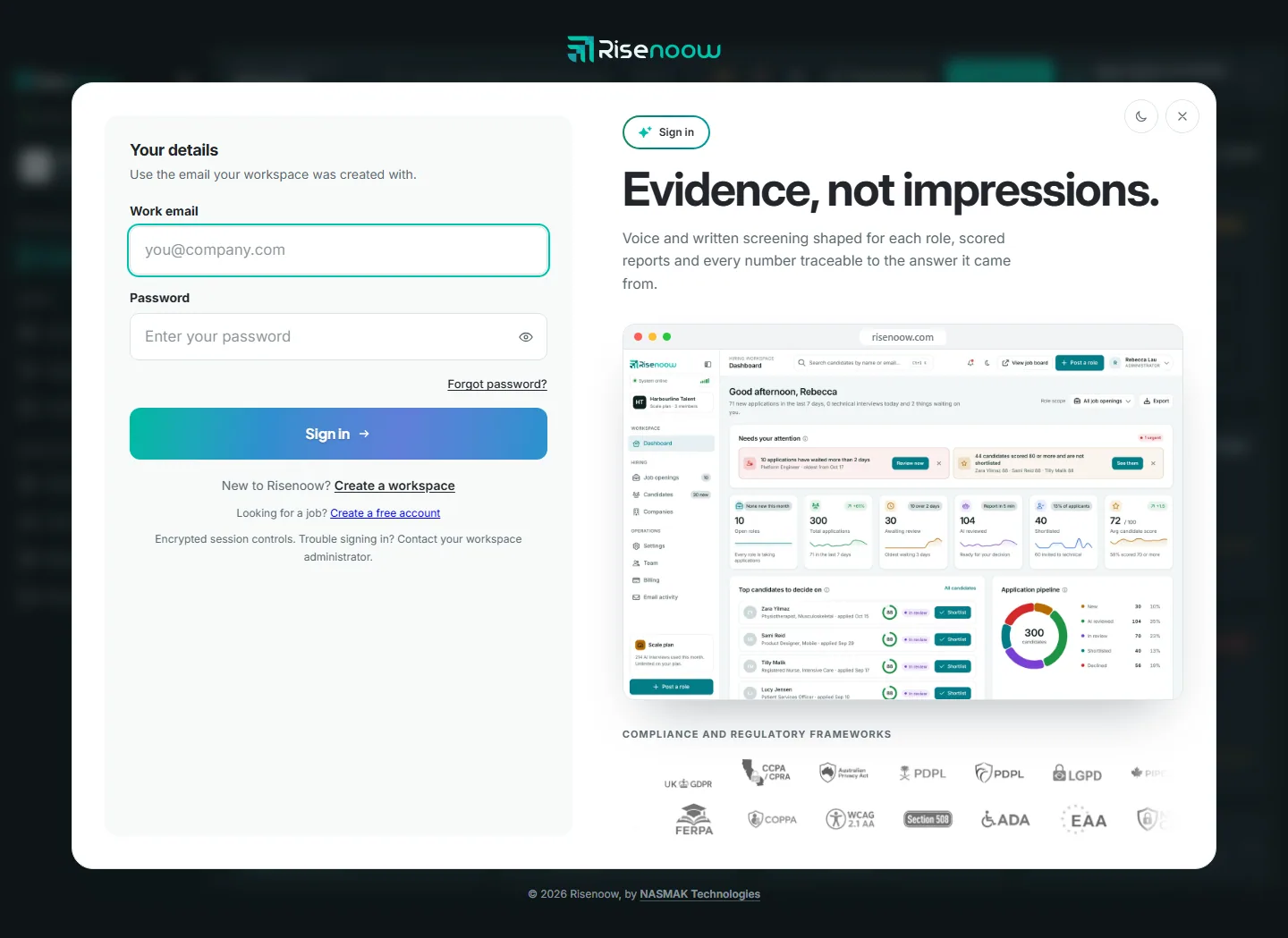
How to sign in
- Open risenoow.com/login.php.
- Enter your Work email. Use the address your account was created with.
- Enter your Password. Select the eye icon to see what you typed.
- Select Sign in.
Where you land depends on your account:
| Account | Where you land |
|---|---|
| Admin | The dashboard, or the Get started page while the first run setup is unfinished |
| Recruiter | The dashboard |
| Candidate | Your candidate portal |
If you opened a link to a page that needs you to be signed in, Risenoow takes you back to that page after you sign in, as long as your account can open it.
Signing in from the candidate portal
When you reach the sign in page from a candidate portal link, the page speaks to job seekers. The field reads Email, and the link under the button is Create a free account.
Signing in uses your email and password only. The six digit email codes are used when you create an account, not each time you sign in. See Create an employer account.
Forgot your password
- On the sign in page, select Forgot password?
- Enter the Work email you sign in with.
- Select Send reset link. The page then says Reset instructions requested.
- Open the email and select the link.
- Enter a New password, then type it again in Confirm new password.
- Select Update password. You return to the sign in page, which says your password has been updated.
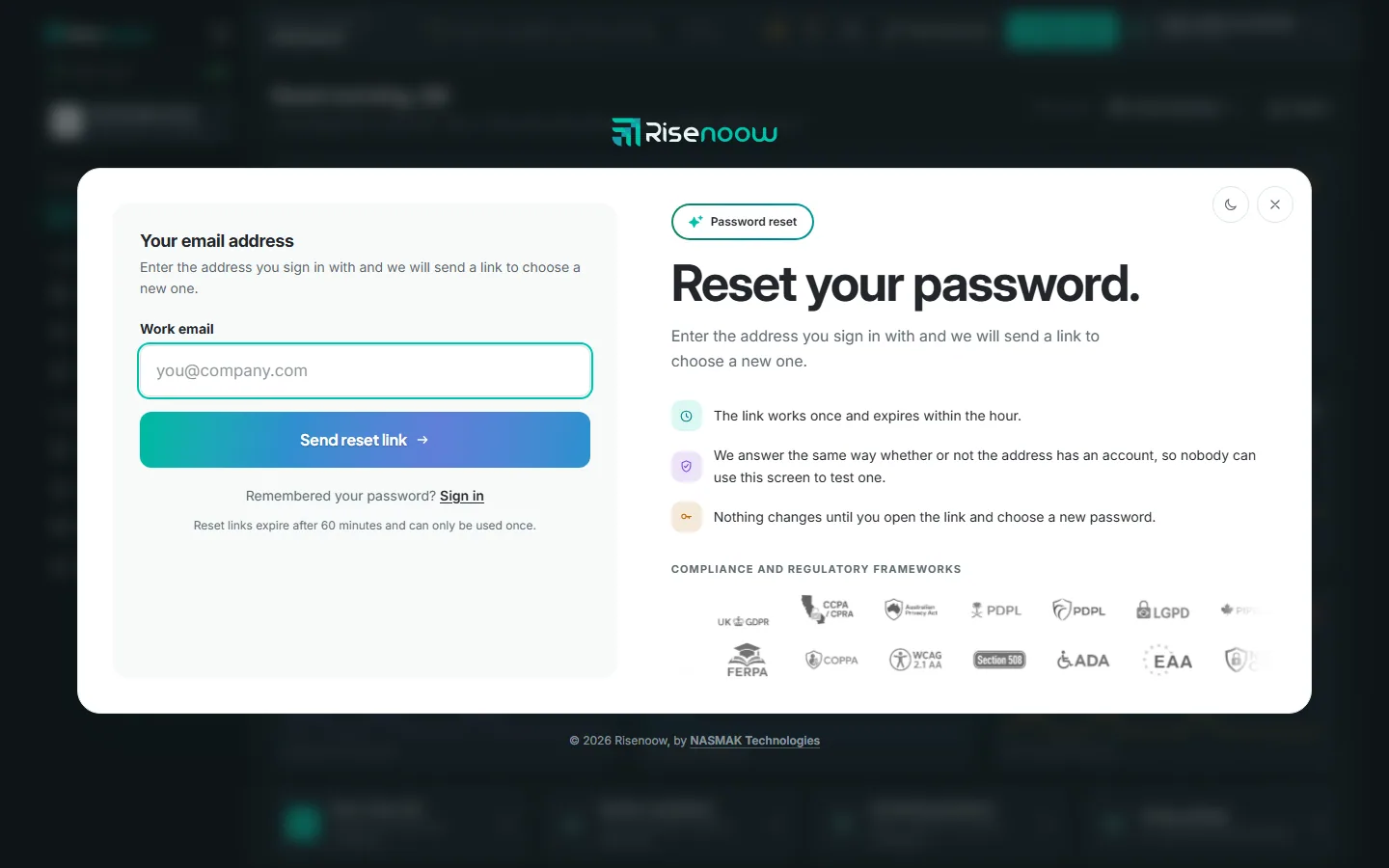
Good to know about the reset link:
- It works once and expires after 60 minutes.
- The page answers the same way whether or not the address has an account, so nobody can use it to test an address.
- Nothing changes until you open the link and choose a new password.
- If the link has expired or was already used, the page says This link is no longer valid. Select Request a new reset link.
- The page warns you: "Saving it signs you out everywhere else you are signed in." Once your new password is saved, any other browser where your account was signed in is signed out.
Setting your password after you apply
When you apply for a job with a new email address, Risenoow creates a candidate account for you. Your confirmation email has a link to choose a password. The page is called Set your password: enter it under Choose a password and Confirm your password, then select Set password and continue. You go straight into your candidate portal. This link lasts one day. After that, use Forgot password? to get a new one.
Password rules
The same rules apply everywhere you choose a password: when you sign up, reset a password, accept an invitation or change it on My profile.
| Rule | Detail |
|---|---|
| At least 8 characters | Shorter passwords are refused. |
| No more than 72 characters | Longer passwords are refused rather than cut short. |
| One you use nowhere else | Recommended, so a leak elsewhere cannot open your Risenoow account. |
To change your password while signed in, open your name in the top right corner and select My profile. You need your current password. See My profile, or My profile in the candidate portal.
Too many attempts
To protect accounts, Risenoow allows 10 sign in attempts in 15 minutes from the same connection. After that, the page says Too many attempts. Please wait a few minutes and try again. Wait, then sign in again. Your account is not locked, and you do not need to reset your password.
| Message | What it means |
|---|---|
| Invalid email or password. | The email or password is wrong, or the account is disabled. Check for typing mistakes, or reset your password. |
| Too many attempts. Please wait a few minutes and try again. | The attempt limit was reached. Wait a few minutes. |
| Sign-in is temporarily unavailable. Please try again in a few minutes. | A short problem on our side. Try again shortly. |
| We could not confirm you are human. Please reload the page and try again. | The quick human check did not pass. Reload the page. |
Signing out
Open your name in the top right corner and select Sign out.
Frequently asked questions
Why does it say Invalid email or password when I am sure it is right?
Check that you are using the address your account was created with. If a teammate disabled your account, ask a workspace admin. Otherwise, reset your password with Forgot password?
How long does a password reset link last?
A reset link lasts 60 minutes and works once. The link to set your first password after applying lasts one day.
I did not get the reset email. What now?
Check your spam folder and that you typed the address you sign in with. The email is sent only if an active account matches that address.
Am I locked out after too many wrong passwords?
No. After 10 attempts in 15 minutes from the same connection, sign in pauses for a few minutes. Your account stays as it was.
Does Risenoow use two step codes when I sign in?
No. Six digit email codes are used only to confirm your address when you create an account.