Role scope and export
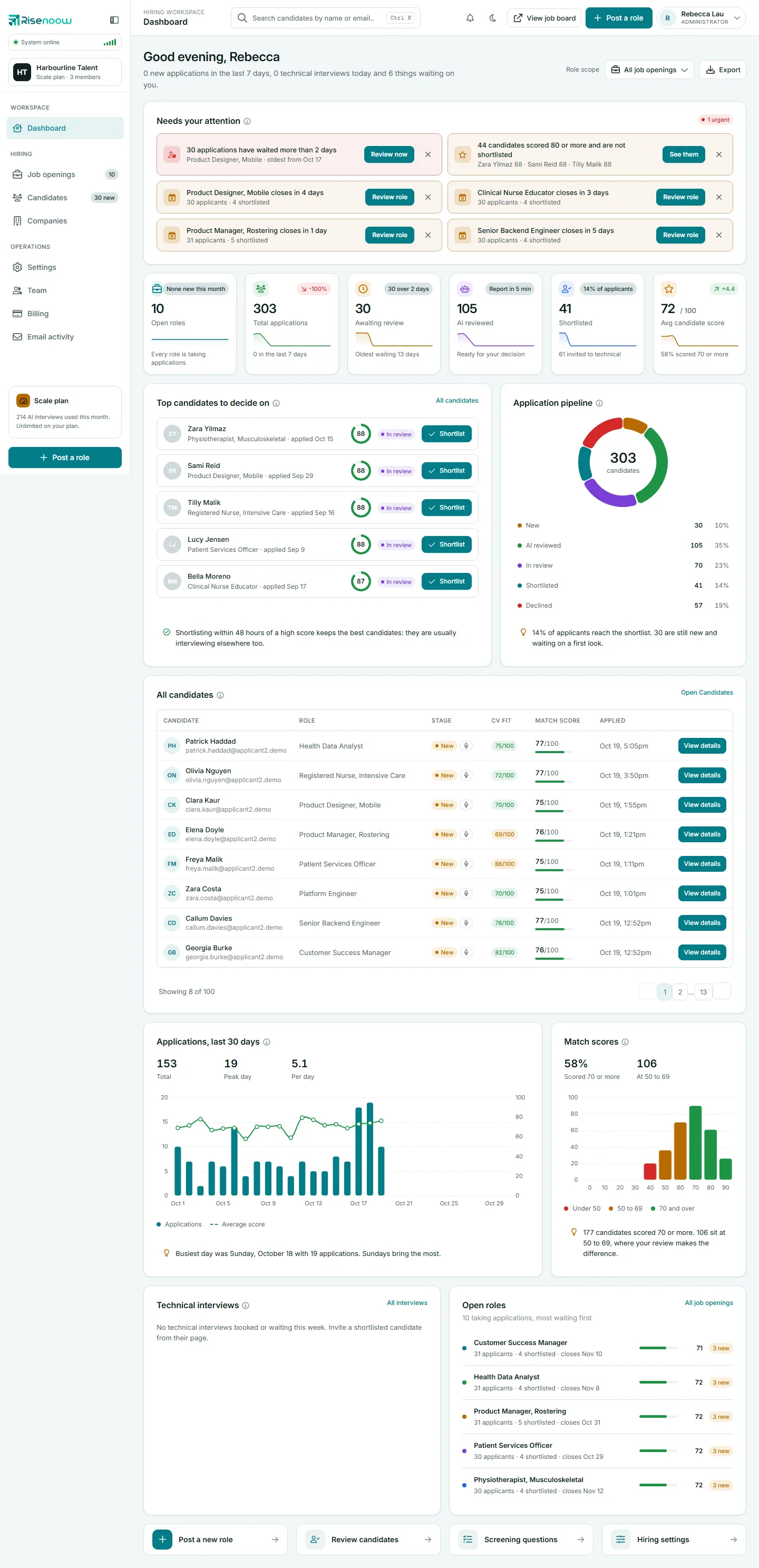
Role scope is the picker at the top right of the Risenoow dashboard. It narrows the cards, charts and lists to one role without reloading the page. Export beside it downloads the dashboard figures as a spreadsheet file you can open in any spreadsheet program.
Where: Dashboard, top right, beside the greeting
Who can use it: Workspace admins and recruiters
Time needed: A few seconds
How to look at one role
- Open Dashboard in the left menu.
- Select the button under Role scope. It reads All job openings when the page opens.
- Choose a role from the list.
- Read the page. The cards and charts redraw for that role straight away.
- To go back to the whole picture, choose All job openings again.
The list shows All job openings first, then each role you can see: roles that are switched on first, newest first, then disabled roles. Two roles with the same title are told apart with a number, for example "Platform Engineer (2)". The list holds up to 40 roles.
The choice is not saved
The picker always opens on All job openings. If you reload the page or come back later, it starts from the whole workspace again.
What changes when you pick a role
| Part of the page | What happens | |
|---|---|---|
| The six number cards | The number, the pill text, the footer line and the 14 day trend line show that role only. | |
| Top candidates to decide on | Shows that role's five highest scores waiting for a decision. | |
| Application pipeline | The ring, the total and each stage count are for that role. | |
| All candidates | Shows that role's newest applications. | |
| Applications, last 30 days | The bars, the score line, the three figures and the insight line are for that role. | |
| Match scores | The score bands and figures are for that role. | |
| Open roles list | Shows only that role, if it is open. |
On a single role, the Open roles card reads 1 or 0 and its pill says Published, Draft or Disabled. Its footer tells you how long the role has been open and when it closes.
What stays the same
Some parts of the page always describe everything you can see, whatever the picker says:
- The greeting line under your name.
- Needs your attention.
- Technical interviews.
- The count in the Open roles list heading, for example "10 taking applications".
- Quick actions.
Pill colours on one role
When you pick a role, the pill text on Total applications and Avg candidate score changes, but its colour and arrow stay as they were for All job openings. Read the number in the pill rather than its colour: a plus sign means up, a minus sign means down.
What Export gives you
Select Export to download a file named after your workspace and today's date, for example dashboard-harbourline-talent-2026-10-30.csv. It opens in any spreadsheet program. The file has three parts.
1. One row per role, with these columns:
| Column | What it holds |
|---|---|
| Role | The role title, as in the picker. |
| State | Published, Draft or Disabled. |
| Applicants | Every application to the role. |
| Waiting | Applications still at the New stage. |
| Average score | The average match score, blank if no one is scored yet. |
| Shortlisted | Candidates at the Shortlisted stage. |
| Open for (days) | Days since the role was created, blank for a disabled role. |
| Closes | The closing date, if the role has one. |
2. Workspace totals: the six number cards, each with its value and footer line.
3. Applications per day, last 30 days: one row per day with the number of applications and their average score.
Good to know
Export always covers every role you can see, whatever the Role scope picker shows. A recruiter's file holds only the roles they created.
Frequently asked questions
Why is a role missing from the Role scope list?
Recruiters see only the roles they created. A role saved part way through Post a role appears once you finish it. The list also stops at 40 roles.
Does Export include candidate names?
No. The file holds figures per role and per day, not people. To work with candidate details, use Export CSV on the Candidates page.
Can I export one role only?
Not from the dashboard. Open the file in a spreadsheet and filter the Role column.
Why does the picker go back to All job openings?
The choice lives in the page while it is open. Reloading or returning to the dashboard starts from the whole workspace again.