All candidates table
The All candidates table on the Risenoow dashboard lists the newest applications across the roles you can see, with each candidate's stage, CV fit, match score and when they applied. Select any row to open that candidate's full record.
Where: Dashboard, the wide card below Top candidates to decide on
Who can use it: Workspace admins and recruiters
Time needed: A minute
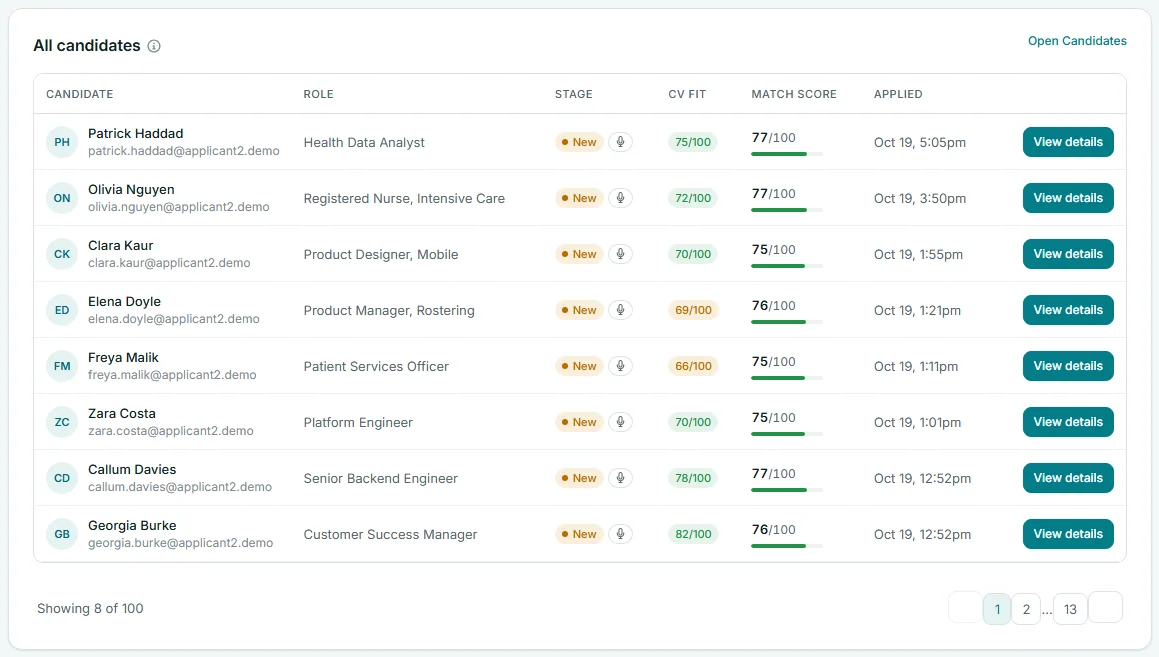
What each column means
| Column | What it shows |
|---|---|
| Candidate | Initials, name and email address. Select the name to open the record. |
| Role | The role they applied for. |
| Stage | A coloured pill: New, AI reviewed, In review, Shortlisted or Declined. A Technical pill appears when the candidate has finished a technical interview. A microphone pill appears when they finished the voice interview. |
| CV fit | How well the CV matches the role, out of 100. Green is 70 or more, amber 50 to 69, red under 50. No CV to read when there is no CV to score. |
| Match score | The match score out of 100 from the AI report, with a bar in the same three colours. Scoring in the first minutes after the candidate applies, while the report is being written. Not scored when there is no score. |
| Applied | Date and time of the application in your workspace's time zone, for example "Oct 19, 5:05pm". |
| View details | Opens the candidate's full record. |
Good to know
You can select anywhere on a row to open the candidate. Hold Ctrl (or Cmd on a Mac) as you select to open them in a new tab and keep the dashboard where it is.
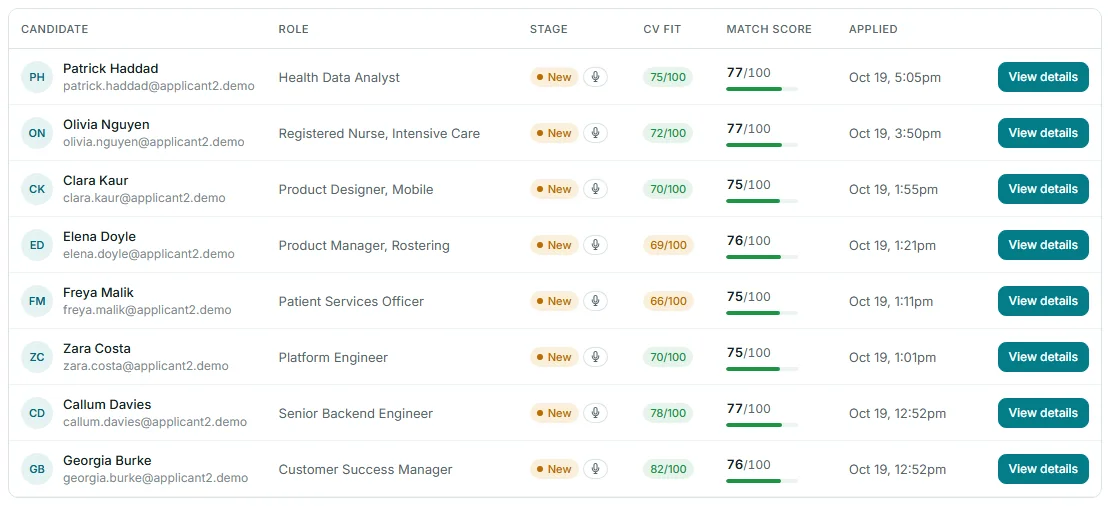
Paging through the table
The table shows eight rows at a time. Under it, Showing 8 of 303 tells you how many rows this page shows and how many applications there are in the current role scope. Use the page buttons on the right to move through the newest ones: the arrows step one page, the numbers jump to a page.
What the table holds
The dashboard loads the 10 newest applications for each role you can see, then sorts them all newest first. The page buttons step through those. The total in Showing 8 of 303 is the real number of applications in the scope. For every application, select Open Candidates at the top right of the card.
When you pick one role
Choose a role in Role scope and the table shows only that role's newest applications, up to 10. The count and page buttons update to match. When the role has no applications, the table says No applications in this scope yet.
Dashboard table or Candidates page?
| On the dashboard | On the Candidates page |
|---|---|
| The newest applications, a quick look | Every application |
| No search, sorting or filters | Search, filters by stage and role, sorting |
| No bulk actions or deleting | Bulk actions and deleting |
| Follows Role scope | Has its own role filter |
Use the dashboard table to spot who has recently applied. Use Candidates for any real sorting and deciding. See Filters, search and sorting.
What to look for
- Rows still at New with a score. These candidates have a report but no one has moved them on. Open them.
- A high CV fit with a low match score, or the other way round. The CV and the interview tell different stories. The candidate record shows both side by side.
- Not scored on a recent application. The report has not come through. Open the candidate's record and run the analysis again. Needs your attention also lists these as AI reports have not finished after an hour.
Frequently asked questions
Why can I not page through every application?
The total under the table counts every application in the scope, but the table loads only the 10 newest applications from each role. Select Open Candidates to see them all.
What is the difference between CV fit and match score?
CV fit measures the CV against the role. Match score comes from the full AI report on the written answers and the voice interview. See Scores explained.
Can I sort the table by score?
Not on the dashboard. Open Candidates and sort by score there.
On my phone the table is cut off. How do I see the rest?
Swipe the table sideways. It scrolls inside the card on narrow screens.