Tone and style defaults
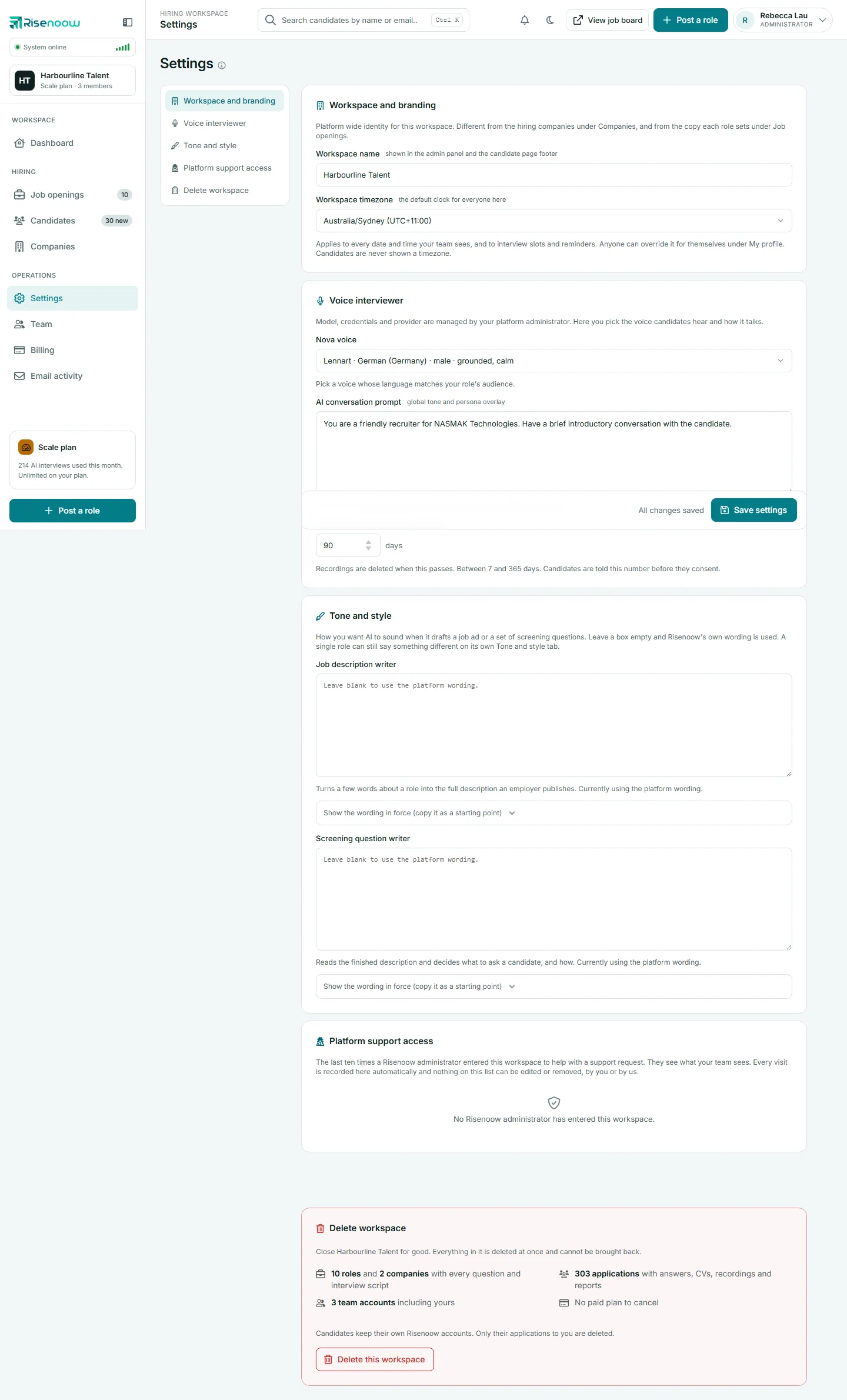
The Tone and style section of Risenoow Settings lets you change how the AI sounds when it drafts a job description or a set of screening questions for your workspace. Leave a box empty and Risenoow's own wording is used. A single role can still say something different on its own Tone and style tab.
Where: Settings in the left menu, then Tone and style
Who can use it: Workspace admins only
Time needed: 10 to 20 minutes for a careful first edit
Three levels of wording
The AI follows the most specific wording that has been written:
- The role's own wording, from the role's Tone and style tab.
- Your workspace wording, from this section of Settings.
- Risenoow's own wording, used whenever both boxes above are empty.
An empty box always means "use the level above", never "use nothing". So you can leave this section alone and still get carefully written roles.
The two boxes
| Box | What it shapes | |
|---|---|---|
| Job description writer | Turns a few words about a role into the full description an employer publishes. | |
| Screening question writer | Reads the finished description and decides what to ask a candidate, and how. |
Under each box, a hint ends with "Currently using the platform wording." while the box is empty.
What you type replaces the whole wording
Each box holds the complete instructions the AI follows for that job, not a short note added on top. If you type one sentence, that sentence becomes the AI's only guidance. Always start from the wording in force and edit it, as described below.
Change the wording safely
- Open Settings in the left menu and select Tone and style.
- Under the box you want to change, open Show the wording in force (copy it as a starting point).
- Copy the whole text into the box above it.
- Edit only the parts you want to change, such as tone, length or words to avoid.
- Keep every word in curly brackets exactly as it is, for example
{company_line}. Risenoow fills these in for each role, and removing one stops the AI receiving that information. - Select Save settings at the bottom of the screen.
The next job description or set of questions the AI writes uses your wording. Roles already written are not changed. To apply the new wording to an existing role, regenerate it from that role.
Ideas worth adding
- House style: Australian or US spelling, plain English, sentence case headings.
- Tone: warm and direct, or formal for regulated roles.
- Words to avoid: phrases your brand never uses, such as "rockstar" or "fast paced".
- What to always include: for example, that every advert states the pay band, if that is true for every role you post.
- Screening focus: fewer, deeper questions, or a preference for questions about real past situations.
Avoid putting facts about one employer here. Company facts belong in the company introduction under Companies, and role facts belong on the role.
Go back to Risenoow's wording
Clear the box completely and select Save settings. The hint returns to "Currently using the platform wording."
Frequently asked questions
Do I need to change these boxes at all?
No. Most workspaces leave them empty. Risenoow's own wording already asks for specific, inclusive descriptions and tells the AI not to invent facts about the employer.
Will my change rewrite roles I already posted?
No. Only new drafts and regenerated text use the new wording. Published roles keep what they say.
Can one role sound different from the rest?
Yes. Open the role under Job openings and use its Tone and style tab. Wording there wins over the workspace wording for that role only.
What are the words in curly brackets?
Places where Risenoow inserts details for each role, such as the language and the company. Keep them exactly as they are, or the AI stops receiving those details.