Job openings
The Job openings page in Risenoow lists every role you hire for, each on its own card with its application link, question counts and applicants by stage. From here you open a role to edit it, publish a draft, share the link or close the role.
Where: Job openings in the left menu
Who can use it: Admins see every role; recruiters see the roles they created
Time needed: A minute to find a role
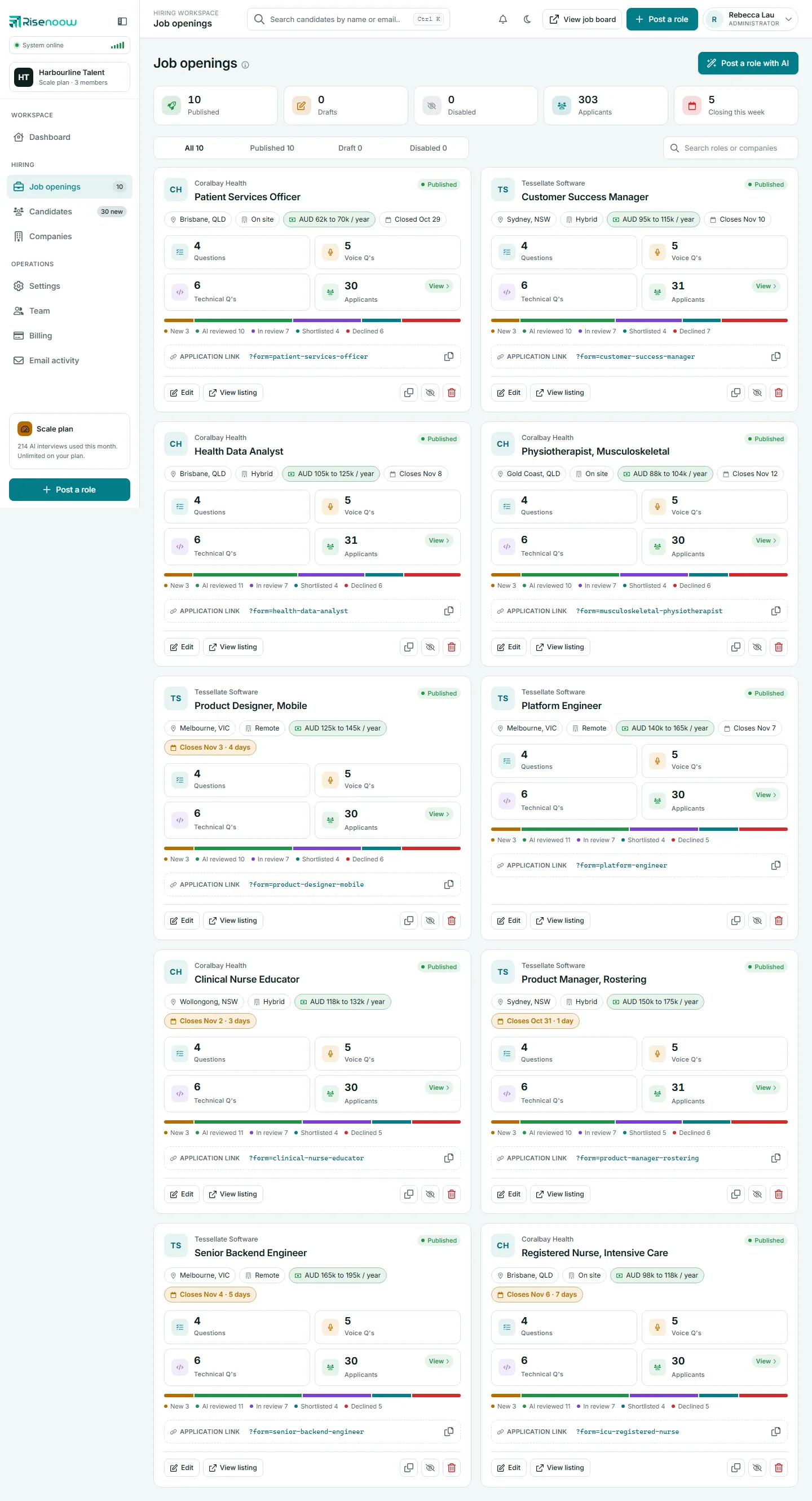
What is on the page
At the top, Post a role with AI starts a new role. Under the heading, five tiles count your roles and applicants:
| Tile | What it counts |
|---|---|
| Published | Roles on the public job board |
| Drafts | Roles that have not been published, including roles saved part way through Post a role and copies |
| Disabled | Published roles that were switched off, which take no applications |
| Applicants | Applications across every role you can see |
| Closing this week | Switched on roles whose closing date is in the next seven days |
The status tabs
The tabs above the cards filter the list. Each tab shows how many roles it holds.
- All: every role you can see, newest first.
- Published: roles on the public job board.
- Draft: roles that have not been published. A draft that is switched on has a working application link, so your team can test it.
- Disabled: published roles that were switched off and take no applications.
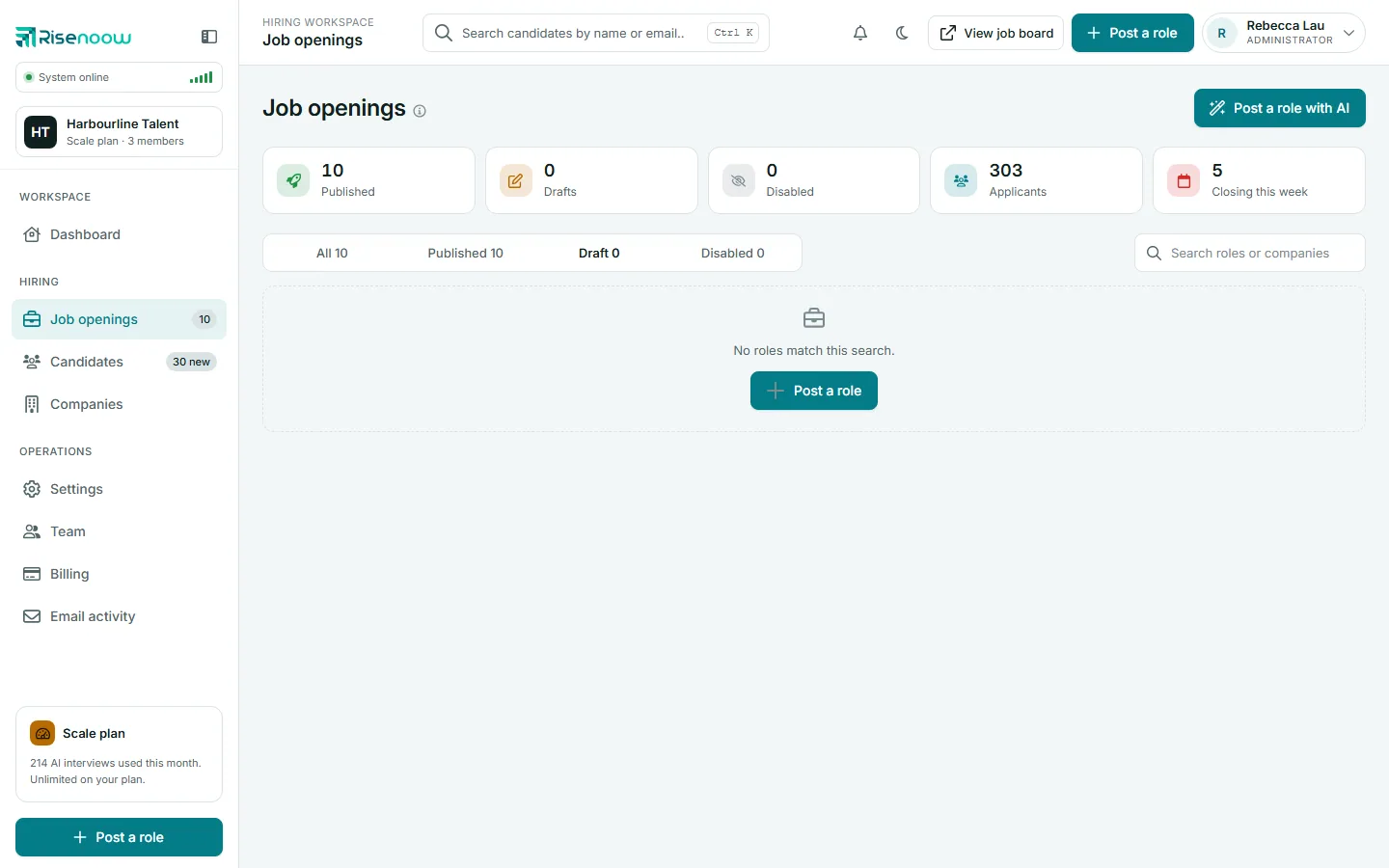
Type in Search roles or companies to narrow the cards by role title or company name. A search that finds nothing says No roles match this search. An empty tab says so, for example There are no draft roles.
The role pages
Select Edit on a role card to open the role. Every role has the same tabs across the top, numbered in order: Role details, Job description, Questions, Voice interview, Tone, Technical interview and Preview and publish. Each tab saves on its own. The Voice interview tab is hidden when the role's voice interview is turned off.
Guides in this section
-
The role card
Every element of a card: facts, counts, the stage bar, the link and the buttons.
-
Description tab
The job description, company, languages, voice switch and candidate messages.
-
Details tab
Title, location, employment, closing date, report email and pay.
-
Screening questions
Add, edit, disable, delete and require the written questions.
-
Voice questions
The voice interview script, the interviewer brief and the opening greeting.
-
Technical questions
The second stage interview script, drafted with AI or written by you.
-
Tone and style
How AI should sound for this role, and how it inherits from your workspace.
-
Preview and publish
Read the role back as a candidate will, then put it on the job board.
-
Close, disable or delete
Unpublish, switch off, duplicate or remove a role for good.
-
Share a role
The application link, the public listing and the job board.
Frequently asked questions
Why can I not see every role in the workspace?
Recruiters see only the roles they created. Admins see every role. Ask an admin to change your access on the Team page if you need more.
What is the difference between a draft and a disabled role?
A draft has never been published, so it is not on the public job board. A disabled role was published and then switched off, and takes no applications at all.
How do I post a new role?
Select Post a role with AI at the top of the page, or Post a role in the left menu. The role is saved as a draft until you publish it. When your plan's open roles are all in use, a new role cannot be created until you close one or upgrade in Billing, but you can still save your work as a draft.