Workspace settings
The Settings page holds the defaults that apply across your whole Risenoow workspace: its name and timezone, the voice candidates hear, how the AI writes for you, how long technical interview videos are kept, and a record of every support visit. A single role can still say something different on its own page, so these are starting points, not locks.
Where: Settings in the left menu, under Operations, or Workspace settings in the account menu
Who can use it: Workspace admins only
Time needed: 5 minutes for a first pass
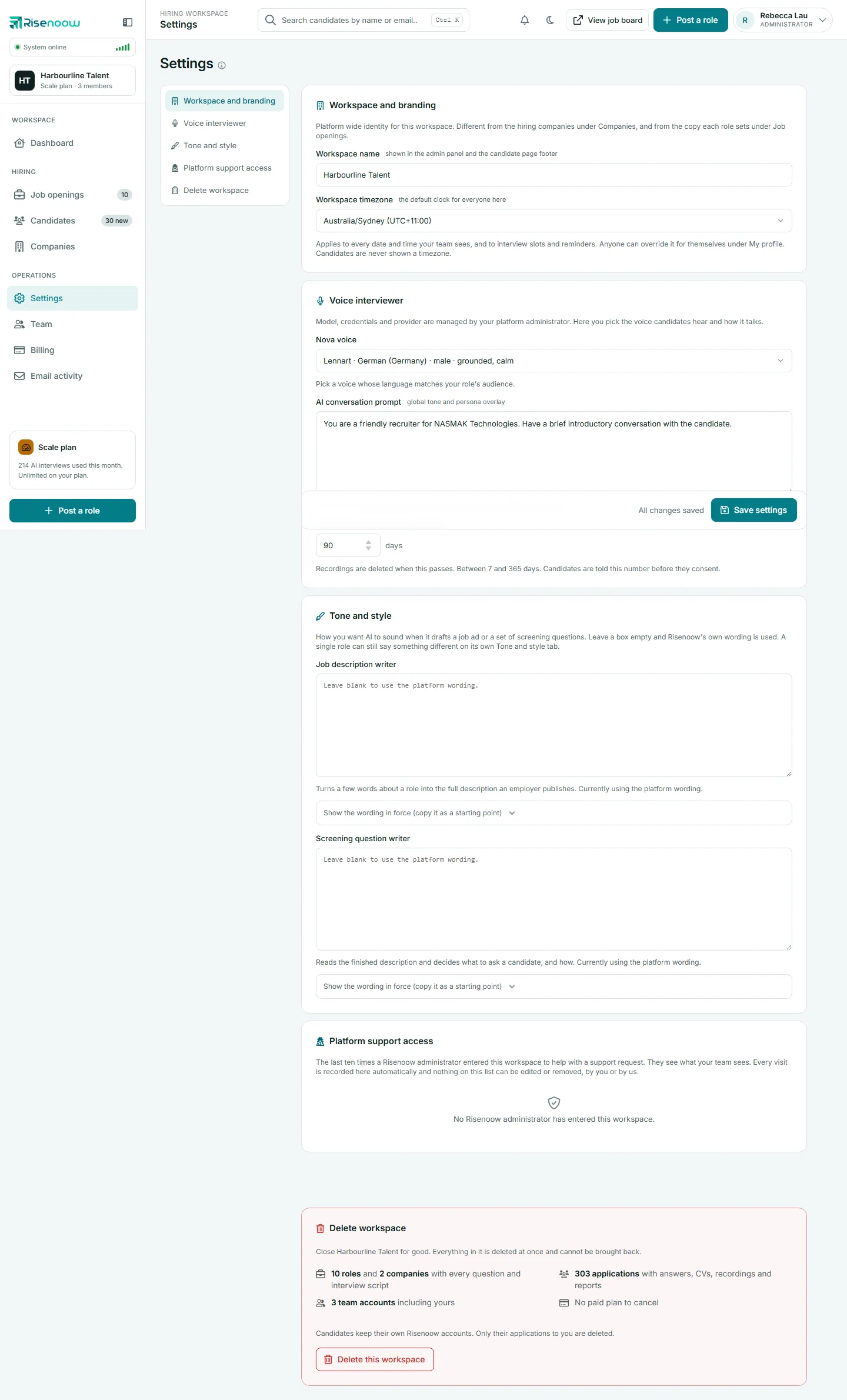
The sections on this page
| Section | What it controls | Guide | |
|---|---|---|---|
| Workspace and branding | The workspace name and the default timezone | This page | |
| Voice interviewer | The voice candidates hear, the AI conversation prompt, and how long technical interview videos are kept | Voice interviewer and Recording retention | |
| Tone and style | The wording the AI follows when it writes job descriptions and screening questions | Tone and style defaults | |
| Platform support access | A read only list of support visits to your workspace | This page | |
| Delete workspace | Closing the workspace for good | Delete a workspace |
Saving your changes
The first three sections share one Save settings button in the bar at the bottom of the screen. The note beside it reads All changes saved until you change something, then Unsaved changes. One save stores every section at once, and the page confirms with "Settings saved successfully."
Good to know
Messages a candidate reads on one role, such as the welcome and completion messages, and where that role's candidate reports are sent, are set on the role itself under Job openings, not here.
Workspace and branding
This section is your workspace's own identity. It is different from the hiring companies under Companies, and from the copy each role sets under Job openings.
| Field | What it does | |
|---|---|---|
| Workspace name | Shown in the admin panel and the candidate page footer. It is also the name you type to confirm if you ever delete the workspace. Up to 190 characters. | |
| Workspace timezone | The default clock for everyone in the workspace. Choose Use the platform default to follow Risenoow's default. |
How the timezone works
The workspace timezone applies to every date and time your team sees, and to technical interview slots and reminders. Anyone can override it for themselves under My profile. Candidates are never shown a timezone.
When Risenoow shows a time, it uses the first of these that is set:
- the person's own timezone from My profile,
- the Workspace timezone,
- the platform default,
- UTC.
Rename the workspace or set its timezone
- Open Settings in the left menu.
- In Workspace and branding, change Workspace name, Workspace timezone, or both.
- Select Save settings.
The new name appears in the left menu and the top bar straight away.
Platform support access
When you ask Risenoow for help, a Risenoow administrator may enter your workspace to see what you see. This card lists the last ten of those visits. Every visit is recorded automatically, and nothing on the list can be edited or removed, by you or by Risenoow.
| Column | What it shows |
|---|---|
| Opened on | The page the visit started on, or "The dashboard". |
| Started | When the visit began, in your timezone. |
| Ended | When it ended, or Still open if it has not. |
When there have been no visits, the card reads "No Risenoow administrator has entered this workspace."
Info
A support visit can read the same candidates your team can, which is why every visit is shown here. A support visit can never delete your workspace.
Frequently asked questions
Why can I not see Settings in the menu?
Settings is for workspace admins. Recruiters do not see it. Ask an admin in your workspace, or ask one to change your role on the Team page.
Is the workspace name the same as my company name?
Not necessarily. The workspace name is your account on Risenoow. Companies are the employers you hire for, and each role shows its own company to candidates.
Do I have to fill in every section?
No. Every box left empty falls back to Risenoow's own default, and the page tells you when that is the case.
Where do I set who receives candidate reports?
On each role. Edit the role under Job openings and fill in Hiring team email. Roles without one send reports to the workspace's active admins.