Save a role as a draft
Save as draft lets you stop part way through Post a role in Risenoow and come back later. The button sits at the right of the step bar on every step. A saved draft is listed on Job openings, where Continue setup opens the wizard exactly where you left it.
Where: Post a role, right of the step bar, on every step
Who can use it: Workspace admins and recruiters
Time needed: A few seconds

Save a draft
- On any step, select Save as draft.
- A dialog says Saved as a draft: everything on this role so far is saved, it is listed on Job openings as a Draft, and nothing is public until you publish it.
- Select Keep editing to carry on, or Go to dashboard to leave.
The role needs a title first. If Job title on step 1 is empty, the message "Give the role a title first, then save it as a draft." appears. Other required fields can wait.
You can save as often as you like. Each save updates the same draft rather than making a new one.
What a draft keeps
| Saved on | What is kept |
|---|---|
| Role facts | Every field you filled in. |
| Job description | The tab you were on, the company, both languages, the voice interview switch, the link in Import from URL, and the text in the Write with AI box, the Enter manually editor or the Paste text editor. |
| Review | The description in the editor, with your edits. |
| Configure | The three slider counts. |
Files are not kept
A draft saved on the Job description step does not keep a file chosen in Upload file. Upload it first, then save on the Review step.
Start over in the wizard does not delete a draft you have saved. It clears the wizard, and the draft stays on Job openings as a Draft, as it was when you last saved it.
Continue a draft
- Open Job openings in the left menu.
- Select the Draft tab.
- Find the role and select Continue setup.
The wizard opens on the step where you saved, with everything filled back in.
After the questions are generated
Once you select Generate questions on step 4, the role is a real, saved role. It is unpublished, so it also appears under Draft on Job openings, with Edit and Publish buttons instead of Continue setup.
On steps 5, 6 and 7, Save as draft finishes any change still saving, then shows the same Saved as a draft dialog. Nothing else is needed, because every change on those steps saves as you make it.
The early draft you saved before generating is removed when the role is created, so you do not end up with two copies.
Who sees a draft
Nobody outside your workspace. A draft is not on the job board until you publish it. A draft saved before Generate questions is switched off, so it cannot take applications and does not count against your plan's open roles.
Frequently asked questions
Where do I find my drafts?
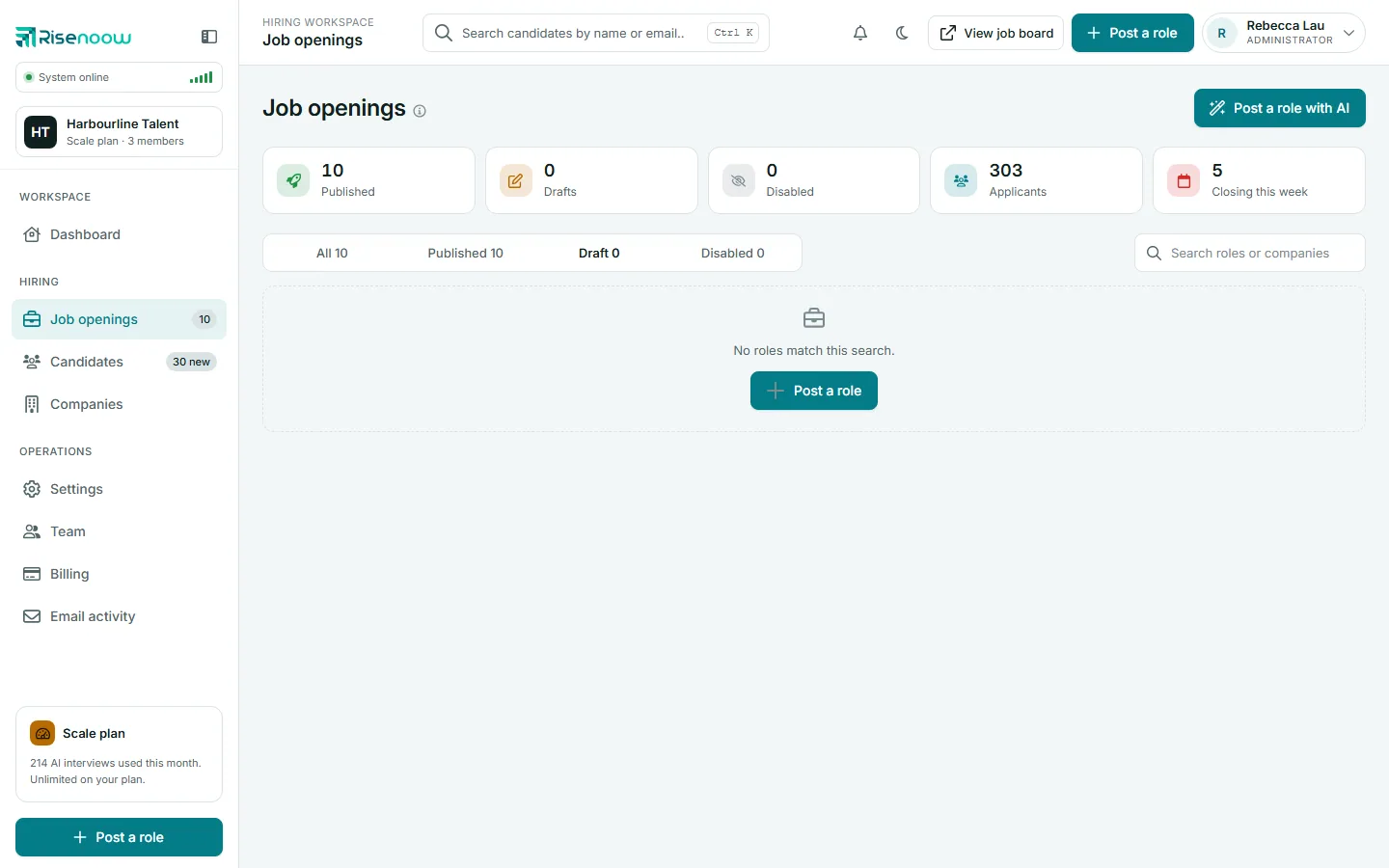
On Job openings, under the Draft tab. The Drafts counter at the top shows how many you have.
Does a draft use up one of my plan's open roles?
No. A draft saved part way through the wizard is switched off and is not counted.
Can I delete a draft?
Yes. Delete it from its card on Job openings, like any role.
Why does Save as draft not work on step 1?
Give the role a Job title first. A draft needs a title to be listed.