My profile
My profile is where you manage how you appear to your team and how you sign in to Risenoow: your name, photo, email address and password. It is also where you set a personal timezone, so every date and time shows in your own clock even when your team works in another.
Where: Your name at the top right, then My profile
Who can use it: Everyone with a workspace account, admins and recruiters
Time needed: Under 2 minutes
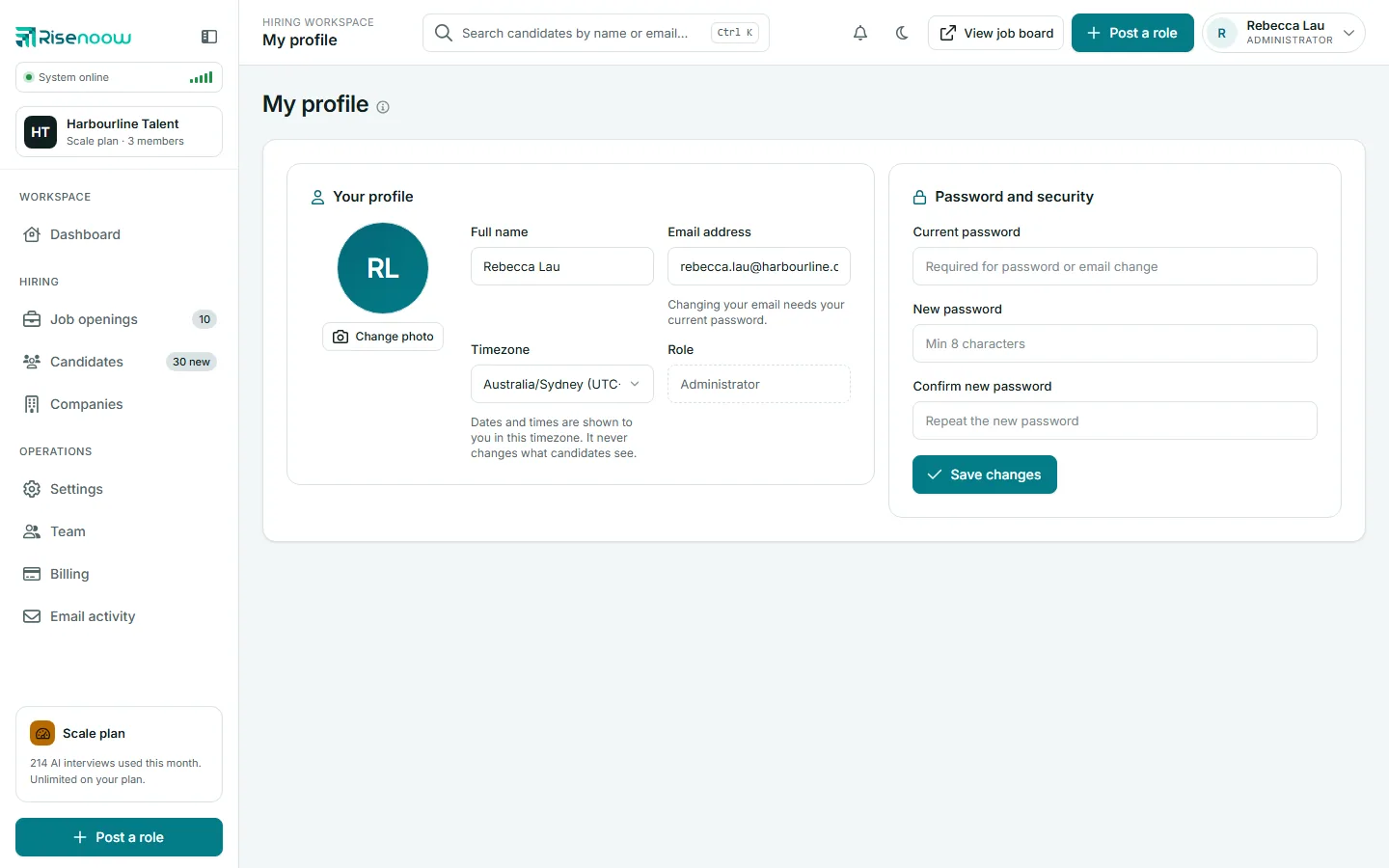
Your profile
| Field | What it does | |
|---|---|---|
| Change photo | Upload a JPG, PNG, GIF or WebP image, 2 MB at most. It shows in the account menu. Until you add one, your initials show instead. | |
| Full name | How your name appears to your team, in the account menu and against your notes and decisions. Required. | |
| Email address | The address you sign in with. Changing it needs your current password. | |
| Timezone | Your personal clock. See below. | |
| Role | Admin or Recruiter. Read only here: an admin changes it on the Team page. |
Change your name or photo
- Select your name at the top right and choose My profile.
- Edit Full name, or select Change photo and pick an image. A preview appears straight away.
- Select Save changes.
To remove a photo, tick Remove current photo under it and select Save changes. Your initials come back.
Set your own timezone
Your workspace has a default timezone, set by an admin in Settings. If you work somewhere else, choose your own here.
- Open My profile.
- Open Timezone and pick your region and city.
- Select Save changes.
The first option, Use the workspace default, follows the workspace setting and shows which timezone that is. Your choice changes the dates and times shown to you on the very next page. It never changes what candidates see.
Password and security
Change your password
- Open My profile.
- Type your Current password.
- Type a New password of at least 8 characters, and type it again in Confirm new password.
- Select Save changes.
The page confirms with "Profile updated." Changing your password signs you out everywhere else. If you think someone else has been using your account, this ends their session too.
Change your sign in email
- Open My profile.
- Type the new address in Email address.
- Type your Current password.
- Select Save changes.
Use the new address the next time you sign in.
Messages you may see
| Message | What it means |
|---|---|
| Enter your current password to change your email address. | Add your current password and save again. |
| Another account already uses that email. | That address belongs to another Risenoow account. Choose a different one. |
| New password must be at least 8 characters. | Make the new password longer. Passwords can be up to 72 characters. |
| The two new passwords don't match. | Type the same new password in both boxes. |
| Please enter your current password to set a new one. | The current password is missing or not right. |
| That is the password you already have. Choose a different one. | Pick a password you are not using now. |
| To change your password, fill in the new password and confirm it. Nothing was saved. | You typed a current password but no new one. |
| Image too large | The photo is over 2 MB. Use a smaller file. |
| Nothing to save: this is what your profile already says. | You saved without changing anything. |
Frequently asked questions
I forgot my password. Can I reset it here?
Not here, because this page needs your current password. Sign out and use the reset link on the sign in page. See Sign in and passwords.
Why can I not change my role?
Roles are set by a workspace admin on the Team page. Ask an admin if you need a different role.
Does my timezone change interview times for candidates?
No. It only changes how dates and times are shown to you. Candidates are never shown a timezone.
Who sees my photo?
Your photo shows in your account menu inside the workspace.