Application pipeline chart
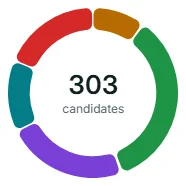
The Application pipeline chart on the Risenoow dashboard is a ring that shows where every candidate stands today, split into the five stages. It tells you at a glance whether candidates are flowing through or piling up at one stage.
Where: Dashboard, beside Top candidates to decide on
Who can use it: Workspace admins and recruiters
Time needed: A glance

What the ring shows
The number in the middle is the total of candidates across the five stages, for the roles you can see. Each coloured segment is one stage, sized by how many candidates are at that stage right now.
| Colour | Stage | Who is in it |
|---|---|---|
| Amber | New | Applications without a finished AI report, or moved back to New. |
| Green | AI reviewed | The AI report is ready and the candidate waits for your decision. |
| Purple | In review | Someone on your team is looking at the candidate. |
| Teal | Shortlisted | You have put the candidate on your shortlist. |
| Red | Declined | You have turned the candidate down. |
The chart is a snapshot of today. It does not show how candidates moved over time.
The legend
Under the ring, each stage has a row with its count and its share of the total, for example "AI reviewed 105 35%". Shares are rounded, so they may not add up to exactly 100%.
Hover and focus
- Point at a segment of the ring to see the stage name and its count, for example "Shortlisted 41 candidates".
- Point at a row of the legend, or move to it with the Tab key, and the matching segment is highlighted in the ring. This helps when a segment is too thin to point at.
The insight line
The line at the bottom of the card reads, for example: "14% of applicants reach the shortlist. 30 are still new and waiting on a first look." The first figure is the shortlisted share of all candidates. The second is the New count. When there are no candidates, it reads No candidates yet in this scope.
When you pick one role
Choose a role in Role scope and the ring, the total, the legend and the insight line all redraw for that role. Comparing a few roles this way quickly shows where decisions are stuck.
Reading the shape
- A large green segment. Many reports are ready and waiting on you. Work through Top candidates to decide on first.
- A large amber segment. Applications are sitting at New. See Awaiting review card.
- A large purple segment. Candidates are in review but no decision has been made. Agree a date with your team to shortlist or decline.
- Mostly teal and red. You are up to date. Every candidate has a decision.
Frequently asked questions
Why does the total differ from the Total applications card?
They should match. Both count every application at the five stages. If you picked a role in Role scope, both show that role.
Can I click a segment to see those candidates?
No. Open Candidates in the left menu and filter by stage to see the people behind a segment.
What is the difference between AI reviewed and In review?
AI reviewed means the report is ready and no one has acted yet. In review means a person has moved the candidate there to show they are looking. See Application stages.
Do deleted candidates appear in the ring?
No. Deleted applications leave every count.