Invite to a technical interview
A technical interview is Risenoow's second stage interview: a longer conversation with the AI interviewer on your role's technical questions, with the camera on, recorded and read on the same five dimensions as the first interview. You invite one candidate at a time from their record, and they either pick a time you offer or finish by a date you set.
Where: Candidates in the left menu, open a candidate, then Invite to technical interview
Who can use it: Admins, and recruiters on the roles they can see
Time needed: About a minute
Before you invite
- The role needs at least three technical questions. If it has fewer, the invitation cannot be sent and you are pointed to the role's technical questions page. See Technical questions.
- The candidate needs an email address on file.
- Your plan needs room for the interview. A technical interview counts as three interviews against your allowance. If there is no room, you see No interviews left on this plan this month. The invitation was not sent. See Plan usage.
You can invite a candidate at any stage. Shortlisting does not send an invitation: the two are separate steps.
How to send an invitation
- Open Candidates in the left menu and select a candidate's name.
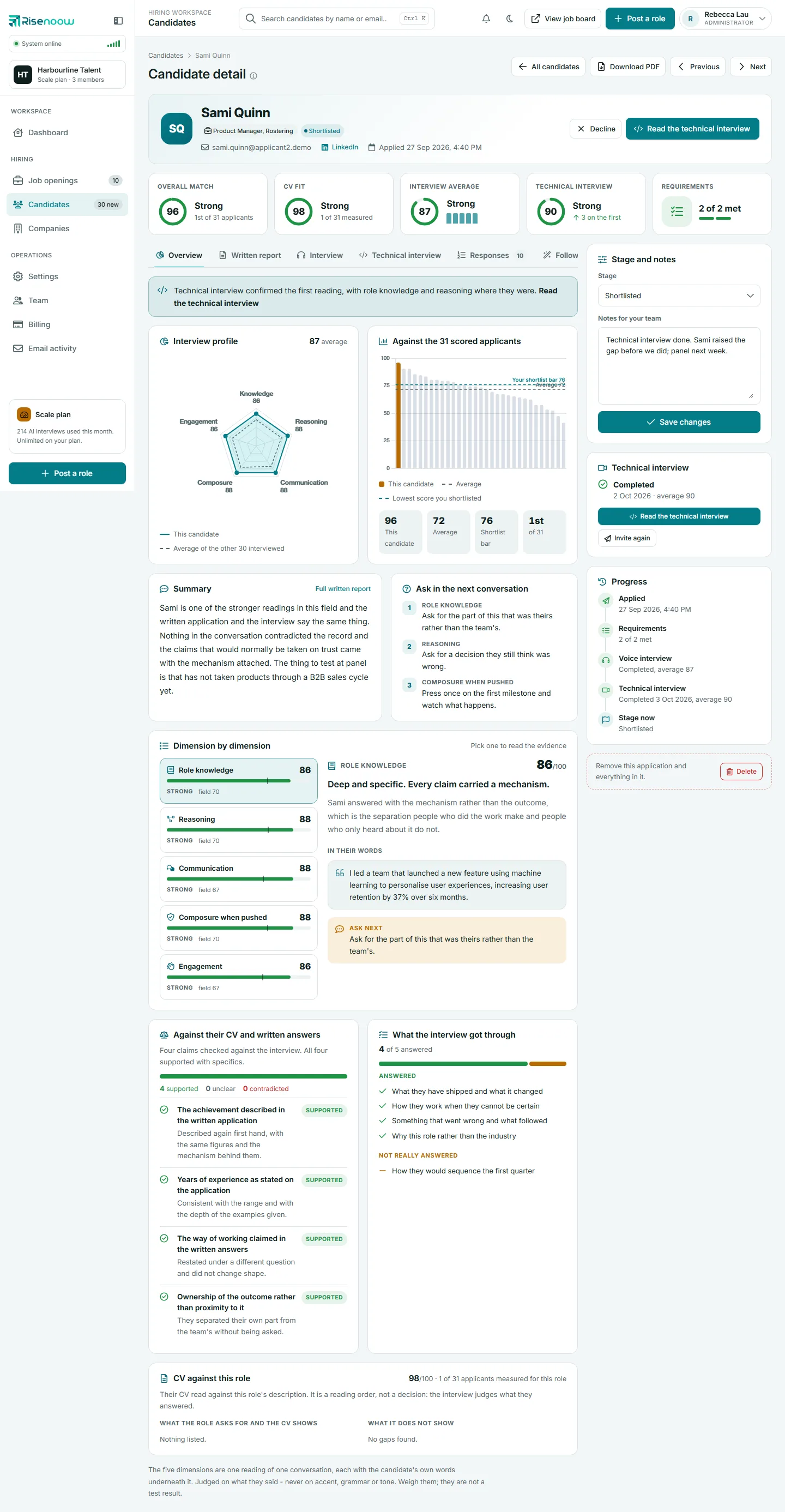
- Select Invite to technical interview, at the top of the record or on the Technical interview card.
- Under When, choose Offer times and let them pick one or Give them a date to finish by.
- Fill in the times or the date (see below).
- Choose a Length: 20, 25, 30 or 40 minutes. 25 minutes is the default.
- Check the Technical questions. The dialog lists the questions this candidate will be asked, read aloud in order. If you changed this candidate's questions on their Technical interview tab, the dialog shows their own list with the note "Written for this candidate. The role's own list is unchanged." To change them for every candidate, use Edit the technical questions.
- Decide whether to add the follow up questions for this candidate, if offered (see below).
- Choose Camera: Required for the whole interview or Optional.
- Select Send invitation, or Not now to close without sending.
The candidate gets one email with a link. They do not need to sign in. They check their camera and microphone, agree to the recording, and start. See Technical interview invitation for what they see.
The two ways to say when
You give a range of days and hours, and the candidate picks one window out of what is free.
- Times from and Times to: the first and last day. The range can run up to 30 days ahead.
- Between and And: the hours of the day, from 6am to 9pm.
- Windows are offered on weekdays only, in your timezone, and are as long as the interview.
- A window must be at least two hours away to be offered or booked.
- It opens on the next working day, 9am to 5pm.
- The link works until the end of the last window you offered.
If the range leaves no free window you see No times are free in that range. Widen the dates or hours, or use a completion date. and nothing is sent. If something you entered could not be used as typed, for example a closing hour before the opening hour, the invitation is sent with corrected times and you see Invitation sent. Some of the times you entered were adjusted.
You set one date in Complete by, and the candidate starts whenever suits them before it.
- The earliest date is tomorrow and the latest is 30 days ahead. It opens five days ahead.
- The link works until the end of that day in your timezone.
Which timezone?
"Your timezone" is the one in My profile, or your workspace's when you have not set one. When a candidate books a time, the card also shows their own timezone, so you both know when it is.
Follow up questions for this candidate
When the candidate's first interview left things open, the dialog offers to add up to three questions of their own, listed under the role's questions. They come from the Ask next prompts and the unclear claims of the first reading. They are ticked by default and asked after the role's questions. Untick the box to ask the role's questions only.
Reminders and what happens if nobody comes
Risenoow sends reminders and follows up for you:
| Situation | What happens |
|---|---|
| Time booked | The candidate is reminded about a day before, then about an hour before. |
| Completion date, not started | The candidate is reminded three days before the date, then one day before. |
| Times offered, none picked | The candidate is reminded after three days. Once the last window offered is over, the link stops working and the person who sent the invitation is emailed. |
| Completion date passes unstarted | The link stops working and the person who sent the invitation is emailed. |
| Booked time missed | The card shows Did not attend and the person who sent the invitation is emailed. While the candidate's one move is unused, the card says they can pick one new time until a date. Otherwise it says no new time can be picked and that you cancel the invitation to send a new one. |
Rescheduling: once
A candidate who picked a time can move it once, as long as the interview is at least two hours away. A candidate who missed a booked time can pick one new time, if they have not already moved it. After that one move, they cannot change it again. To offer more, cancel the invitation and send a new one.
Managing a live invitation
While an invitation is live, the Technical interview card shows its state, length and whether the camera is required:
- Resend link sends a fresh link on the same terms and the old one stops working. It only appears before the candidate books or starts. With offered times, the new email offers what is free now.
- Cancel stops the link straight away, after you confirm. A booked window is released.
Once the interview is done, the card says Completed with the date and average, and offers Read the technical interview and Invite again. Invite again opens the same dialog for a fresh interview. The finished one stays on the Technical interview tab.
How it counts against your plan
A technical interview counts as three interviews against your monthly allowance, once it has actually taken place. An invitation that expires, is cancelled or is never started is not counted. See Plan usage and the pricing page.
Frequently asked questions
Can I invite a candidate who is not shortlisted?
Yes. You can invite a candidate at any stage, from the top of the record, the Technical interview card or the Technical interview tab.
Can I change the questions for one candidate?
Yes, before the interview, on the candidate's Technical interview tab. See Technical interview tab.
How long is the recording kept?
For the number of days your workspace sets, which is stated to the candidate when they agree to the recording. See Recording retention.