Finding your way around
Every screen in a Risenoow hiring workspace has the same frame. The left menu takes you to each part of the workspace, the top bar holds search, notifications and your account, and each page opens with a heading that explains itself through a small info mark. Once you know the frame, every page reads the same way.
Where: Every page of the hiring workspace
Who: Workspace admins and recruiters
Time to read: About four minutes
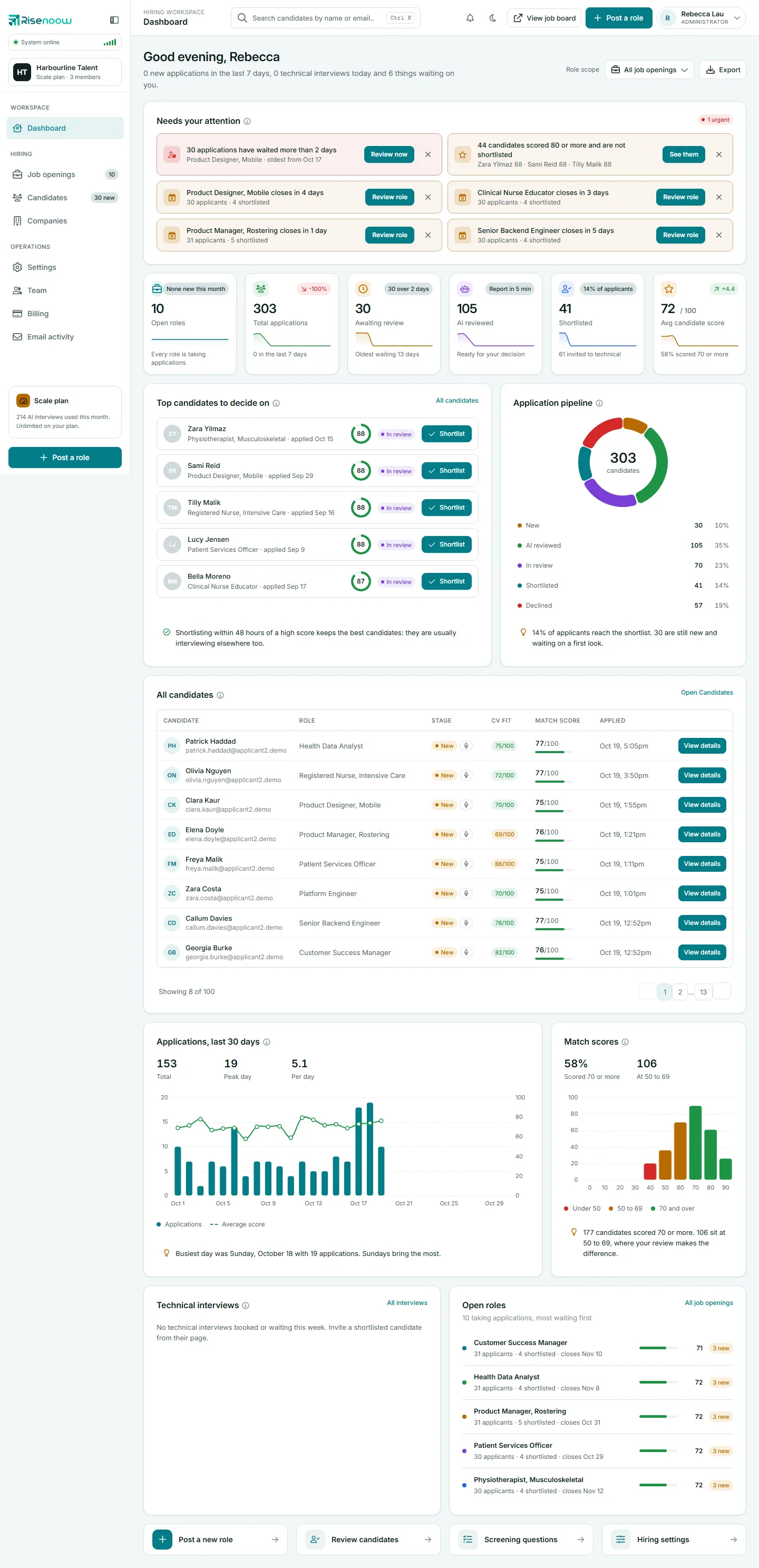
The left menu
The left menu stays in place on every page. From the top down:
- The Risenoow logo. Select it to go to the dashboard.
- The collapse button, beside the logo. It narrows the menu to icons, and the menu stays that way as you move between pages. See Search, notifications and theme.
- The workspace card. Your workspace's initials and name, with your plan and the number of members, for example Scale plan · 3 members.
Below that, the links sit in three groups:
| Group | Link | What it opens |
|---|---|---|
| WORKSPACE | Dashboard | Your home page: what needs attention, the key numbers and the top candidates. |
| HIRING | Job openings | Every role you hire for. The number beside it counts your open roles. |
| Candidates | Everyone who applied. A badge such as 30 new counts the applications nobody has moved on yet. | |
| Companies | The employers you hire for. | |
| OPERATIONS | Settings | Workspace wide defaults. Admins only. |
| Team | Who can sign in and what they can do. Admins only. | |
| Billing | Your plan, usage and invoices. Admins only. | |
| Email activity | Candidate report emails and whether they were delivered. A red number counts emails that failed in the last 30 days. A recruiter's number counts only emails about applicants to their own roles. |
Recruiters see the same menu without Settings, Team and Billing. Their counts cover only their own roles. See Accounts and roles.
The plan card
Near the bottom of the menu, admins see a card named after their plan. It shows how many AI interviews the workspace has used:
- On a plan with a limit, it shows how many of your AI interviews are used and when the count resets, with a bar, the number left and an Upgrade link.
- On an unlimited plan, it reads like 214 AI interviews used this month. Unlimited on your plan.
See Plan usage.
Post a role
The Post a role button at the very bottom of the menu starts a new role from any page. The same button sits in the top bar. See Post a role.
The top bar
From left to right:
| Item | What it does |
|---|---|
| Page name | HIRING WORKSPACE above the name of the page you are on. |
| Search | Search candidates by name or email. Press Ctrl K, or Cmd K on a Mac, to jump to it. |
| Notifications | What changed in the last seven days. A dot means something is unread. |
| Theme | Switches between dark and light. |
| View job board | Opens the public job board in a new tab, so you can see what candidates see. |
| Post a role | Starts a new role. |
| Your name | The account menu, with your role under your name. |
The search box, the bell and the theme switch are covered in Search, notifications and theme.
The account menu
Select your name to open it:
- My profile: your name, email, timezone, photo and password.
- Plan and billing, Team and Workspace settings: admins only.
- Get started: admins only, while the first run setup is unfinished. See First run setup.
- Take the tour: runs the product tour again.
- Sign out.
Page headings, breadcrumbs and info marks
Each page starts with a heading. Three things help you read it.
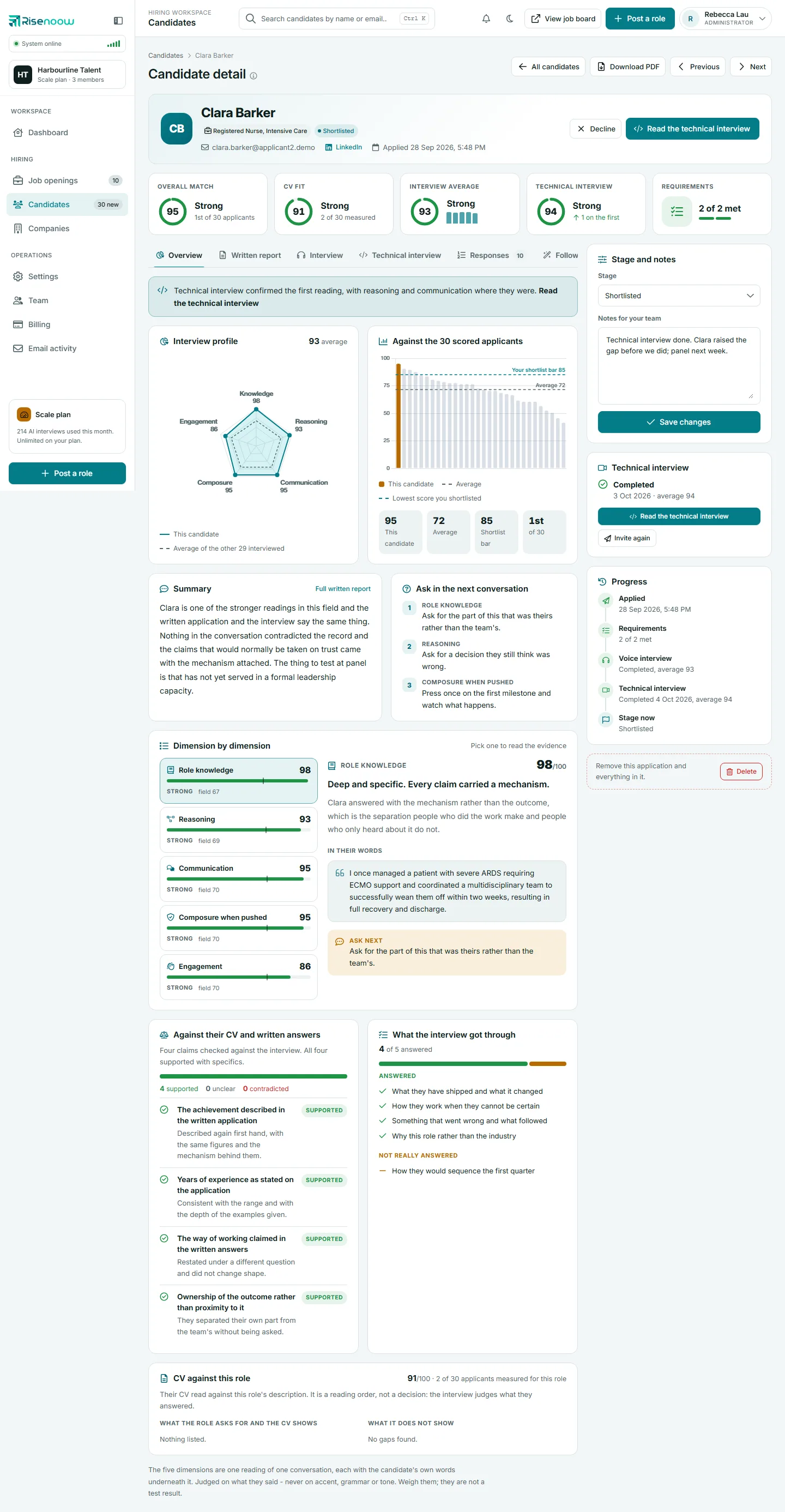
- Breadcrumbs. Pages inside a section show a trail above the heading, such as Candidates then a candidate's name, or Job openings then Post a role. Select the first part to go back.
- The info mark. A small i beside a heading holds the explanation of the page or card. Hover over it, tab to it or tap it to read it. A line that starts with a number, such as a count, stays on the page instead.
- Page tools. Buttons for the page sit to the right of the heading. On the dashboard these are Role scope and Export. On a candidate record they include All candidates, Download PDF, Previous and Next.
Cards inside a page work the same way: the title, an info mark with the explanation, and any links on the right.
On a tablet or phone
On a narrow screen the left menu folds away. Select the menu button at the top left to open it. Close it by selecting a link, tapping outside the menu or pressing Escape.
Frequently asked questions
Why do I not see Settings, Team or Billing?
Those links are for workspace admins. Recruiters do not see them. Ask an admin if you need a change there.
What does the number next to Candidates mean?
It counts applications at the New stage: ones nobody on your team has moved on yet. It covers only the roles you can see.
Where did the explanation under the page title go?
It is behind the small i beside the title. Hover over it, tab to it or tap it to read it.
Why is there no plan card in my menu?
The plan card shows only for admins. Recruiters do not see it.
How do I get back to the dashboard from anywhere?
Select the Risenoow logo at the top of the left menu, or Dashboard under WORKSPACE.