Enter a job description manually
Enter manually is the tab on step 2 of Post a role in Risenoow for writing the job description yourself. You type into a simple editor with a formatting bar, and the wizard goes straight on to choosing how many questions the AI writes.
Where: Post a role, step 2, tab Enter manually
Who can use it: Workspace admins and recruiters
Time needed: As long as your description takes to write
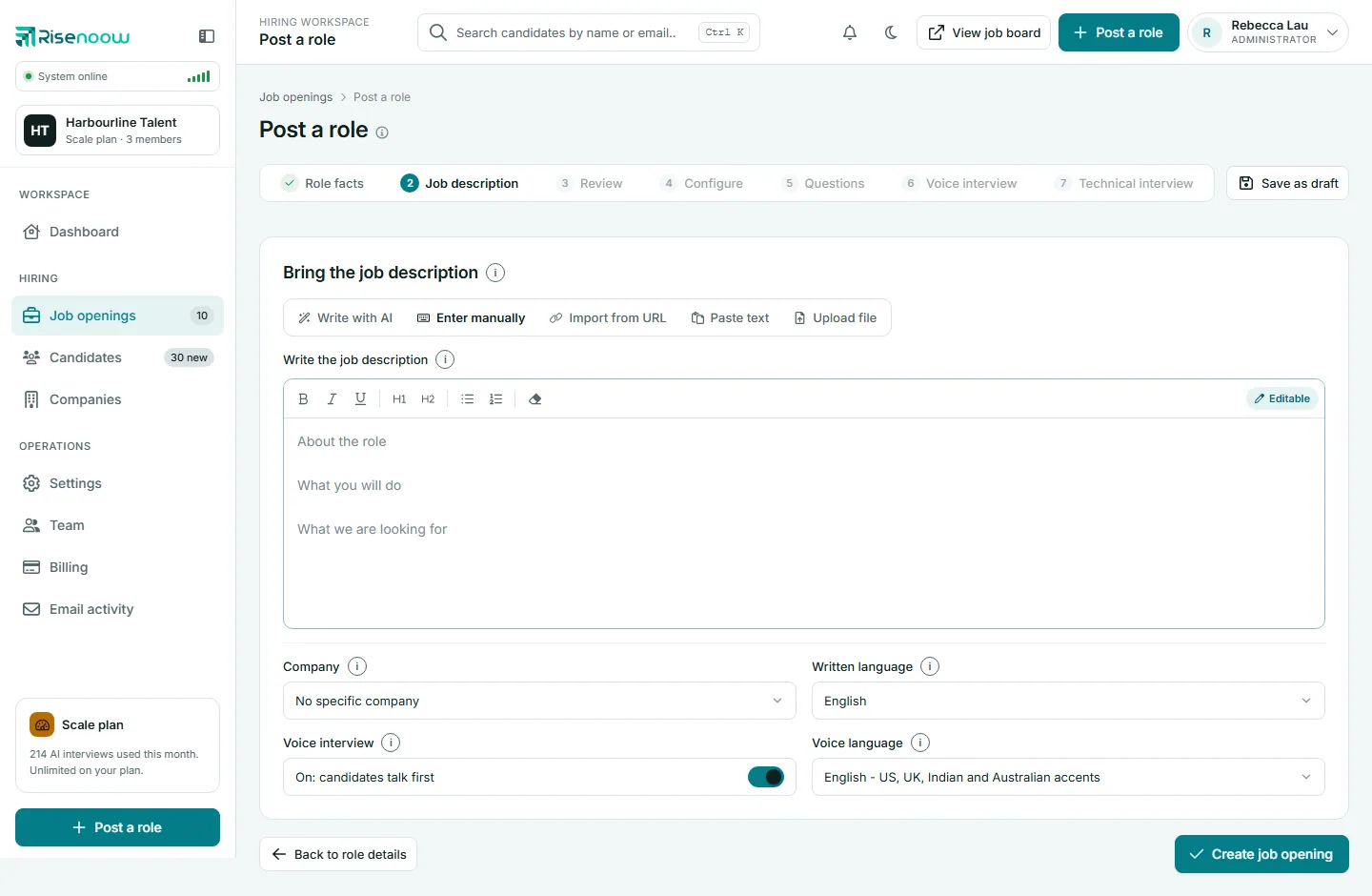
Write the description
- On step 2, select the Enter manually tab.
- Type the description in the box under Write the job description. The faint text suggests three parts: About the role, What you will do, and What we are looking for.
- Format it with the toolbar.
- Choose the Company, Written language and Voice interview settings below the editor.
- Select Create job opening.
Write at least a short paragraph. Under 60 characters, the wizard asks you to "Write at least a short paragraph describing the role."
The title, location, pay and other facts come from step 1, so you do not need to repeat them in the text.
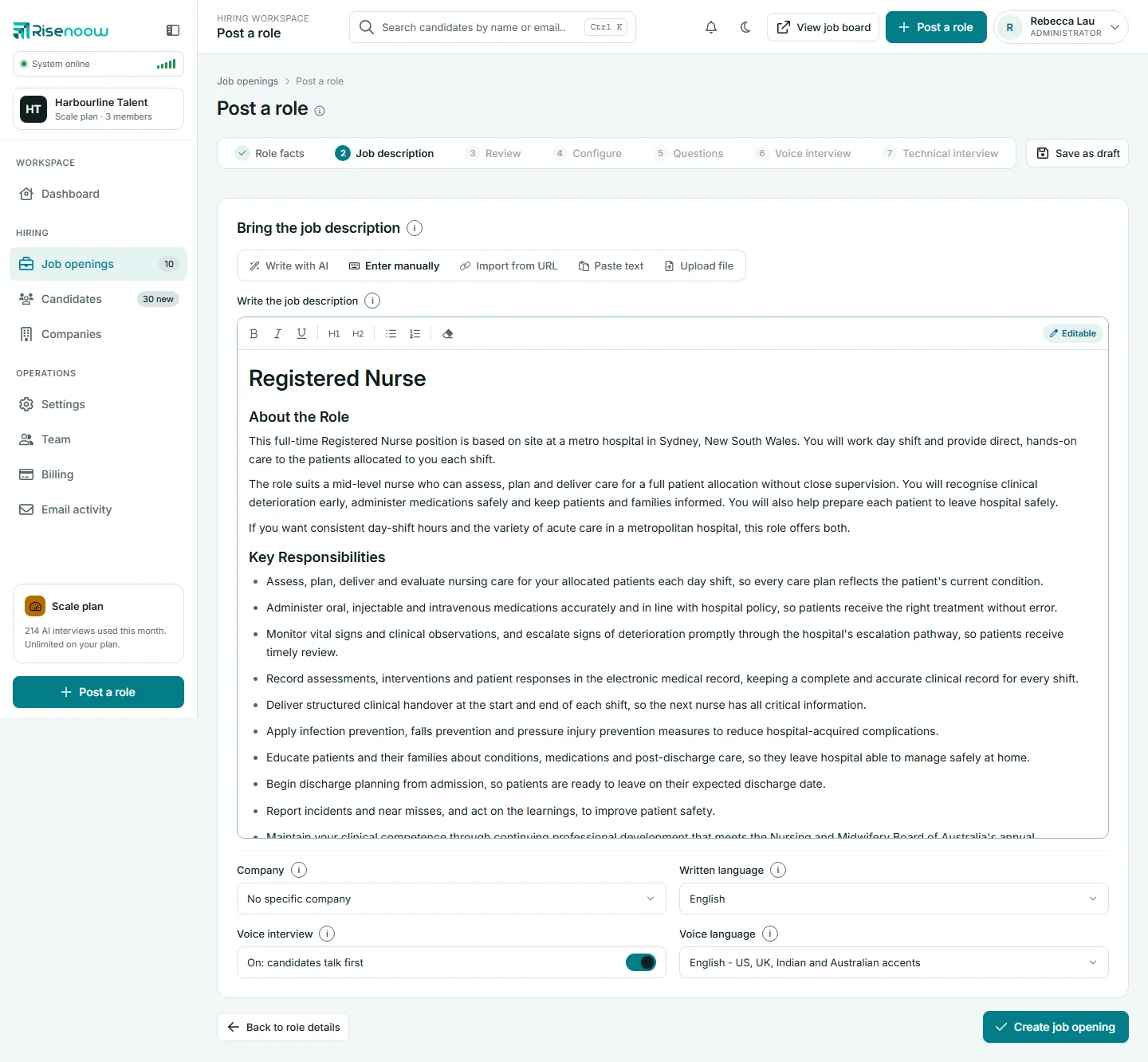
The formatting toolbar
The same editor is used on the Review step, for Paste text, and on a saved role's Job description tab.
| Button | What it does |
|---|---|
| B (Bold) | Makes the selected text bold. |
| I (Italic) | Makes the selected text italic. |
| U (Underline) | Underlines the selected text. |
| H1 (Heading) | Turns the line into a main heading. Select it again to turn it back into a paragraph. |
| H2 (Sub heading) | Turns the line into a smaller heading. |
| Bulleted list | Starts or ends a bulleted list. |
| Numbered list | Starts or ends a numbered list. |
| Clear formatting | Removes bold, italic and underline from the selection. |
The Editable badge at the right of the bar is a reminder that you can type straight into the box. A button looks pressed when the text under your cursor already has that format.
Good to know
Bold, italic, underline, headings and lists carry through to the published description. Text pasted into the editor keeps its formatting too, while colours, images and links are left behind.
What happens next
Create job opening takes you straight to step 4, Configure. The Review step is skipped, because you wrote the text yourself. The AI does not rewrite your description. It reads it to write the questions.
If you want the AI to polish your text after all, use Paste text instead, or edit the description on the role's Job description tab after the role is created.
Frequently asked questions
Does the AI change what I type?
No. A description entered manually is saved as you wrote it. The AI only reads it to write the questions.
Is my formatting kept on the job page?
Yes. Bold, italic, underline, headings and lists show in the preview and on the public job page as you set them.
Can I go back and edit it before generating questions?
Yes. Select Back on the Configure step. It returns you to the Enter manually box with your description in it.
Do I need to write the job title in the text?
No. The title comes from Role facts. A heading at the top of your text is fine but not required.