PDF and export
Risenoow gives you three ways to take candidate information out of the workspace: Download PDF saves one candidate's record as a file, Export CSV saves the candidate list as a spreadsheet, and Download CV saves the CV a candidate uploaded. Use them to share a decision with people who do not have a login, such as a hiring manager or a client.
Where: The candidate record (PDF and CV) and the Candidates list (CSV)
Who can use it: Admins, and recruiters on the roles they can see
Time needed: Seconds
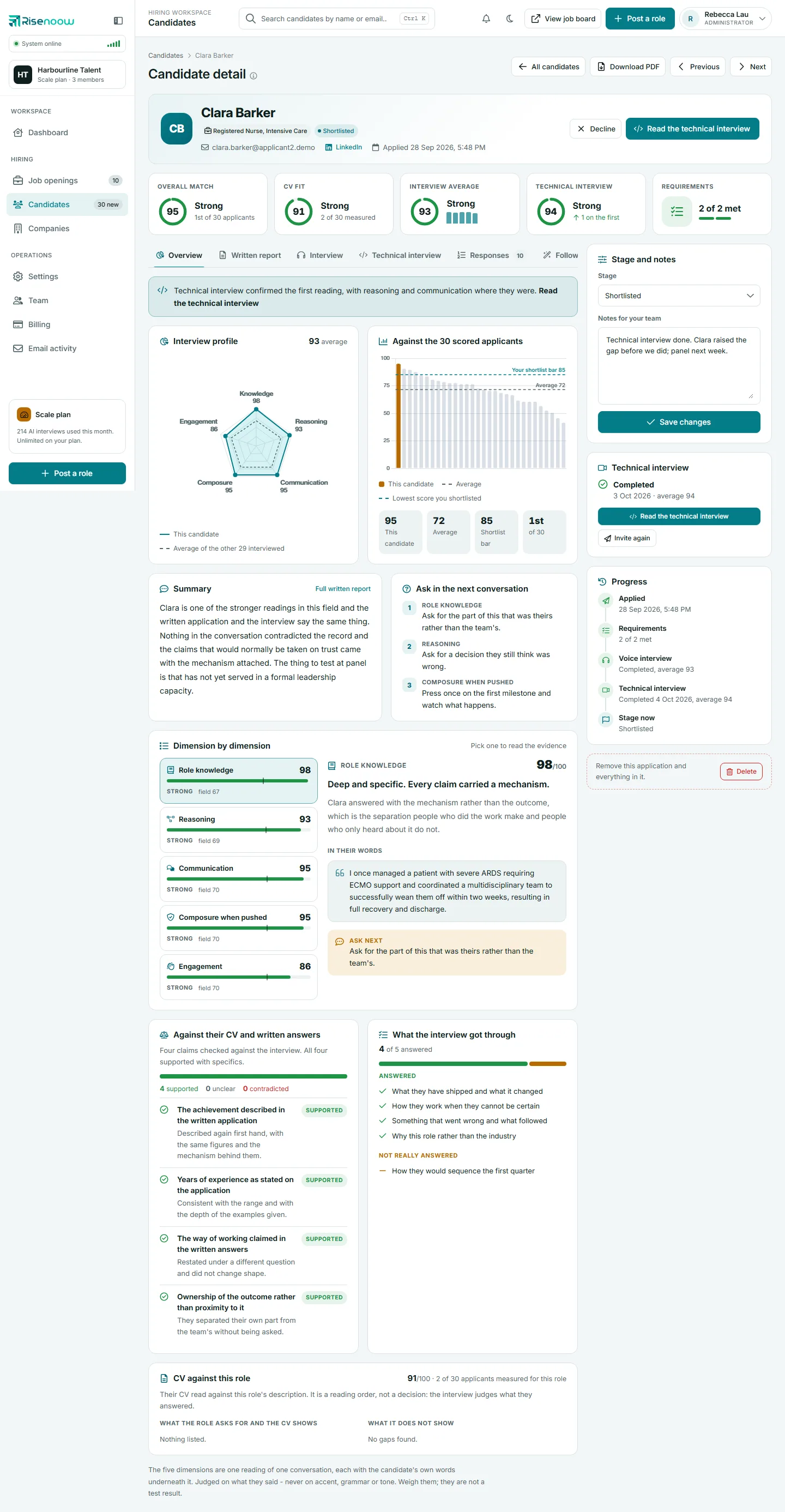
Download one candidate as a PDF
- Open Candidates in the left menu and select a candidate's name.
- Select Download PDF at the top right of the page. The same link is at the top of the Written report tab.
- Save or open the file. It is named after the candidate.
The PDF is made for reading and forwarding. It contains:
| Section | What is in it |
|---|---|
| Heading | The candidate's name, the role, the company and the date they applied. |
| Scores | Answers and interview: the overall match out of 100. CV against this role: the CV fit out of 100 and its place among the applicants measured, or No CV to read. Stage. |
| What the CV shows | Up to eight things the role asks for that the CV shows, and under Not shown up to eight gaps with how much each matters. |
| The reading | The full written report. See Written report tab. |
| What they answered | A table of every written question and answer. |
It ends with a note that the scores are produced by AI from what the person wrote and uploaded, and are a reading order and a summary, not a decision.
What the PDF leaves out
The PDF does not include the voice interview transcript, the technical interview, the follow up answers, the career profile, the cover letter or your team notes. Share those by giving a colleague access to the workspace, or read them on the record.
Export the candidate list as a CSV
- Open Candidates in the left menu.
- Set the list up the way you want it: choose a Role, a stage, the Technical filter, a search and a Sort order. See Filters, search and sorting.
- Select Export CSV at the top right.
- Open the file in any spreadsheet program.
The export follows exactly what the list on screen is filtered to, in the same order, Best CV fit included, across all pages, not just the page you are on. It holds up to 10,000 rows and includes only the roles you can see. The file is named with the date, for example candidates-2026-10-30.csv.
| Column | What it holds |
|---|---|
| Candidate | Name. |
| Email address. | |
| LinkedIn address, when one was given. | |
| Role | The job opening they applied to. |
| Stage | New, AI reviewed, In review, Shortlisted or Declined. |
| Match score | The overall match, rounded, or empty when there is none. |
| CV fit | The CV fit out of 100, or empty when there was no CV to read. |
| Technical interview | Completed when they have sat one, otherwise empty. |
| Applied | Date and time, in your timezone. |
Good to know
The file opens with accents and other alphabets intact. Any cell that a spreadsheet could mistake for a formula is saved as plain text, so a candidate's name can never run as a formula on your computer.
Download a candidate's CV
- Open the candidate's record.
- Select Download CV at the top of the record, next to Shortlist and Decline.
- The file downloads, named after the candidate, in the format they uploaded: PDF, DOC or DOCX.
The button only appears when the candidate uploaded a CV. CV files are never public: they can only be downloaded by signed in members of your workspace who can see the role.
Frequently asked questions
Can I download the PDFs of many candidates at once?
No. The PDF is one candidate at a time. For a list of many candidates, use Export CSV.
Why is my CSV missing candidates?
The export uses the filters on screen. Clear the role, stage, technical filter and search to export everyone you can see.
Does the CSV include the written reports?
No. It has one row per application with the columns listed above. Use Download PDF for a candidate's full report.
Can I download the interview recordings?
There is no download button for recordings. They play on the candidate record, for signed in members of your workspace. See Interview tab.