Admin and recruiter permissions
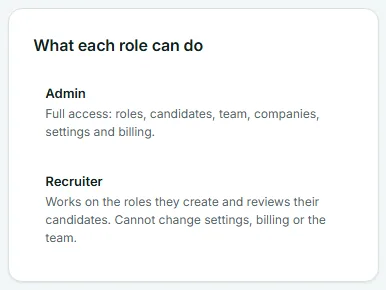
Every person in a Risenoow workspace is either an Admin or a Recruiter. An admin has full access to the workspace. A recruiter, sometimes called a restricted seat, works on the roles they create and reviews the candidates for those roles, and cannot change settings, billing or the team.
Where: What each role can do card on the Team page
Who can use it: Admins set roles. Everyone can read this page
Time needed: 3 minutes to read
Side by side
| Area | Admin | Recruiter |
|---|---|---|
| Dashboard | Every role in the workspace | Only the roles they created |
| Job openings | Every role. Create, edit, publish, close and delete | Only the roles they created. Can post new roles |
| Candidates | Every applicant to every role | Only applicants to their own roles |
| Companies | Every company. Edit or delete any | Companies they added, plus companies an admin shared. Edit or delete only their own |
| Email activity | Every email from the workspace | Emails about applicants to their own roles, and general workspace emails not tied to one applicant |
| Settings | Yes | No, not shown in the menu |
| Team | Yes: invite, change roles, disable | No, not shown in the menu |
| Billing | Yes, plus the plan card at the bottom of the left menu | No, not shown in the menu |
| Delete the workspace | Yes, from Settings | No |
| My profile | Yes | Yes |
| Candidate report emails by default | Yes, when a role has no hiring team email | No, unless their address is the role's hiring team email |
If someone opens a page their role does not allow, for example by typing its address, Risenoow refuses it.
What a recruiter sees

A recruiter's menu has Dashboard, Job openings, Candidates, Companies and Email activity, plus Post a role. Every count, chart and list is narrowed to the roles they created. The account menu at the top right shows My profile, Take the tour and Sign out. For a guided look, see Recruiter view.
Roles belong to the person who created them
A recruiter sees a role because they created it. A role an admin creates is not visible to recruiters, and there is no button to hand a role to someone else. If a recruiter should run a role, let them post it.
What only an admin can do
- Settings: workspace name and timezone, the voice interviewer, tone and style, recording retention, support visit history, and deleting the workspace. See Settings overview.
- Team: invite people, change roles, disable and enable access, revoke invitations. See Team.
- Billing: see usage, change plan, manage the card and invoices. See Billing and plan.
- Share companies with recruiters, using Share with team members. See Add or edit a company.
Companies and sharing
Companies follow their own rule, because a company can be used by many roles:
- An admin decides, per company, whether it is Shared with team or Only admins.
- A recruiter can pick a shared company for their roles, but cannot change it. The card shows Shared by admin, read only.
- Companies a recruiter adds are automatically visible to the admins, who can edit or delete them.
Who gets candidate reports
When a candidate finishes, the scored report is emailed to the role's Hiring team email, set when you edit the role under Job openings. If a role has none, Risenoow sends it to every active admin of the workspace. Recruiters are not on that fallback list, because a recruiter is not necessarily meant to see every candidate. To have a recruiter receive reports for their role, put their address in that role's Hiring team email.
Changing someone's role
An admin changes roles on the Team page. The change takes effect straight away. You cannot change your own role, and you cannot demote the last active admin. See Team.
Frequently asked questions
Can a recruiter see candidates on another recruiter's roles?
No. A recruiter sees only applicants to roles they created themselves. Admins see every candidate.
Can a recruiter post a role?
Yes. Recruiters can post and manage their own roles. Each new open role still counts toward the workspace's plan.
Does a recruiter use a seat?
Yes. Every active member uses a seat, whether they are an admin or a recruiter, and so does every pending invitation.
Can a recruiter delete the workspace or change the plan?
No. Only admins can reach Settings and Billing.