Job alerts
Job alerts in the Risenoow candidate portal email you new roles that match what you are looking for. You choose the keywords, location, work arrangement and how often to hear. You are only ever told about a role once, and an alert with nothing new stays quiet.
Where: Job alerts in the left menu
Who can use it: Every job seeker account
Time needed: About a minute per alert
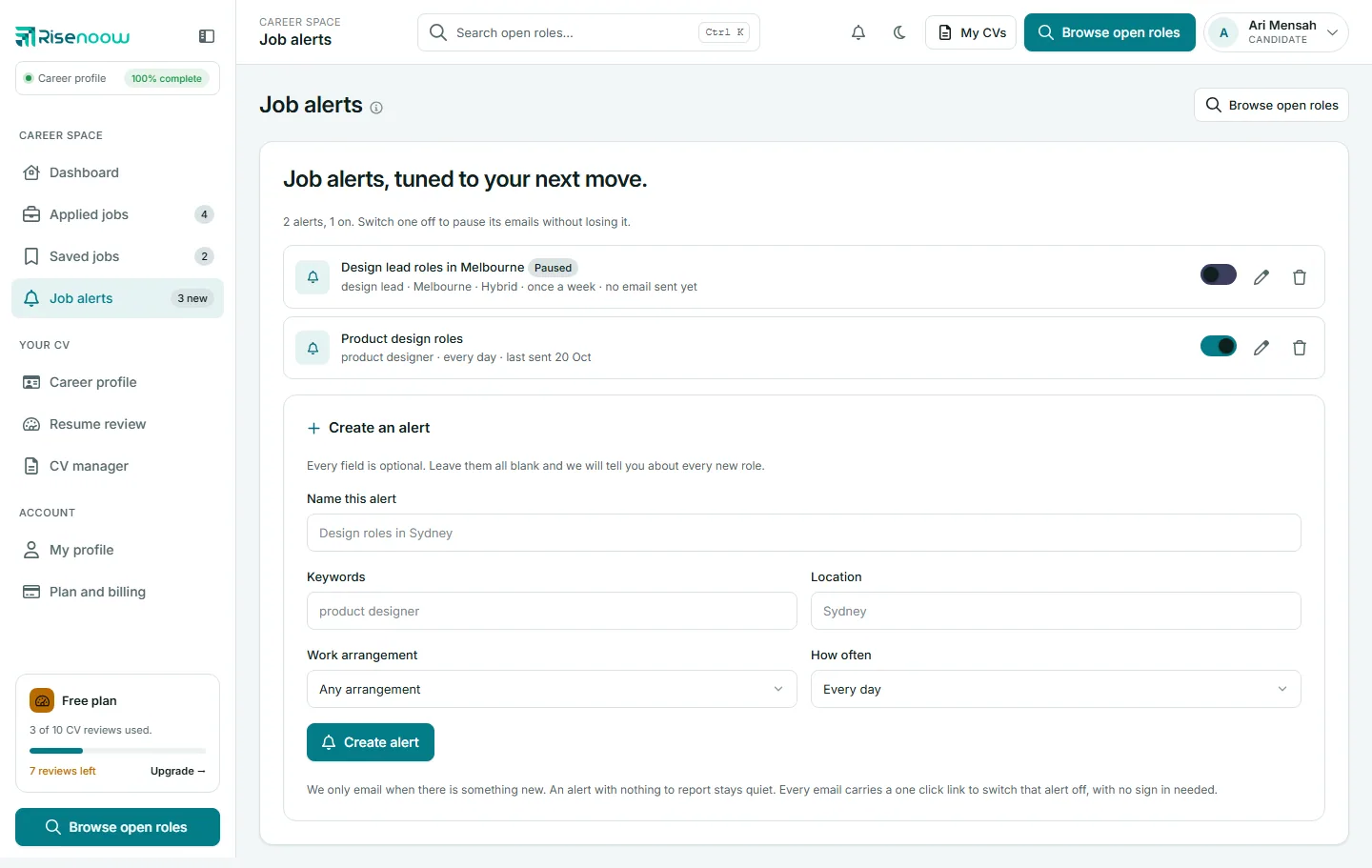
Create an alert
- Open Job alerts in the left menu. On the dashboard you can also select New alert on the Job alerts card.
- Under Create an alert, fill in any of the fields below. Every field is optional.
- Select Create alert.
A message confirms: "Alert created. We email you when a matching role is posted."
| Field | What it does |
|---|---|
| Name this alert | A name you will recognise, such as "Design roles in Sydney". If you leave it blank, the alert is named after its search. |
| Keywords | Words to look for in the role title or description. Every word must appear, so "senior designer" only finds roles that mention both. |
| Location | A town, city or region, matched against where the role is. |
| Work arrangement | Any arrangement, Remote, Hybrid, On site or On the road. |
| How often | Every day or Once a week. |
Leave every field blank and the alert tells you about every new role on the job board.
Start from a search
When an application is marked Not selected, the Set a job alert button on its card opens this page with the keywords and location already filled in. Check them and select Create alert.
What the emails contain
Each alert email lists new roles that match, up to twelve at a time, with links to the job board. Only roles that are open and listed on the public board are included, and a role is never sent twice for the same alert. If nothing new matches, no email is sent.
Each alert row shows when it was last sent ("last sent 20 Oct") or no email sent yet.
Pause, edit or delete an alert
The summary line above your alerts says how many you have and how many are on, for example "2 alerts, 1 on."
| To | Do this |
|---|---|
| Pause | Switch the alert off. It shows Paused and its emails stop, but its settings are kept. |
| Resume | Switch it back on. |
| Edit | Select , change the fields in Edit alert, then select Save changes. |
| Delete | Select , then confirm Delete. Its emails stop straight away. |
You can also pause and resume alerts with the switches on the Job alerts card on your dashboard. That card shows up to three alerts, each marked Paused, Up to date or with a count of new matches.
Turn an alert off from the email
Every alert email carries a one click link to switch that alert off, with no sign in needed. The alert is paused, not deleted, so you can switch it back on in the portal later.
What the badge means
The badge beside Job alerts in the left menu, for example 3 new, counts the matching roles your alerts have not sent you yet. It counts only alerts that are switched on.
Limits
You can keep up to ten alerts, paused ones included. When you reach the limit, the form says so. Delete an alert you no longer need to make room.
Frequently asked questions
Why have I not received an alert email?
An alert only emails when there is something new that matches. Try fewer keywords: every keyword must appear in a role for it to match. Also check your spam folder and that the alert is switched on.
Will I get the same role twice?
No. Each alert remembers what it has sent. Two different alerts that both match a role can each send it once.
Can I get alerts for remote roles only?
Yes. Set Work arrangement to Remote and leave Location blank.
Does deleting an alert affect my applications?
No. Deleting an alert only stops its emails.