Search, notifications and theme
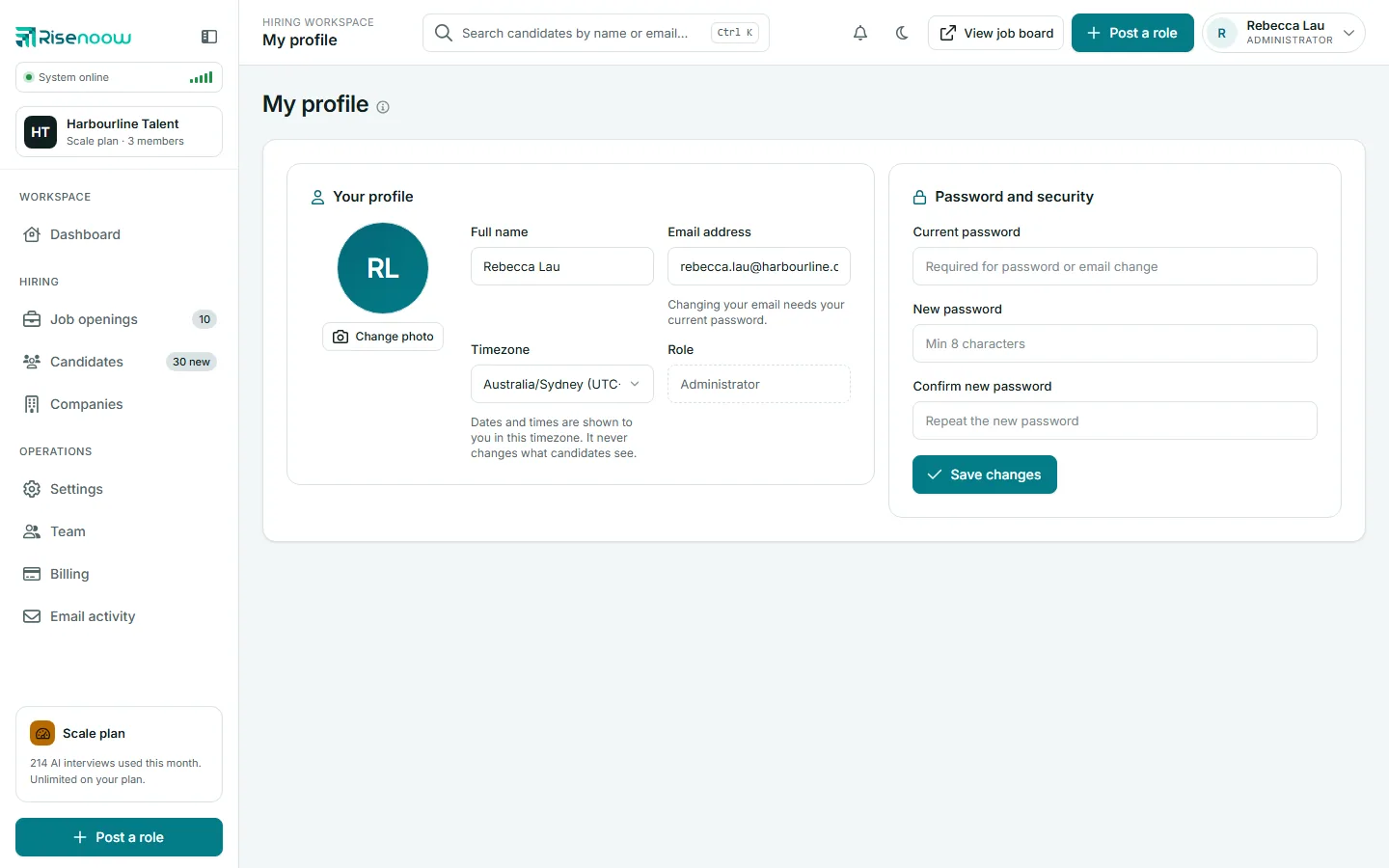
The top bar of the Risenoow hiring workspace has three everyday tools: a search box that finds any candidate by name or email, a bell that lists what changed in the last seven days, and a switch between dark and light mode. This page also covers collapsing the left menu and running the product tour again.
Where: The top bar, on every page of the hiring workspace
Who: Workspace administrators and recruiters
Shortcut: Ctrl K, or Cmd K on a Mac, jumps to search
Search for a candidate
The search box finds candidates by their name or their email address, across every role you can see.
- Select the box that says Search candidates by name or email, or press Ctrl K (Cmd K on a Mac) from any page.
- Type part of a name or an email address.
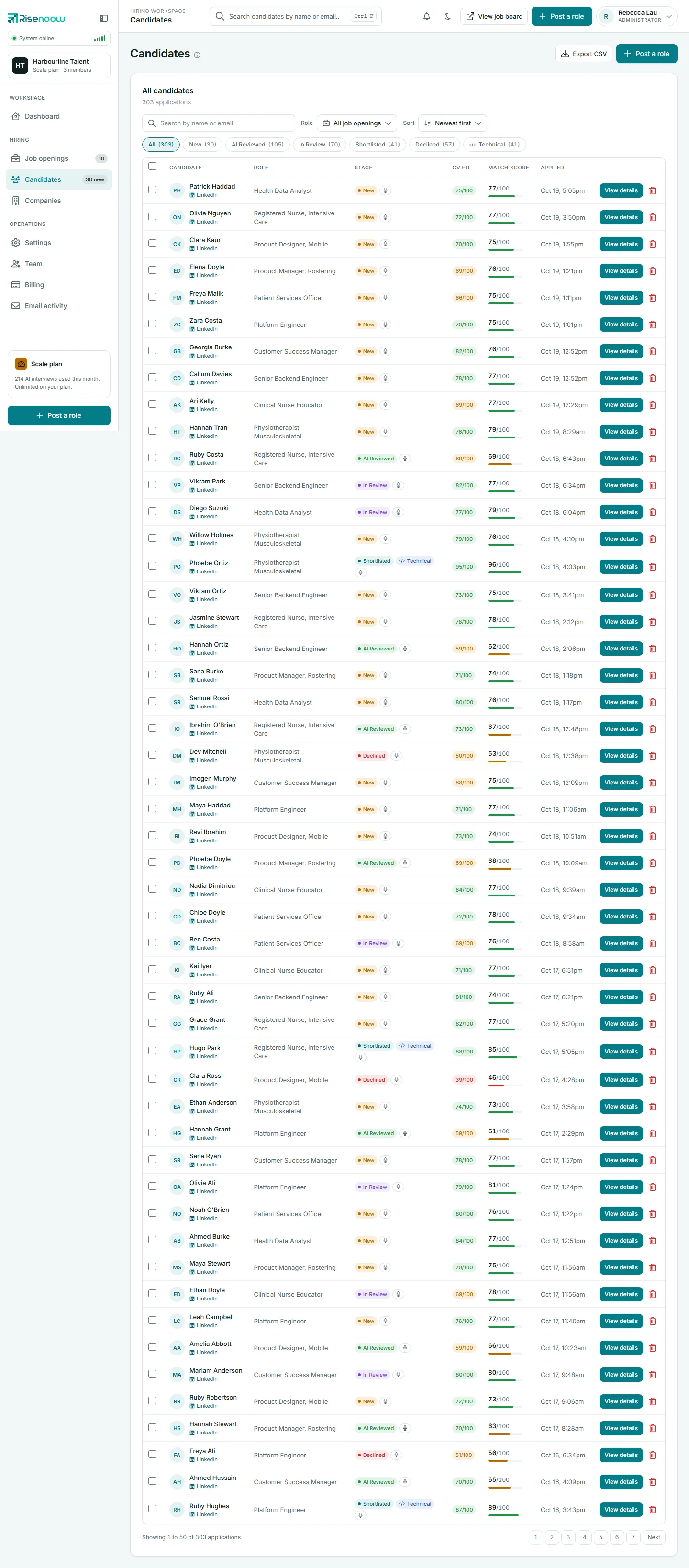
- Press Enter. The Candidates page opens with only the people who match.
Good to know:
- Search looks at candidate names and email addresses only. To find a role, use Job openings in the left menu.
- A recruiter's search covers only the candidates for their own roles.
- On the Candidates page you can combine the search with the role and stage filters. See Filters, search and sorting.
Notifications
Select the bell to see what changed in your workspace in the last seven days, newest first. A dot on the bell means at least one item is unread. Select an item to go straight to it.
| Notification | Where it takes you |
|---|---|
| New applications for a role, with the count | The Candidates page, showing new applications |
| A candidate booked a technical interview, with the date and time | That candidate's record |
| Emails that could not be delivered | Email activity |
| Team seats are full: new invitations are paused | Billing |
The list shows up to six items. New applications are grouped by role. When nothing has happened, the list says Nothing new in the last seven days.
Mark all as read
Select Mark all as read at the top of the list. The dot on the bell goes away until something new arrives.
Read state stays in this browser
Risenoow remembers what you have read in the browser you are using. On another computer or browser, the same items show as unread until you mark them there too.
To choose which emails your team receives, see Notifications and email.
Light and dark mode
Risenoow opens in dark mode. To switch, select the moon or sun button in the top bar, next to the bell.
- Your choice is remembered in this browser, on every page of the workspace.
- Charts change their colours to match straight away.
- The sign in and sign up pages have their own switch, the moon in the top corner of the card. Those pages open light, and their choice is kept separately from the one inside the app.
Collapse the left menu
On a wide screen, select the button beside the Risenoow logo at the top of the left menu. The menu narrows to its icons and gives the page more room. Select the button again to widen it.
On a tablet or phone, the left menu is hidden. Select the menu button at the top left to open it. See Finding your way around.
The product tour
The first time you open the hiring workspace, a short tour highlights the main parts of the screen one at a time:
- Your workspace, top to bottom: the left menu.
- The roles you are hiring for: Job openings.
- Everyone who applied: Candidates.
- What is waiting on you: the Needs your attention card on the dashboard.
- Post a role: the button that starts a new role.
- Find anyone quickly: the search box.
- Your account and workspace: the account menu.
A step is left out when its part of the screen is not on the page, so recruiters and some pages see a shorter tour.
| Control | What it does |
|---|---|
| Next | Moves to the next step. On the last step it reads Got it and ends the tour. |
| Back | Goes to the previous step. On the first step it reads Skip and ends the tour. |
| Close | Ends the tour at once. Escape does the same. |
| Arrow keys | Move back and forward between steps. |
The tour shows once per person. To see it again, open your name in the top right corner and select Take the tour. The dashboard opens and the tour starts.
Frequently asked questions
Can I search for a role or a company from the top bar?
No. The top bar search finds candidates by name or email. Use Job openings or Companies in the left menu for roles and companies.
What is the keyboard shortcut for search?
Press Ctrl K on Windows or Linux, or Cmd K on a Mac. It works on every page of the hiring workspace. See Keyboard shortcuts.
Why do my notifications show as unread on my laptop when I read them on my desktop?
Read state is kept in each browser. Select Mark all as read on the other device too.
How long do notifications stay in the list?
The bell shows what happened in the last seven days. Older items drop off by themselves.
How do I see the product tour again?
Open your name in the top right corner and select Take the tour.