The employer dashboard
The Risenoow dashboard is the first page you see after you sign in to your employer workspace. It answers three questions on one screen: what is waiting on you today, how your hiring is going, and which candidates you should decide on next.
Where: Dashboard at the top of the left menu, or the Risenoow logo
Who can use it: Workspace admins and recruiters
Time needed: A two minute read each morning
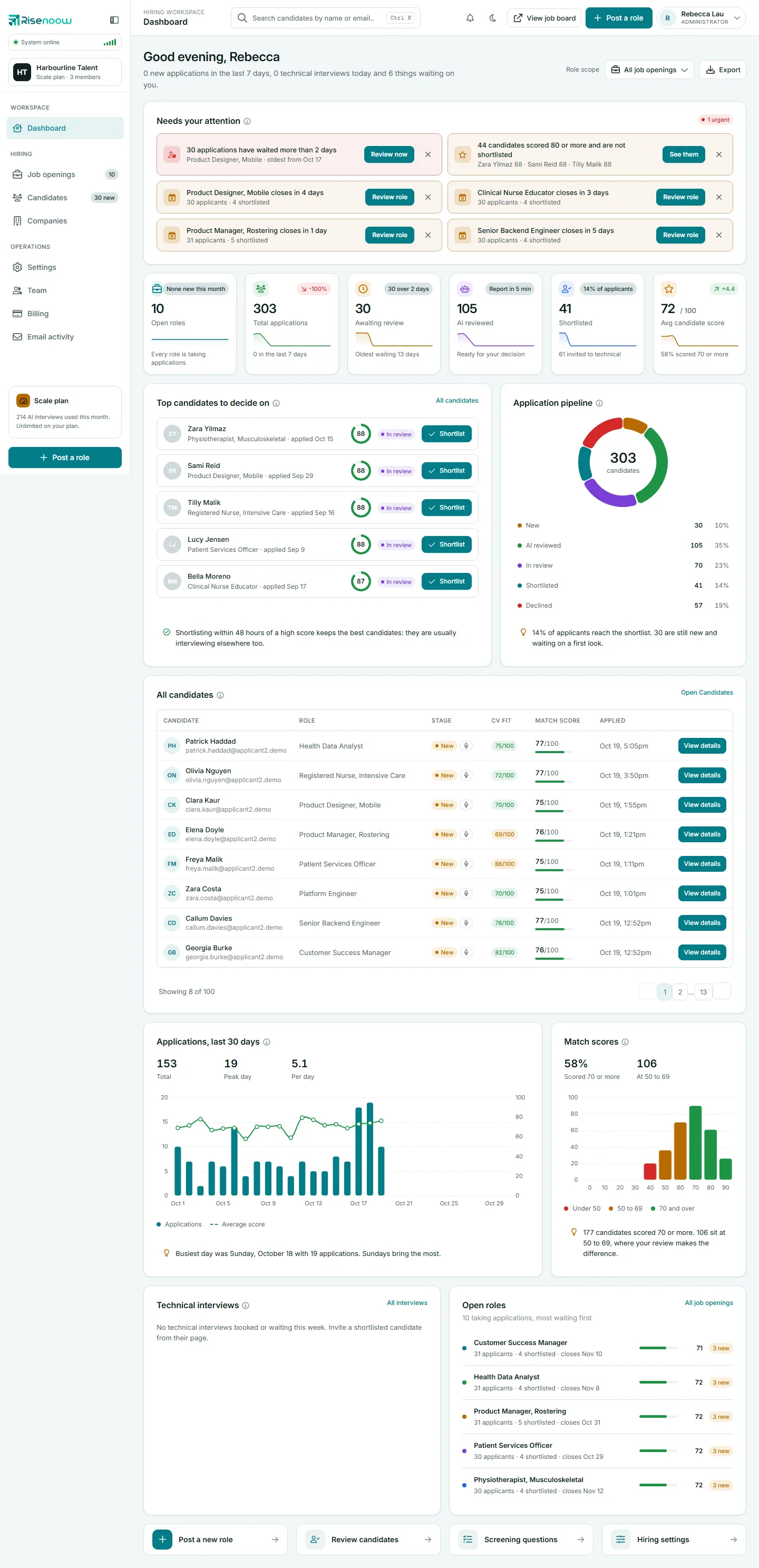
What is on the page, in order
The page is laid out in the order a hiring manager usually acts: what is waiting first, then the numbers, then the people, then the trends.
- The greeting. "Good morning", "Good afternoon" or "Good evening" with your first name, and one line under it: new applications in the last 7 days, technical interviews today, and how many things are waiting on you.
- Role scope and Export, top right. The picker narrows most of the page to one role. Export downloads the figures as a spreadsheet file.
- Needs your attention. Up to six things that need you, most urgent first.
- Six number cards: Open roles, Total applications, Awaiting review, AI reviewed, Shortlisted and Avg candidate score. Each has a small trend line for the last 14 days.
- Top candidates to decide on and Application pipeline, side by side.
- All candidates, a table of the newest applications.
- Applications, last 30 days and Match scores, two charts.
- Technical interviews for this week and your Open roles.
- Quick actions along the bottom.
Every number is read from your own workspace. Nothing on the dashboard is sample data.
Good to know
A short explanation sits behind the small info mark beside most card titles. Point at it, tab to it or tap it to read what the card shows.
A brand new workspace
If you are the workspace admin and have not finished the setup steps, Risenoow opens those steps instead of the dashboard, so you do not land on a page of zeroes. See First run setup.
Every part of the dashboard
-
Role scope and export
Narrow the page to one role, and download the figures.
-
Needs your attention
What is waiting on you, most urgent first, and how to hide an item for the day.
-
Open roles card
How many roles are taking applications.
-
Total applications card
Every application, and how this week compares with last week.
-
Awaiting review card
Applications still at the New stage, and how long the oldest has waited.
-
AI reviewed card
Reports that are ready for your decision.
-
Shortlisted card
Candidates on your shortlist, and how many you invited to a technical interview.
-
Average candidate score card
The average match score, and whether it is rising.
-
Top candidates to decide on
The highest scores still waiting for a decision, with a one click shortlist.
-
Application pipeline chart
Where every candidate stands, stage by stage.
-
All candidates table
The newest applications with stage, CV fit and match score.
-
Applications over time chart
Applications per day for 30 days, with the average score.
-
Match scores chart
How scored candidates spread across the 100 point score.
-
Technical interviews card
This week's second stage interviews, and who has not booked.
-
Open roles list
Your open roles, the ones with most waiting first.
-
Quick actions
Shortcuts to the four things people do most.
-
Recruiter view
What a recruiter sees, and how it differs from an admin's dashboard.
Frequently asked questions
Is the dashboard the same for everyone in my workspace?
The layout is the same, but the figures are not. A workspace admin sees every role in the workspace. A recruiter sees only the roles they created. See Recruiter view.
How often do the numbers update?
Every time you open or reload the page. There is no delay or overnight batch.
Can I rearrange or hide cards?
No. The order is fixed so that everyone on the team reads the same page. You can hide individual items in Needs your attention for the rest of the day.
Does the dashboard show roles I disabled?
Their applicants still count in the application, stage and score figures. The Open roles card and list count only roles that are not disabled. Roles saved part way through Post a role do not appear until you finish them.