Invite a colleague
To bring a colleague into your Risenoow workspace, an admin sends them an invitation from the Team page. They get an email with a link that works for 7 days, choose their own password, and land in the same workspace with the role you picked: Admin for full access or Recruiter for their own roles only.
Where: Team in the left menu, Invite a teammate card
Who can use it: Workspace admins only
Time needed: Under a minute
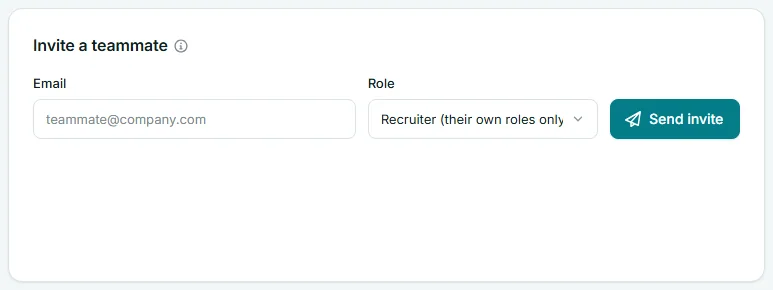
Send an invitation
- Open Team in the left menu.
- In Invite a teammate, type your colleague's work address in Email.
- Choose a Role: Recruiter (their own roles only) or Admin (full access).
- Select Send invite.
The page shows "Invitation emailed to" and the address. The invitation appears under Pending invitations with its expiry date, and it counts as a seat straight away.
Which role to choose
Choose Recruiter for someone who runs their own roles and reviews their own candidates. Choose Admin only for people who should manage settings, the team and billing. You can change the role later on the Team page. See Permissions.
What your colleague receives
The email subject reads "You're invited to join" followed by your workspace name. It says who invited them, names the workspace and their role, and has an Accept invitation button. It also says the link expires in 7 days and can only be used once, and gives the link as text in case the button does not work.
What your colleague does
- Open the email and select Accept invitation.
- On the Join your hiring team. page, check the Work email. It is fixed to the invited address.
- Type their name in Your name.
- Choose a password of at least 8 characters in Choose a password.
- Select Accept invitation.
Risenoow creates the account and signs them in. A recruiter lands on the Dashboard; an admin lands on the Get started page of the first run setup. They receive a welcome email too. On the Team page they move from Pending invitations to Team members, with status Active.
If something goes wrong
| What you see | Why, and what to do |
|---|---|
| Please provide a valid email. | The address is not complete. Check it for typing mistakes. |
| This person is already on your team. | They already have an account in this workspace. If they are Disabled, select Enable in their row instead. |
| That email already belongs to a user in another workspace. | The address already has an account in another Risenoow workspace. Ask your colleague for a different work address. |
| That address belongs to a job seeker account on Risenoow, so it cannot join a workspace. | The address is used for a job seeker account. Ask your colleague for a different address, such as their work email. |
| You've used all N seats on your plan. | Every seat is taken. Revoke a pending invitation, disable a member, or move to a larger plan from Billing. |
| Invitation created. Share this link | The email could not be sent. Copy the link shown on the page and send it to your colleague yourself. |
Your colleague may see one of these:
| What they see | What to do |
|---|---|
| This invitation is unavailable. | The link expired, was already used, was revoked, or was copied incompletely. Revoke it if it is still listed and send a new invitation. |
| This workspace has no seats free right now. | Free a seat or move to a larger plan, then ask them to open the same link again. It still works while it has not expired. |
| You already have an account with this email. Try signing in. | An account with this address already exists. Ask them to sign in, or invite a different address. |
Send an invitation again
If your colleague lost the email, invite the same address again from Invite a teammate. While their invitation is still pending, this sends it again rather than creating a second one:
- The page shows "Invitation emailed to" the address "again, with a new link. The earlier link no longer works."
- The invitation gets a fresh 7 days and the role you chose this time.
- It keeps the same seat, so it works even when every seat is in use.
If the invitation has already expired, it has left the list and freed its seat. Send a new invitation in the usual way.
Frequently asked questions
How long does an invitation last?
Seven days. After that the link stops working, the invitation leaves the pending list, and its seat is free again.
Does a pending invitation use a seat?
Yes. Every invitation not yet accepted or expired counts as a seat, so you cannot invite past your plan limit.
What happens if I invite the same address twice?
While the first invitation is pending, the second one resends it with a new link and a fresh 7 days. It still holds one seat, and the earlier link stops working.
Can I invite someone who applied to one of our roles?
Not with the address they used as a job seeker, because that address already has a Risenoow account. Invite them with a different work address.
Can I change the role after they join?
Yes. Open Team and pick a new role in their row. The change saves straight away.