Team
The Team page in Risenoow shows who can sign in to your workspace and what they can do. From here a workspace admin invites colleagues, switches people between Admin and Recruiter, removes access on the day someone leaves, and tidies up invitations that were never accepted.
Where: Team in the left menu, under Operations, or Team in the account menu
Who can use it: Workspace admins only
Time needed: Under a minute per change
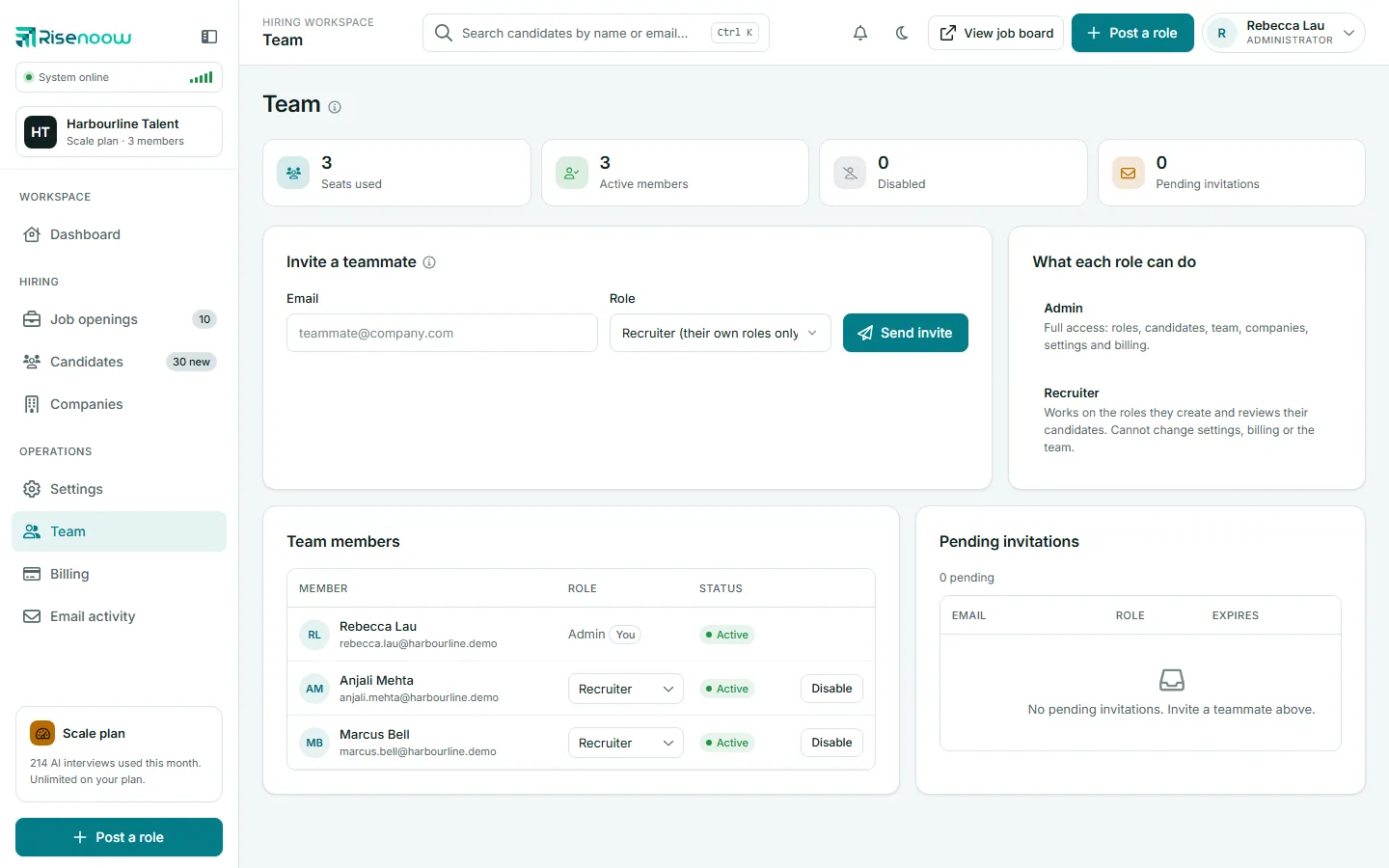
The four counters
| Counter | What it counts | |
|---|---|---|
| Seats used | Everyone who can sign in plus invitations not yet accepted. On a plan with a seat limit it reads "3 of 5", and turns red when full. | |
| Active members | People who can sign in today. | |
| Disabled | People whose access you turned off. They do not use a seat. | |
| Pending invitations | Invitations sent and not yet accepted or expired. Each one holds a seat. |
Good to know
A pending invitation holds a seat on purpose. Otherwise you could invite past your limit and only find out when someone tried to accept.
The Team members table

Each row shows the member's name and email, their Role, their Status (Active or Disabled), and a Disable or Enable button. Select a column heading to sort by it.
Change someone's role
- Open Team in the left menu.
- In the member's row, open the Role list.
- Choose Admin or Recruiter.
The change saves as soon as you choose, and the page shows "Role updated." See Permissions for what each role can do.
Disable someone who has left
- Open Team in the left menu.
- Select Disable in the member's row.
- Read the confirmation: "They are signed out straight away and can no longer reach this workspace."
- Select Disable.
Disabling is immediate. If the person has Risenoow open in a browser, they are signed out at once. Everything they did stays: their roles, notes and decisions remain in the workspace for the rest of the team. A disabled admin also stops receiving candidate report emails.
Bring someone back
Select Enable in their row. The page shows "User re-enabled." Turning access back on uses a seat again, so on a full plan you first need to free a seat or move to a larger plan.
Safety rules on this page
Risenoow stops changes that would lock your workspace:
- You cannot disable your own account or change your own role. Your row shows You instead of the controls. Ask another admin.
- You cannot disable or demote the last active admin. The message reads "This is the last administrator on this workspace. Make somebody else an administrator first, or nobody will be able to reach settings, seats or billing."
:material-email-clock-outline: Pending invitations
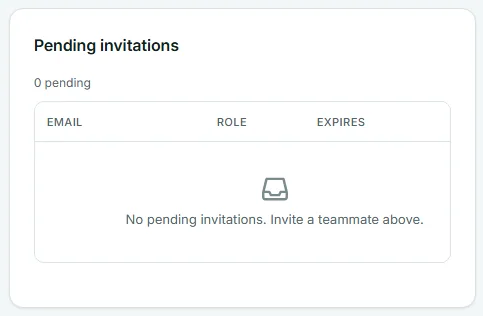
Each pending invitation shows the Email, the Role it grants and when it Expires, with the date it was sent underneath. Invitations last 7 days. An expired invitation drops off the list and frees its seat.
To cancel one, select Revoke and confirm. The link in the email stops working straight away, and the seat is free again.
To send a fresh invitation, see Invite a colleague.
When seats are full
When every seat is in use, Send invite is turned off and a banner reads "All N team seats are in use. Pending invitations count as seats. Revoke one, disable a member, or move to a larger plan." Select See plans to open Billing. Plan limits are on the pricing page.
Frequently asked questions
Does a disabled member still count as a seat?
No. Disabled members do not use a seat. Active members and pending invitations do.
Can I delete a team member completely?
The Team page offers Disable, which removes access at once and keeps their work in the workspace. There is no separate delete button for a member.
Why can I not change my own role?
To stop a workspace from losing its only admin by accident. Another admin can change your role for you.
What happens to a recruiter's roles when I disable them?
The roles and their candidates stay. Admins see every role in the workspace, so you can carry on with them.