Step 4: Configure the questions
Configure is step 4 of Post a role in Risenoow. You choose how many written, voice and technical interview questions the AI writes, then select Generate questions. The AI writes all three sets from your approved job description and creates the role.
Where: Post a role, step 4, card Configure the screening form
Who can use it: Workspace admins and recruiters
Time needed: Under a minute, then a wait of up to a couple of minutes
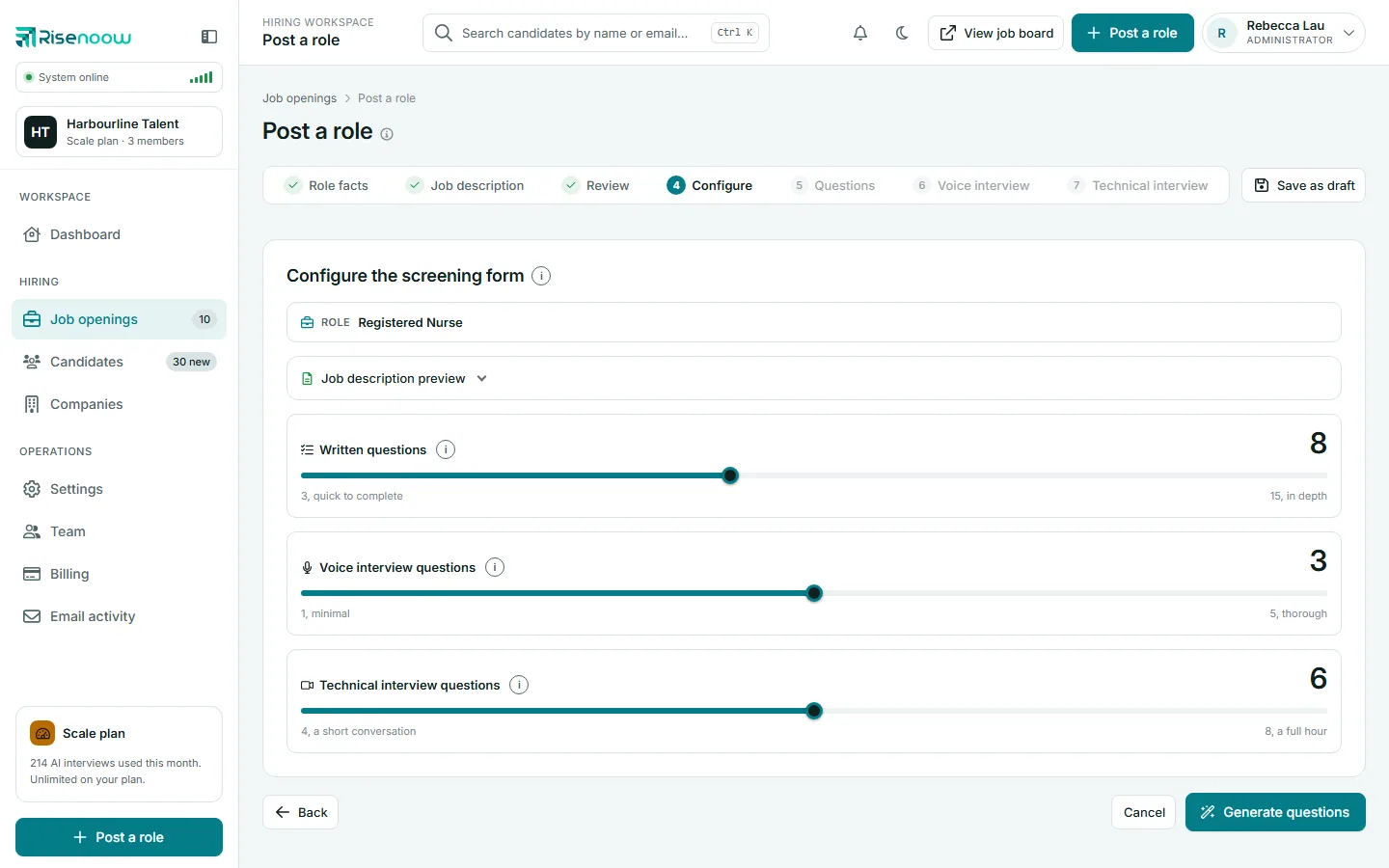
At the top
- Role shows the role you are setting up.
- Job description preview opens to show the full approved description as plain text, so you can read it once more. To change it, select Back.
The three sliders
| Slider | Range | Starts at | What it sets |
|---|---|---|---|
| Written questions | 3, quick to complete, to 15, in depth | 8 | The questions candidates answer in writing when they apply. Six to eight suits most roles. |
| Voice interview questions | 1, minimal, to 5, thorough | 3 | The questions the AI interviewer asks out loud before the written questions. |
| Technical interview questions | 4, a short conversation, to 8, a full hour | 6 | The second stage interview, held with the camera on after shortlisting. |
Drag a slider, or select it and use the arrow keys. The number at the right shows your choice. Your choices are saved as you change them.
When the voice interview was turned off on step 2, the voice slider is replaced by the note No voice interview for this role. The technical interview slider is always shown, because it is a separate, later stage.
Choosing the written count
More written questions give you more evidence, but take candidates longer. With more questions, the AI also adds more requirement questions, up to one for each hard condition in your description: one for 3 or 4 questions, two for 5 to 7, three for 8 to 11 and four for 12 to 15.
Generate the questions
- Set the three sliders.
- Select Generate questions.
- Wait while the loading screen says the AI is writing your written, voice and technical questions. Stay on the page.
The AI first reads your description into a short profile of the role, then writes the written questions, then the technical questions, then the voice questions. It checks each set and writes it again once if a check fails, so allow up to a couple of minutes. See How the AI writes your role.
When it finishes, the role is created, unpublished, and step 5, Questions opens.
The other buttons
| Button | What it does |
|---|---|
| Back | Returns to the Review step with your description in the editor. When you wrote the description with Enter manually, it returns to that box instead. |
| Cancel | Leaves for Job openings. Use Save as draft first to keep your work. |
If something goes wrong
- Plan limit reached. If your plan's open roles are all in use, a banner at the top of the wizard says a new role cannot be created until you close one or upgrade in Billing, and Generate questions is refused until then. Your work stays in the wizard, and you can still save it as a draft.
- The AI returned no usable questions. A message appears and you stay on this step. Select Generate questions again.
- The voice or technical questions could not be written. The role is still created. Step 5 opens with an amber warning naming the set that is missing, and you can add those questions by hand on its step before you publish.
After the role exists
Once the role is created, Configure in the step bar opens the role's questions page with Write a fresh set with AI expanded. It has the same three sliders, each with a tick box, and replaces only the sets you tick. It is available until the first person applies.
Frequently asked questions
Can I get fewer than three written questions?
No. The written form has between 3 and 15 questions. You can delete questions afterwards on step 5.
Why did I get fewer questions than I chose?
A question that still fails the AI's checks after its second attempt is removed, as long as the set keeps enough questions. For written questions, that can mean up to two fewer than you chose. Add your own on step 5 if you want the full count.
Where do I choose the interview languages?
On step 2. The written language and the voice language are set there, beside the voice interview switch.
Can I change the counts later?
Yes. Use Write a fresh set with AI on the role's questions page until someone applies, or add and remove questions one at a time at any time.