Quick actions
The quick actions are four large shortcuts at the bottom of the Risenoow dashboard. Each one takes you straight to a task people do most often: posting a role, reviewing candidates, tailoring screening questions, and either workspace settings or email activity.
Where: Dashboard, the last row of the page
Who can use it: Workspace admins and recruiters
Time needed: One click
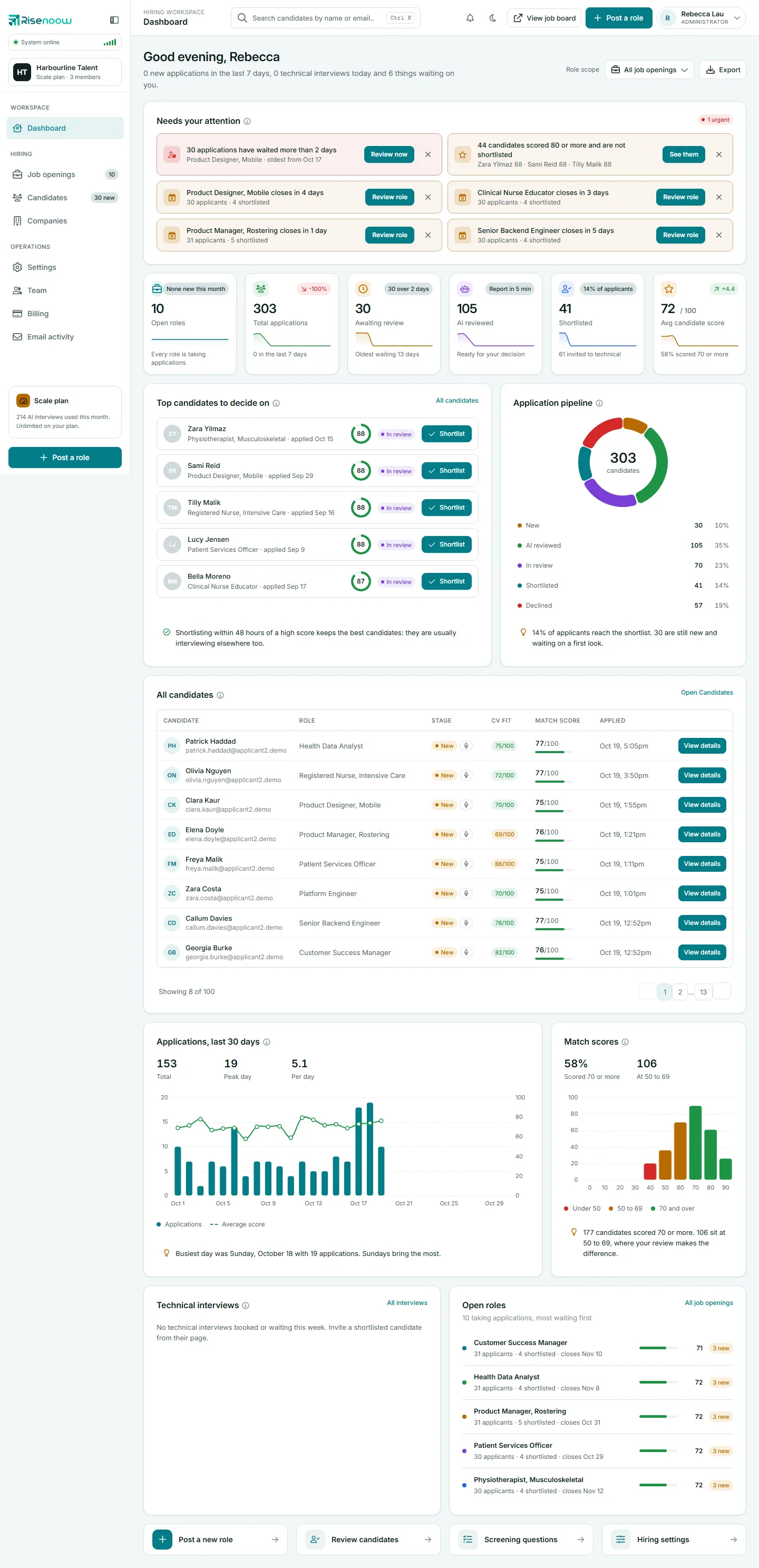
The four actions
| Action | Line under it | Where it goes | |
|---|---|---|---|
| Post a new role | Create a role and start screening | The first step of Post a role, where you describe the role and the AI writes the job description and questions. | |
| Review candidates | Score, shortlist or decline applicants | The Candidates page, with every application you can see. | |
| Screening questions | Tailor what each role asks candidates | The Job openings page. Open a role there to edit its questions. | |
| Hiring settings | AI, notifications and branding | Settings. Shown to workspace admins. | |
| Email activity | Reports and candidate emails | Email activity. Shown instead of Hiring settings to people who cannot change settings, such as recruiters. |
The first action is highlighted, because posting a role is where every hire starts.
Why the fourth action differs
Only workspace admins can change workspace settings. Rather than show a shortcut a recruiter cannot use, the dashboard gives recruiters Email activity in its place, where they can check that candidate reports and emails were delivered.

Other ways to the same places
The quick actions are shortcuts, not the only way in:
- Post a role is also a button in the top bar and at the bottom of the left menu, on every page.
- Candidates, Job openings, Settings and Email activity are all in the left menu.
- The search box in the top bar finds a candidate by name or email from any page. Press Ctrl K (or Cmd K on a Mac) to jump to it.
Role scope and quick actions
The quick actions do not change with Role scope. Review candidates always opens the full Candidates page, not the role you picked. To see one role's candidates, select that role's name in the Open roles list.
Frequently asked questions
Can I change which quick actions appear?
No. The four actions are the same for everyone, apart from the fourth, which depends on whether you can change settings.
Why does Screening questions open Job openings?
Questions belong to a role. Open the role on Job openings, then its Questions step, to change what candidates are asked.
Where did the Hiring settings shortcut go?
You see it only if you are a workspace admin. Recruiters see Email activity instead.