Open roles card
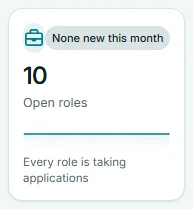
The Open roles card is the first of six number cards on the Risenoow dashboard. It shows how many of your roles are taking applications right now, so you can see at a glance whether you have the roles live that you expect.
Where: Dashboard, first card in the row of six numbers
Who can use it: Workspace admins and recruiters
Time needed: A glance
What the number counts
The big number counts every role you can see that is open: switched on, published, and not past its closing date. It does not count:
- Drafts: roles you created but never published.
- Closed roles: roles whose closing date has passed.
- Roles you have switched off.
- Roles saved part way through Post a role. They wait on the Job openings page until you finish them.
A recruiter's card counts only the roles they created. Every role counts, however many your workspace has.
The pill
The pill at the top right is grey, because a count of roles is neither good nor bad.
- +2 this month means two of today's open roles were created this calendar month.
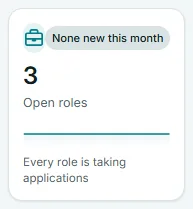
- None new this month means no open role was created this month.
The trend line
The small line under the label covers the last 14 days. For each day it shows how many roles were open on that day: switched on, published, already created, and not yet past their closing date. A step up means a new role was created. A step down means a closing date passed. Point at the line to see the date and the count, for example "Oct 12: 9 open roles".
The line is built from each role's current settings. A role you switched off last week does not appear on any day.
The footer line
- Every role is open when all your roles are counted.
- Not counted: 1 draft, 1 closed, 1 switched off when some are not, with a count for each reason. Only the reasons that apply are listed.
- No roles yet before you have created a role.
Roles that are not counted keep their candidates. They do not take new applications.
When you pick one role
Choose a role in Role scope and the card describes that role alone:
| Part | What it shows |
|---|---|
| Number | 1 if the role is open, 0 if it is not. |
| Pill | Published when it is open. Otherwise the reason: Draft, Closed or Switched off. |
| Footer | "Open 12 days, closes Nov 10" or "Open today, no closing date" for an open role. Not published yet for a draft, Closed with the date for a closed role, and Not taking applications for a role that is switched off. |
| Trend line | Flat: 1 on every day if the role is open, 0 if it is not. |
What to do about it
- The number is lower than you expect. Read the footer. It tells you how many roles are drafts, closed or switched off. Then check them on Job openings.
- A role reads Draft. The role is not published yet. Open the role and use Preview and publish.
- A role reads Closed. Its closing date has passed. To take applications again, set a later closing date on the role's Role details tab.
- A role reads Switched off. That is fine if you have finished hiring for it. If not, switch it back on from Job openings.
Frequently asked questions
Why does my draft role not count as open?
A draft has never been published, so candidates cannot apply to it yet. The footer counts it under Not counted. Publish it from Preview and publish and it counts.
Does a role stop counting when its closing date passes?
Yes. From the day after its closing date the role is closed: it stops taking applications and the footer counts it as closed. Set a later closing date to open it again.
Why is the trend line flat?
No role was created and no closing date passed in the last 14 days, so the count has been the same every day.
Why does my colleague see a different number?
Recruiters see only the roles they created. Workspace admins see every role.