Saved jobs
Saved jobs is your private shortlist in the Risenoow candidate portal. Bookmark a role on the job board and it collects here, so you can compare roles, come back at the right time and apply when you are ready.
Where: Saved jobs in the left menu
Who can use it: Every job seeker account
Time needed: Seconds per role
How to save a role
You can save a role from two places:
- A role's page. Open the job board, open a role and select Save role. The button changes to Saved. If you are signed out it says Sign in to save. See Find a job.
- Your dashboard. On the Roles that fit you card, select beside a role. A message confirms Saved to your roles. Select it again to remove it.
Saving the same role twice does nothing harmful: it stays saved once.
Only roles that are open and listed on the job board can be saved.
What the list shows
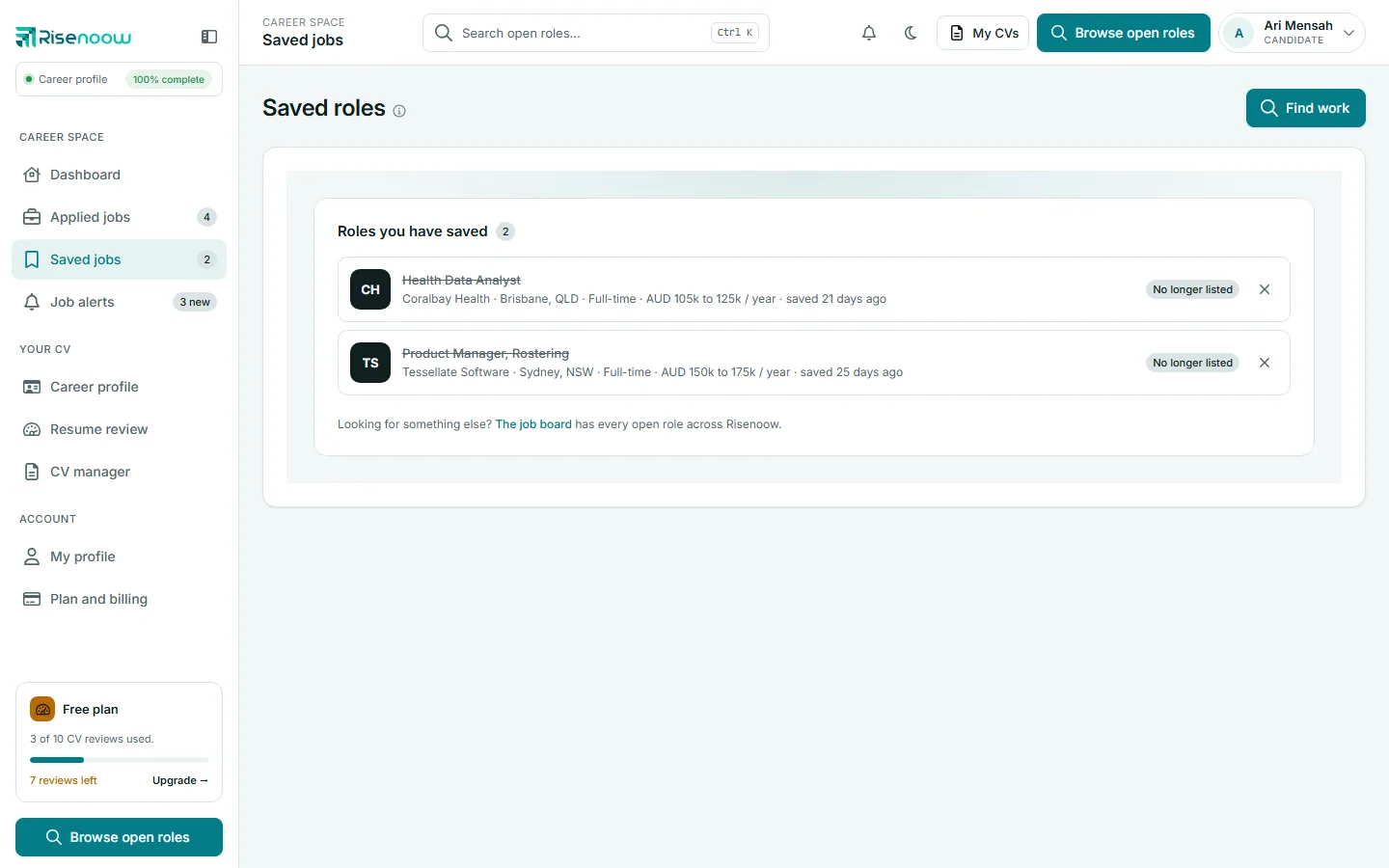
Roles you have saved lists your roles, newest first, with a count beside the heading. Each row shows:
- The company logo, or its initials.
- The role title.
- The company, location, type of work, pay when the employer gave it, and when you saved it ("saved 21 days ago").
- View role, which opens the role on the job board, where you can apply.
The number beside Saved jobs in the left menu is how many roles you have saved.
When a role closes or is no longer listed
If a role closes, or an employer unlists or removes it after you saved it, it stays on your list so you can see what happened. Its title is crossed out and a label replaces the View role button:
- Closed when the role's closing date has passed.
- No longer listed when the employer took it down for another reason.
You cannot apply to it, so remove it when you are ready.
How to remove a saved role
- Open Saved jobs in the left menu.
- Select at the end of the row.
The role disappears straight away and the count goes down. There is no confirmation step, so if you remove one by mistake, save it again from the job board.
You can also remove a role from the Saved roles card on your dashboard.
Saved roles on your dashboard
The Saved roles card on your dashboard shows up to four saved roles, sorted the other way: closing soonest first, so a deadline never slips past. Each carries a pill:
| Pill | Meaning |
|---|---|
| Closes today | Last day to apply |
| Closes in 1 to 3 days | Shown in red |
| Closes in 4 to 7 days | Shown in amber |
| Closes and a date | More than a week away |
| Open | No closing date |
| Unavailable | The role is closed or no longer listed |
All saved opens the full list. If you have more than four, it shows your total in brackets.
Tips for using your shortlist
- Save while you browse, then compare roles side by side later.
- Before you apply to a saved role, check your CV against it on Resume review. You can paste the job description or the link.
- To hear about new roles like the ones you save, set up a job alert.
Frequently asked questions
Can an employer see that I saved their role?
No. Your saved roles are private to your account.
Why can I not save a role?
Only roles that are open and listed on the public job board can be saved. You also need to be signed in as a job seeker.
Does saving a role mean I have applied?
No. Saving only keeps the role on your list. To apply, select View role and apply from the role's page.
Why does a role say Unavailable on my dashboard and Closed on Saved jobs?
They describe the same thing. The dashboard card marks every role you can no longer apply to as Unavailable. The Saved jobs page says why: Closed when the closing date has passed, No longer listed otherwise.