My profile for job seekers
My profile in the Risenoow candidate portal holds your account details: your name, the email you sign in with, your photo, your timezone and your password. It is also where you delete your account.
Where: My profile in the left menu, or the account menu at the top right
Who can use it: Every job seeker account
Time needed: Under a minute
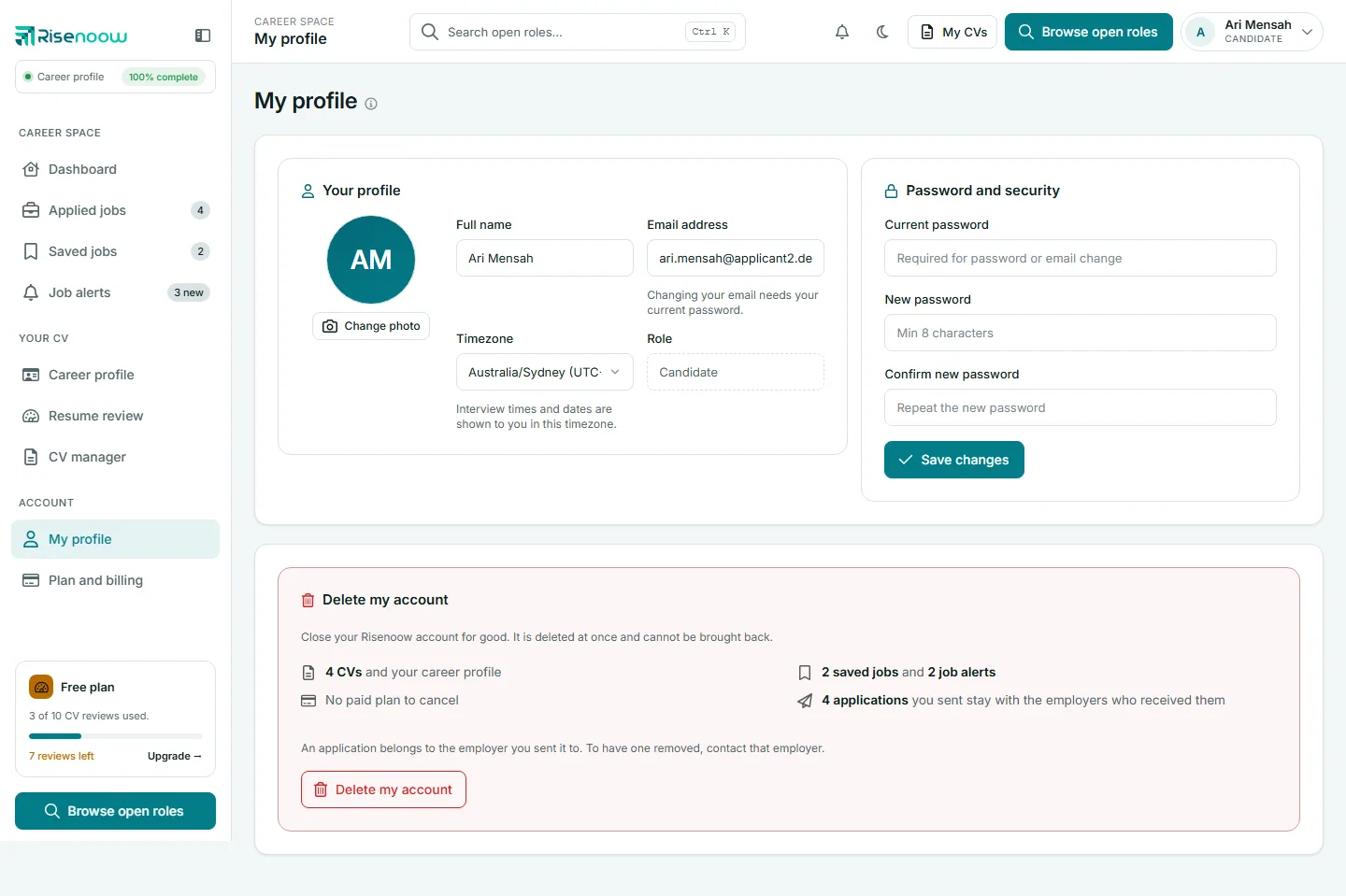
My profile and Career profile are different
My profile is your account: how you sign in and how times are shown to you. Your work history, skills and contact details for resumes live in your Career profile.
Change your name or timezone
- Open My profile in the left menu.
- Under Your profile, change Full name or Timezone.
- Select Save changes.
The message Profile updated. confirms it. Your new name appears in the account menu straight away.
Timezone matters: as the page says, interview times and dates are shown to you in this timezone. Choose the place you will be in on the day. If you leave it on Use the site default, the site's own timezone is used. Role always reads Candidate and cannot be changed.
Change your sign in email
- Type the new address in Email address.
- Type your Current password under Password and security.
- Select Save changes.
Changing your email needs your current password, to prove it is you. If another account already uses that address, the page says so and nothing changes.
Applications use the email you applied with
Applications you make with an email address are added to the portal account that uses the same address. If you change your sign in email, applications you later make with the old address are not added to this account.
Change your photo
- Select Change photo under your initials or photo.
- Choose a JPG, PNG, GIF or WebP image, up to 2 MB.
- Select Save changes.
To take a photo off, tick Remove current photo and select Save changes.
This photo shows in the portal's account menu. The photo used on resumes is set separately in Career profile, under Contact details.
Change your password
- Under Password and security, type your Current password.
- Type a New password of at least 8 characters, and type it again in Confirm new password.
- Select Save changes.
The new password must be different from the one you have. If you forgot your current password, sign out and use the reset link on the sign in page. See Sign in and passwords.
Messages you might see
| Message | What to do |
|---|---|
| Enter your current password to change your email address. | Fill in Current password. |
| The two new passwords don't match. | Type the same new password in both boxes. |
| That is the password you already have. Choose a different one. | Pick a new password. |
| Please upload a JPG, PNG, GIF or WebP image. | Choose a different image file. |
| Nothing to save: this is what your profile already says. | Nothing changed, so nothing was saved. |
Delete my account
The Delete my account card at the bottom lists what is removed and what stays with employers. See Delete your account before you use it.
Frequently asked questions
Why are my interview times wrong?
Check that your Timezone is set to where you are. Change it on My profile and select Save changes.
I applied for a job but never chose a password. How do I sign in?
Open the password reset page and use the email you applied with. Your applications are then in your portal.
Can I change my role from Candidate to employer?
No. A job seeker account stays a job seeker account. To hire, create a workspace on the employer sign up page.