Preview and publish
The Preview and publish tab of a Risenoow role shows the job description exactly as candidates read it, summarises what they will go through, and holds the button that puts the role on the public job board. Every new role starts as a draft, so nothing is public until you publish it here.
Where: Job openings, Edit on a role, then the Preview and publish tab
Who can use it: Admins and recruiters (recruiters on their own roles)
Time needed: Two to five minutes
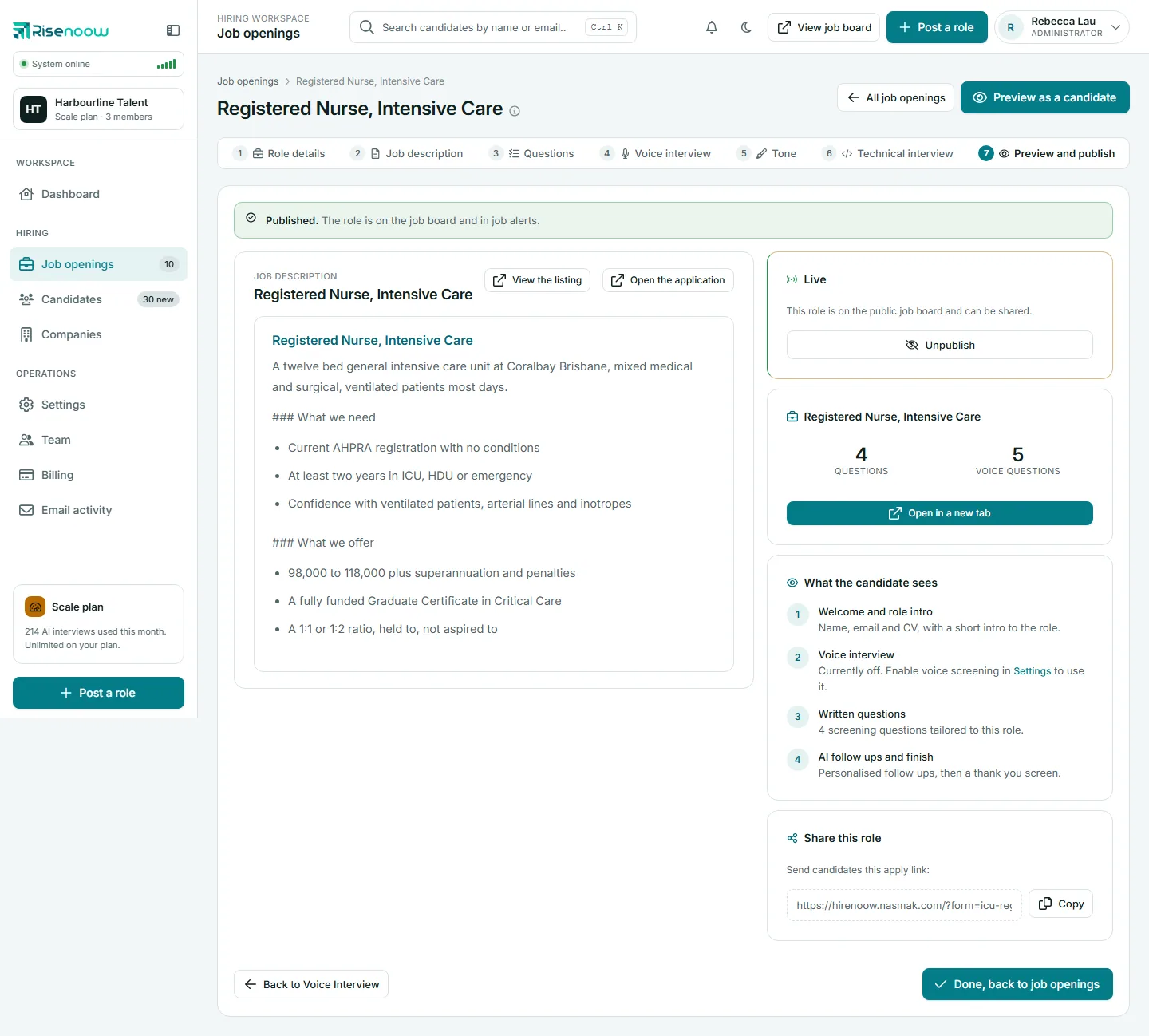
The job description
The left card shows the role's description as candidates read it, with its headings, lists, bold, italic and underline, exactly as the public job page shows them. Two buttons sit above it:
- Open the application opens the candidate application in a new tab.
- View the listing opens the public job page. It appears once the role is published.
If the role has no description yet, the card says so and offers a link to write one. The description is the whole of what a candidate reads, so add it before publishing.
Draft or Live
The first card on the right shows where the role stands.
| State | What it means |
|---|---|
| Draft | Only your team can see it. It is not on the public job board, it does not appear in job alerts and it cannot be shared yet. While the role is switched on, the application link works, so you can test it |
| Live | The role is switched on, on the public job board and in job alerts, and can be shared |
A role that was published and then switched off shows the Draft card here too, because it is not on the job board.
A banner across the top repeats this: This is a draft. or Published.
Publish a role
- Read the description through.
- Select Open in a new tab and go through the application as a candidate would.
- Fix anything on the earlier tabs.
- Select Publish this role.
- A message confirms the role is published, on the public job board, and the share link is ready.
A role needs questions
You cannot publish a role with no switched on screening questions. The page says Add at least one screening question before publishing, because a candidate would have nothing to answer.
Publish this role does exactly what Publish does on the role's card on Job openings: it checks your plan's open role limit, switches the role on and lists it on the public job board. If the role is switched off and your plan's open roles are all in use, publishing is refused with a message asking you to close a role or upgrade in Billing.
Unpublish
On a live role, select Unpublish. You are asked Take this role off the public job board? and reminded that candidates who already have the link can still apply. The role goes back to a draft. To stop all applications, disable the role instead. See Close, disable or delete.
What the candidate sees
This card lists the stages of the application for this role:
- Welcome and role intro: name, email and CV, with a short intro to the role.
- Voice interview: how many spoken questions the role has, or why there is no voice stage. It says when the role has no voice interview, when voice screening is off in Settings, or when there are no voice questions yet.
- Written questions: how many screening questions the role asks.
- AI follow ups and finish: personalised follow ups, then a thank you screen.
A second card shows the role's Questions and Voice questions counts with Open in a new tab.
Share this role
Once the role is live, Share this role shows the full apply link with a Copy button. See Share a role.
At the bottom, Back to Voice Interview (or Back to Screening Questions when the role has no voice interview) and Done, back to job openings take you on.
Frequently asked questions
Can I test a role before it is public?
Yes. The application link works while the role is a draft, as long as it is switched on. Select Open the application or Preview as a candidate at the top of any role tab.
Does publishing send the role anywhere else?
Published roles appear on the Risenoow public job board and in job alerts for candidates whose alerts match.
Why can I not publish?
Most often the role has no switched on screening questions. Publishing is also refused, here and on the role card, when the role is switched off and your plan's open role limit is reached. The message explains which.
Does unpublishing stop applications?
No. People who already have the link can still apply. Disable the role to stop applications.