Applied jobs
Applied jobs in the Risenoow candidate portal lists every role you have applied for, newest first. Each card says where the application stands in plain words, shows your screening score once it is ready, and tells you if an employer is waiting for you to book an interview.
Where: Applied jobs in the left menu
Who can use it: Every job seeker account
Time needed: Under a minute
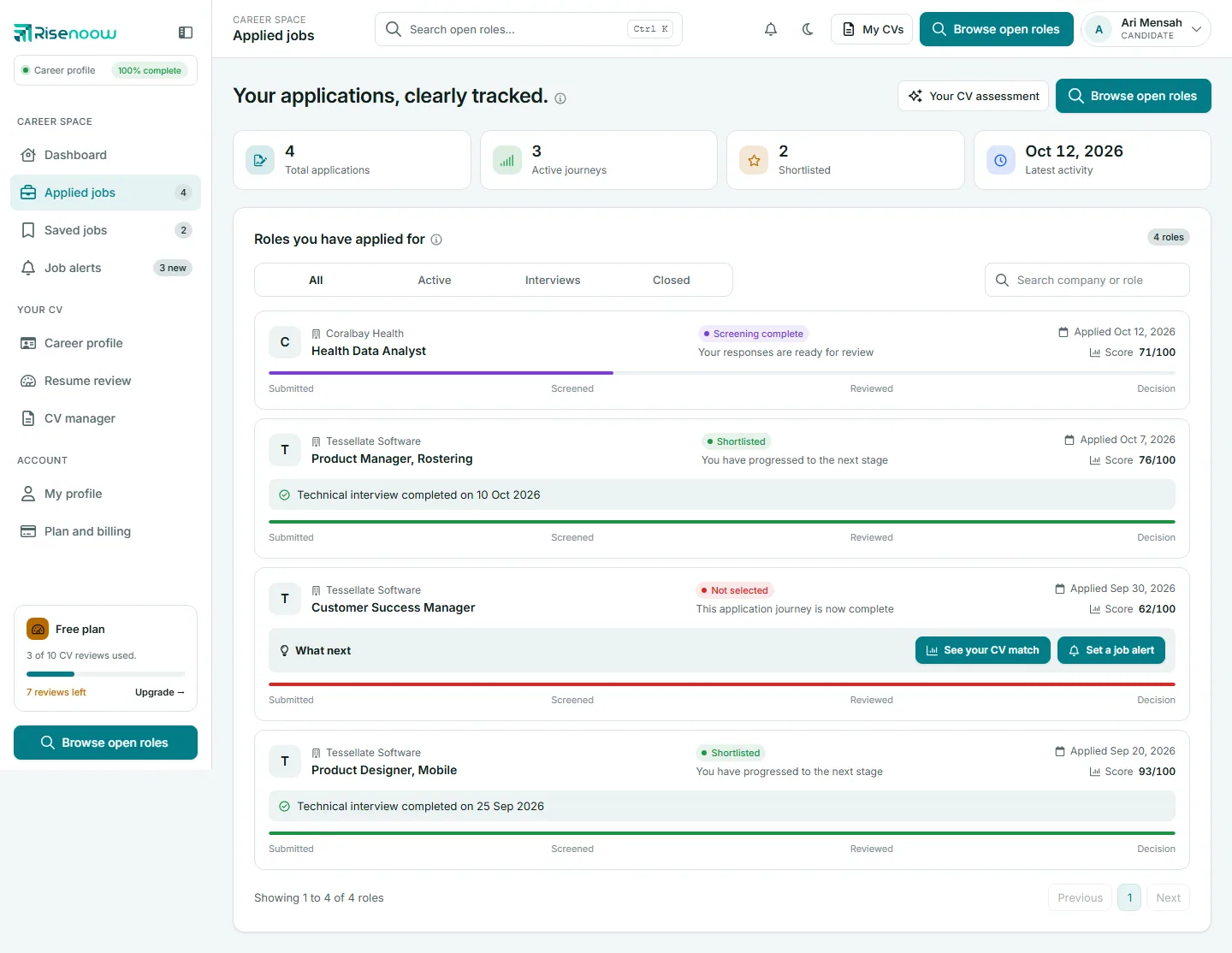
The four figures at the top
| Figure | What it shows |
|---|---|
| Total applications | Every application on your account |
| Active journeys | Applications not marked Not selected |
| Shortlisted | Applications an employer has shortlisted |
| Latest activity | The date of your newest application |
What each application card shows

- The employer and the role on the left. If an agency posted the role for another company, you see the company you applied to.
- The stage as a coloured label, with one line explaining it.
- Applied and the date.
- Score out of 100, once screening has finished. Before that the card says Being screened now.
- A progress bar along the bottom with four steps: Submitted, Screened, Reviewed and Decision.
What each stage means
| Label | What it means |
|---|---|
| Submitted | Application received. Screening has not finished yet. |
| Screening complete | Your responses are ready for review. |
| Under review | The hiring team has reviewed your application. |
| Shortlisted | You have progressed to the next stage. |
| Not selected | This application journey is now complete. |
| Screened and held | The employer is not on Risenoow yet. Your application is screened and held while we approach them. |
When a held application has been passed on, the line under the label says Delivered and names the employer. See Application stages for the full picture.
Technical interview messages
If an employer invites you to a technical interview, a band appears inside the card:
| Message | What to do |
|---|---|
| Technical interview: pick a time | Select Choose a time and book a slot. |
| Technical interview booked for a date and time | Select Open your interview when it is time. |
| Technical interview: complete by a date | Select Open your interview and complete it before then. |
| You missed your interview time | Select Pick a new time. You can do this once. |
| Technical interview completed on a date | Nothing to do. |
| Technical interview closed | The missed time was already moved once, so the invitation has closed. |
Times show in your timezone. Set it on My profile.
When you were not selected
A card marked Not selected gets a What next band with two buttons:
- See your CV match opens Resume review, so you can see how your CV reads against roles like this one.
- Set a job alert opens Job alerts with a search ready for similar roles.
Sometimes the band also lists Roles that may suit you now, with links.

Find an application
- Open Applied jobs in the left menu.
- Select a tab: All, Active, Interviews or Closed.
- To narrow it further, type a company or role into Search company or role.
- Use Previous and Next at the bottom. The page shows ten applications at a time.
Interviews shows applications with a technical interview invitation. Closed shows those marked Not selected.
Frequently asked questions
I applied but the role is not listed. Why?
Applications made with the same email as your account are added each time you open your dashboard or this page, so reload it. If you applied with a different email address, that application stays with that address.
What is the score on my application?
It is the screening score the application received, out of 100. It is different from your private CV score on Resume review, which measures your CV alone. See Scores explained.
Can I withdraw an application here?
No. The page has no withdraw button. Contact the employer directly.
What does Your CV assessment at the top do?
It opens a short summary of your newest CV review, with a link to the full analysis.