First run setup
The Get started page takes a new Risenoow workspace from empty to a first live role. It has four steps: your details, the company you hire for, your first role and, if you want, your team. Each step saves on its own, so you can stop at any point and come back.
Where: Opens by itself after you create a workspace
Who: Workspace administrators, and teammates who have just accepted an invitation
Time needed: About five minutes, plus a minute or so for your first role
How the page works
- The steps run across the top: Your details, Who you are hiring for, Your first role and Your team. The last one is marked Optional.
- Select any step in the bar to open it.
- The page opens on the first step that is not done yet. Your name was given at sign up, so most people start on Who you are hiring for.
- A step counts as done when the real thing exists, such as a saved company or a role. Nothing is ticked by hand.
- Until the first three steps are done, opening the dashboard brings you back here. Select Do this later, top right, to stop that and go to the dashboard.
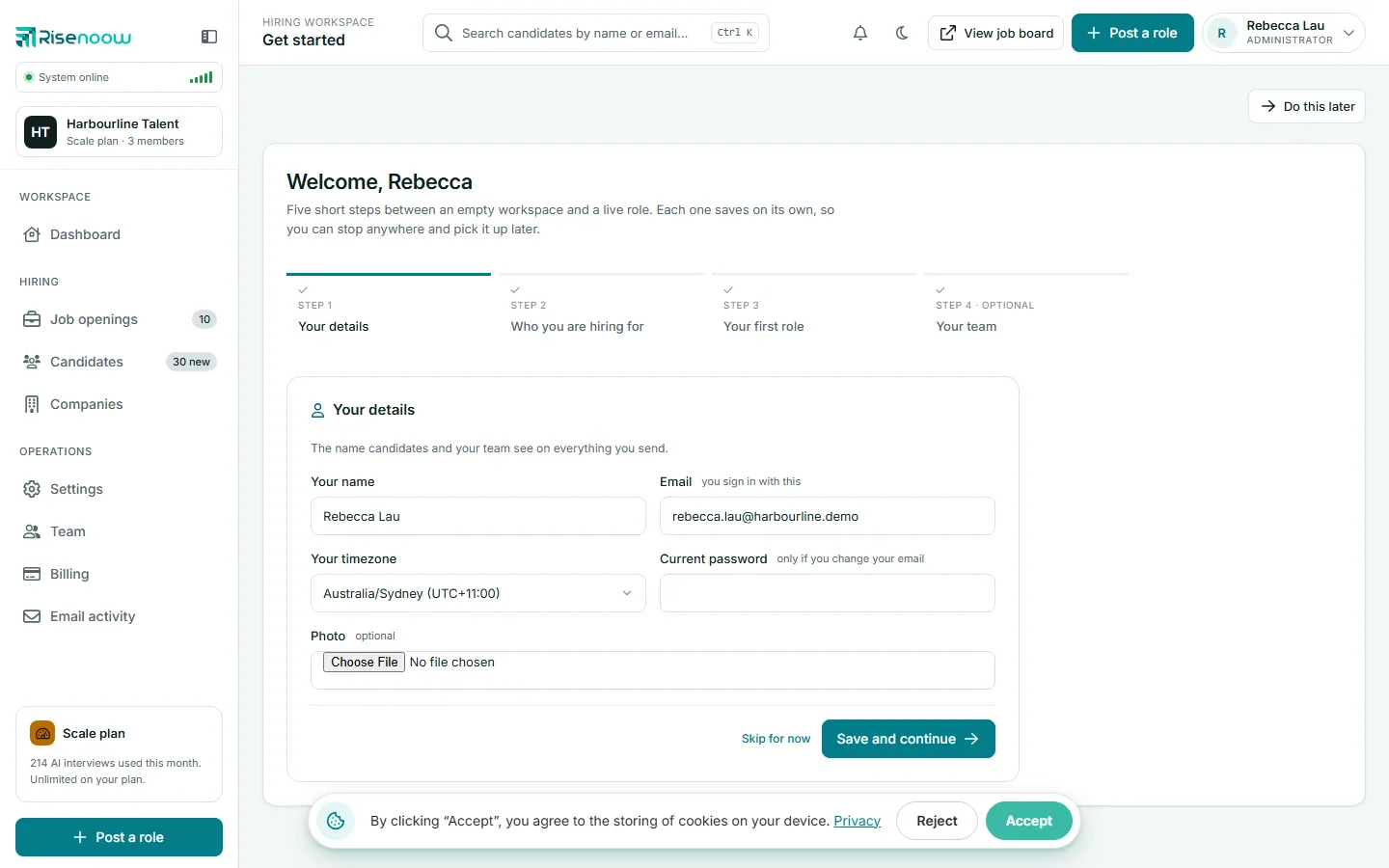
Step 1: Your details
The name candidates and your team see on everything you send.
| Field | What it does |
|---|---|
| Your name | Shown to your team and on what you send. Required. |
| The address you sign in with. | |
| Your timezone | Every date and time you see is shown in this timezone. Choose Follow the workspace default to use the workspace setting. |
| Current password | Needed only if you change your email. |
| Photo | Optional. A JPG, PNG, GIF or WebP image up to 2 MB. |
Select Save and continue, or Skip for now to move on without saving. You can change all of this later on My profile.
Step 2: Who you are hiring for
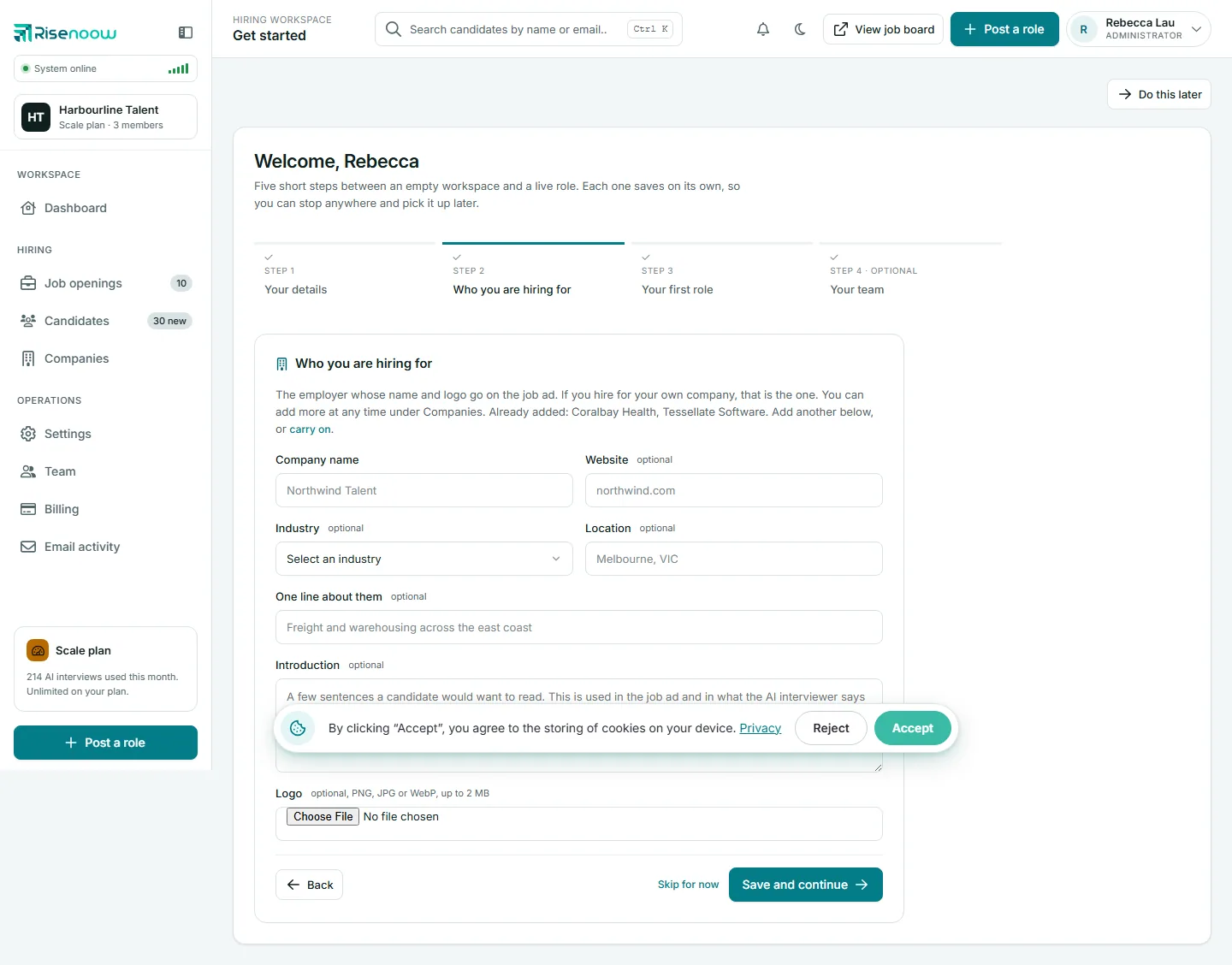
The employer whose name and logo go on the job ad. If you hire for your own company, add that one. Agencies can add more companies later under Companies.
| Field | What it does |
|---|---|
| Company name | The employer's name on the job ad. Required. |
| Website | Optional. You can leave out the https part. |
| Industry | Optional. Pick from the list. |
| Location | Optional, for example a city and state. |
| One line about them | Optional. A short line about the employer. |
| Introduction | Optional. A few sentences a candidate would want to read. It appears in the job ad and in what the AI interviewer says about the company. |
| Logo | Optional. A PNG, JPG or WebP image up to 2 MB. |
Select Save and continue. Each save adds a company. If a logo cannot be used, the company is still saved and the page tells you what went wrong with the image. See Add or edit a company.
Step 3: Your first role
Tell Risenoow what you are hiring for and it writes the job ad and the screening questions for you. It takes about a minute, and nothing goes live until you publish it.
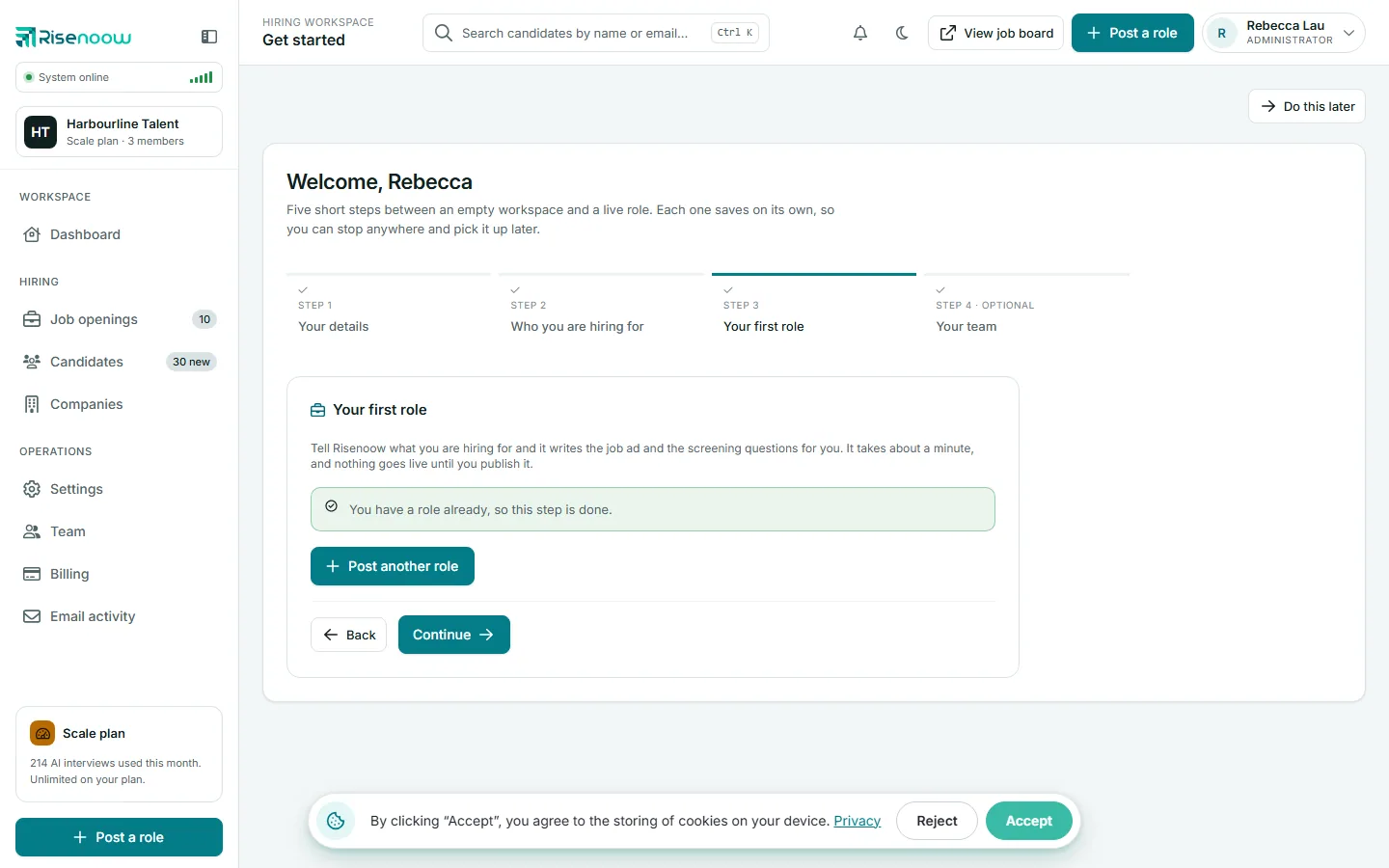
- Select Post a role. The Post a role screens open.
- Follow the steps there. See Post a role.
- Come back to Get started and select Continue.
Step 4: Your team (optional)
Invite the people who will read candidates with you. Everyone gets their own sign in, and you choose what each of them can do. You can also run a whole hire on your own.

- Select Invite someone. The Team page opens, where you send the invitation. See Invite a colleague.
- Back on Get started, select I am done here to finish and go to your dashboard.
When all the required steps are done, the page says That is the setup finished. Select Go to my dashboard.
Good to know
The first time you reach the app, a short product tour may point out the main parts of the screen. You can run it again any time from your account menu. See Search, notifications and theme.
Frequently asked questions
Can I skip the setup?
Yes. Select Do this later at the top right. You go to the dashboard and are not sent back to the setup again. You can add your details, companies, roles and team from their own pages at any time.
Why does the dashboard keep sending me back to Get started?
Until you have your details, at least one company and at least one role, the dashboard opens the setup instead. Finish those three steps or select Do this later.
Is the team step required?
No. Your team is optional. You can run a whole hire on your own and invite colleagues later from Team in the left menu.
Does my first role go live straight away?
No. A new role is a draft until you publish it. See Preview and publish.
Where do I change these details later?
Your details are on My profile in the account menu. Companies are under Companies in the left menu. Roles are under Job openings, and teammates under Team.